Create a model, try another look and add movement in Clico. Keep the saved versions, then carry your selected model straight from its preview into a Game draft.
This character was generated, textured, rigged and animated in Clico. Follow the actual saved versions through to a Game draft, with the selected model attached.
Give the character a form you can inspect.
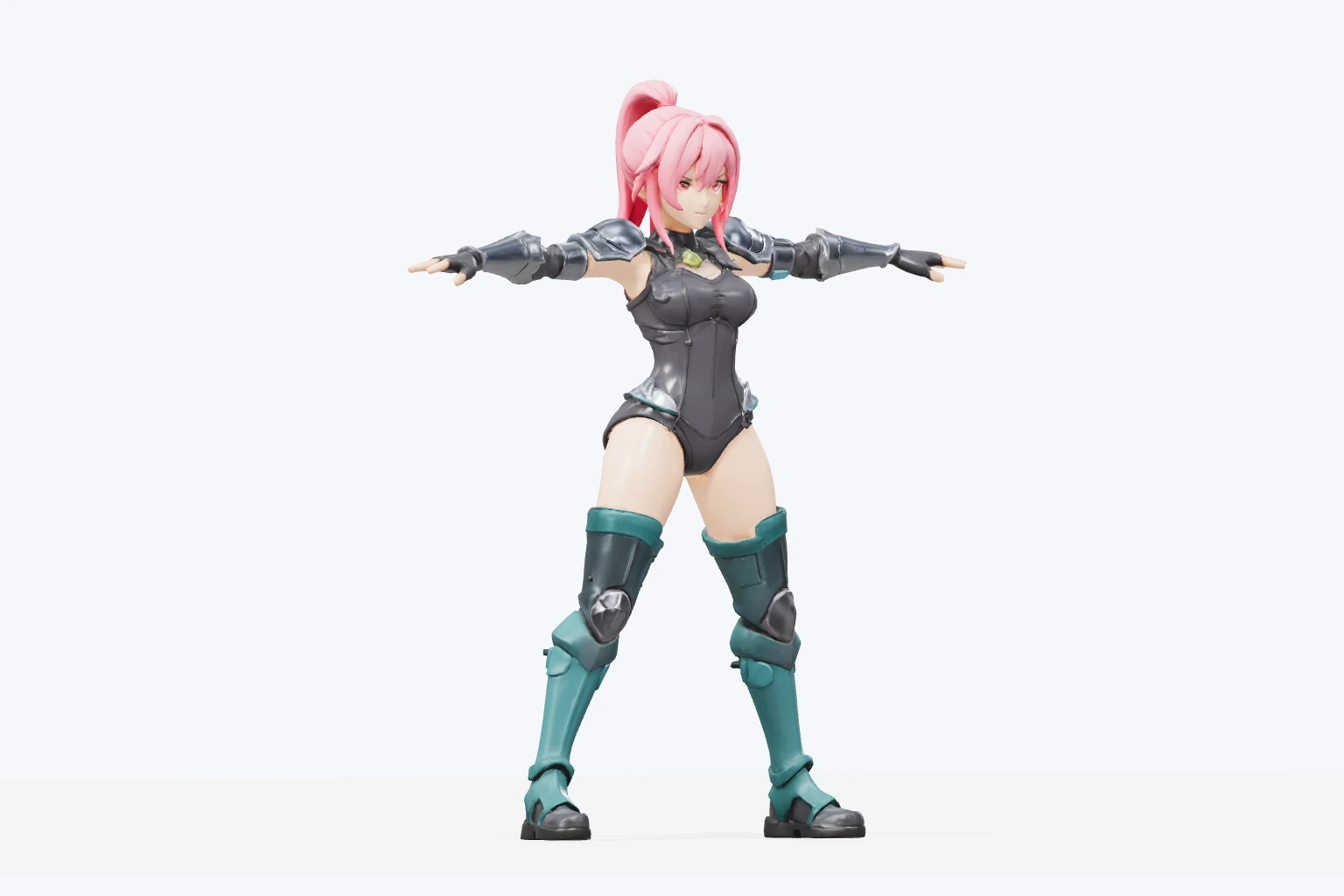
A pink ponytail, charcoal outfit, silver armor and teal boots began as a text brief in Clico. This is the actual generated model. Open it in the preview before choosing which version to texture, rig or animate.
This character was created with Text to 3D. You can also start with one image or two to four labeled views of the same subject, including an identified front view. Develop those references with the image tools when the design needs more visual direction.
The textured GLB generated from this character brief
See the shape behind the texture.
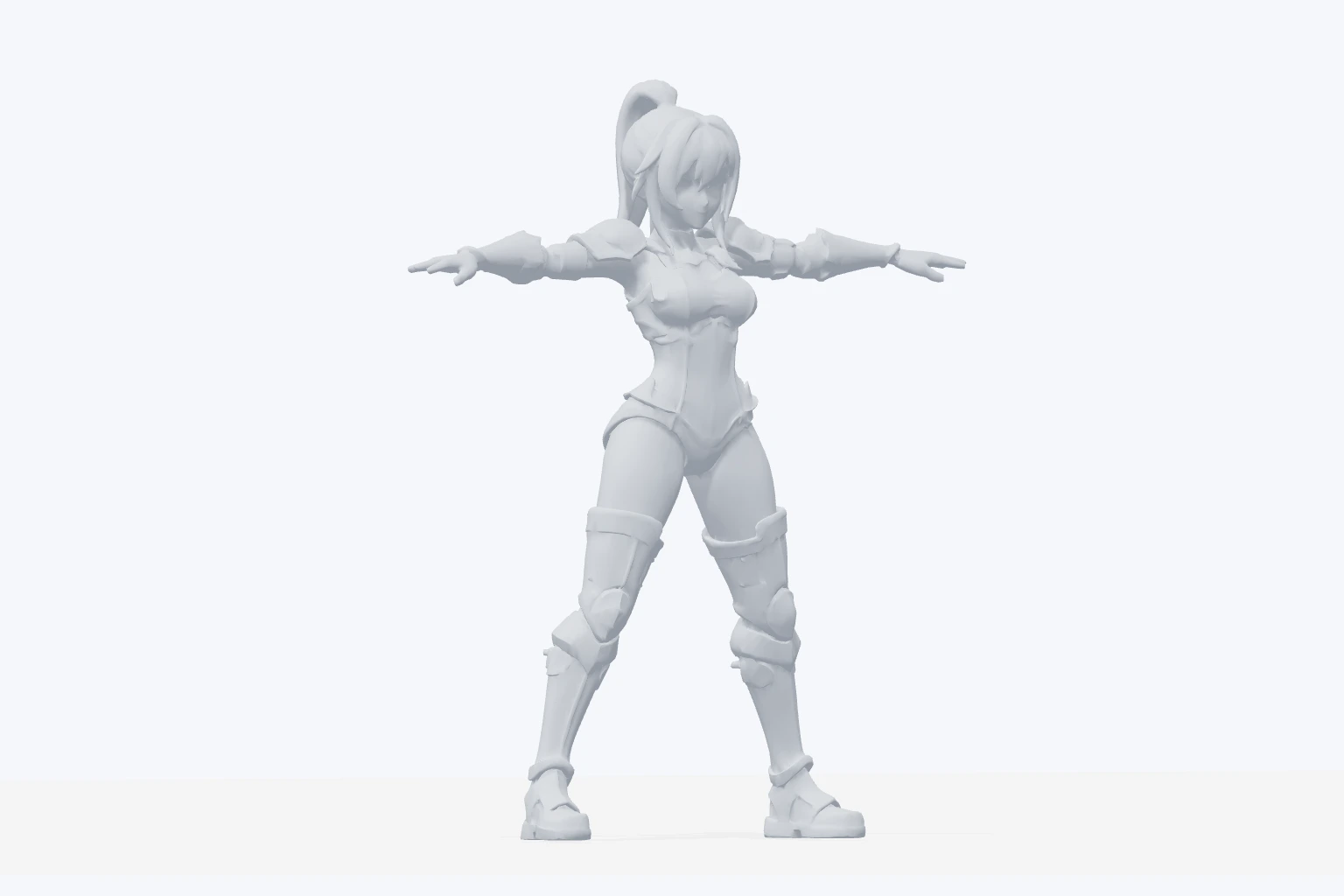
The same generated GLB is shown here with textures hidden so its silhouette and proportions are easier to see. In Clico, rotate the model and inspect the whole body before carrying it into the next operation.
Check the form
This is a geometry view of the downloaded model, not another generation. The character has 28,330 triangles and separated limbs. Decide whether its form suits your project; make a new model request if you need a different shape.
The same downloaded model, rendered without textures
Try a new look. Keep your first version.
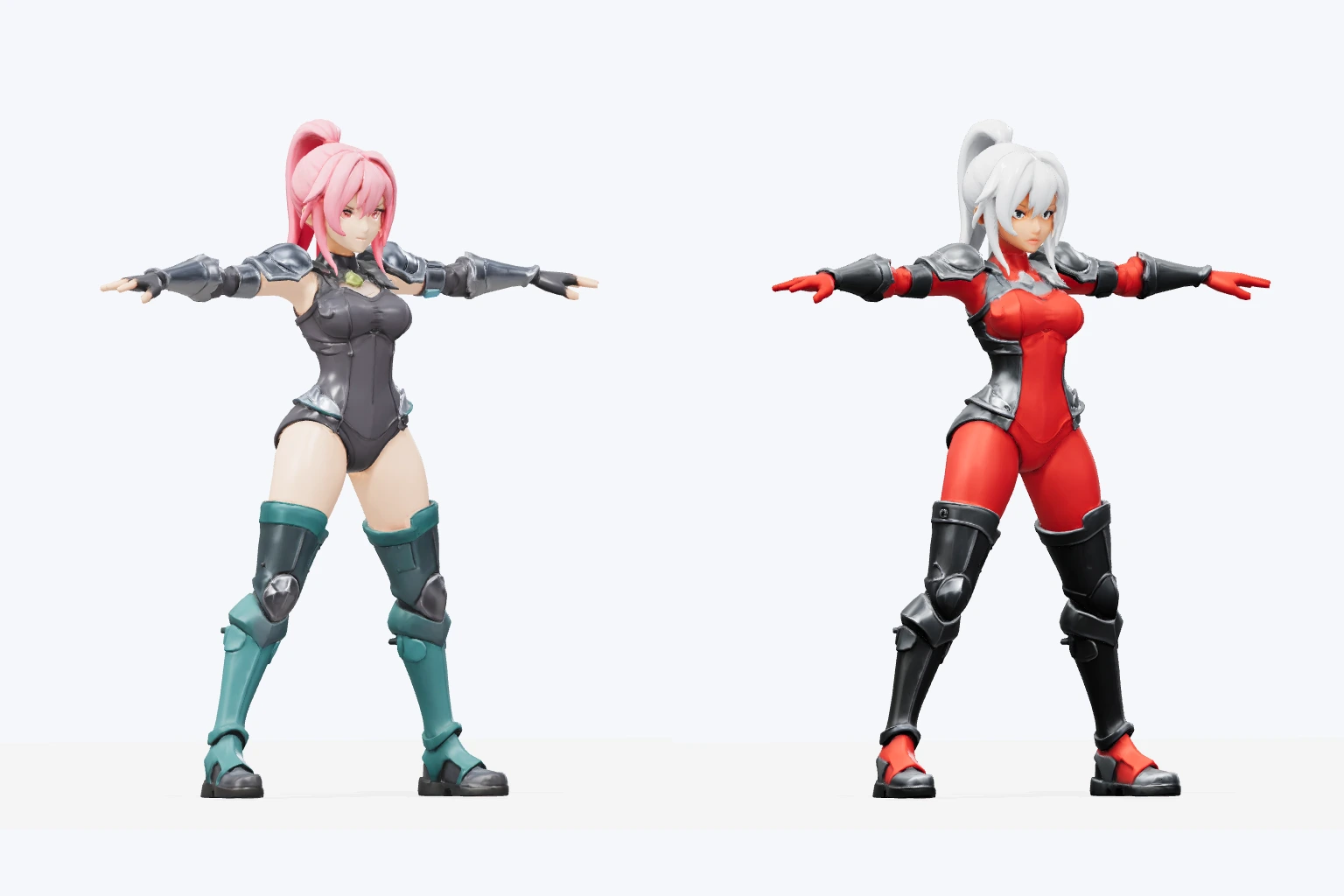
Texture returned this second saved version beside the original. The first has pink hair and teal boots; the new version has white hair and a red outfit. Compare the actual results, then choose which one to carry forward.
Choose the version to keep
Texture creates another linked result while the source stays available. Inspect the returned colors, geometry and details, then decide which version you want to rig or download. The new result is a version to review before continuing.
Original model and the linked Texture result
Give your chosen character a skeleton.
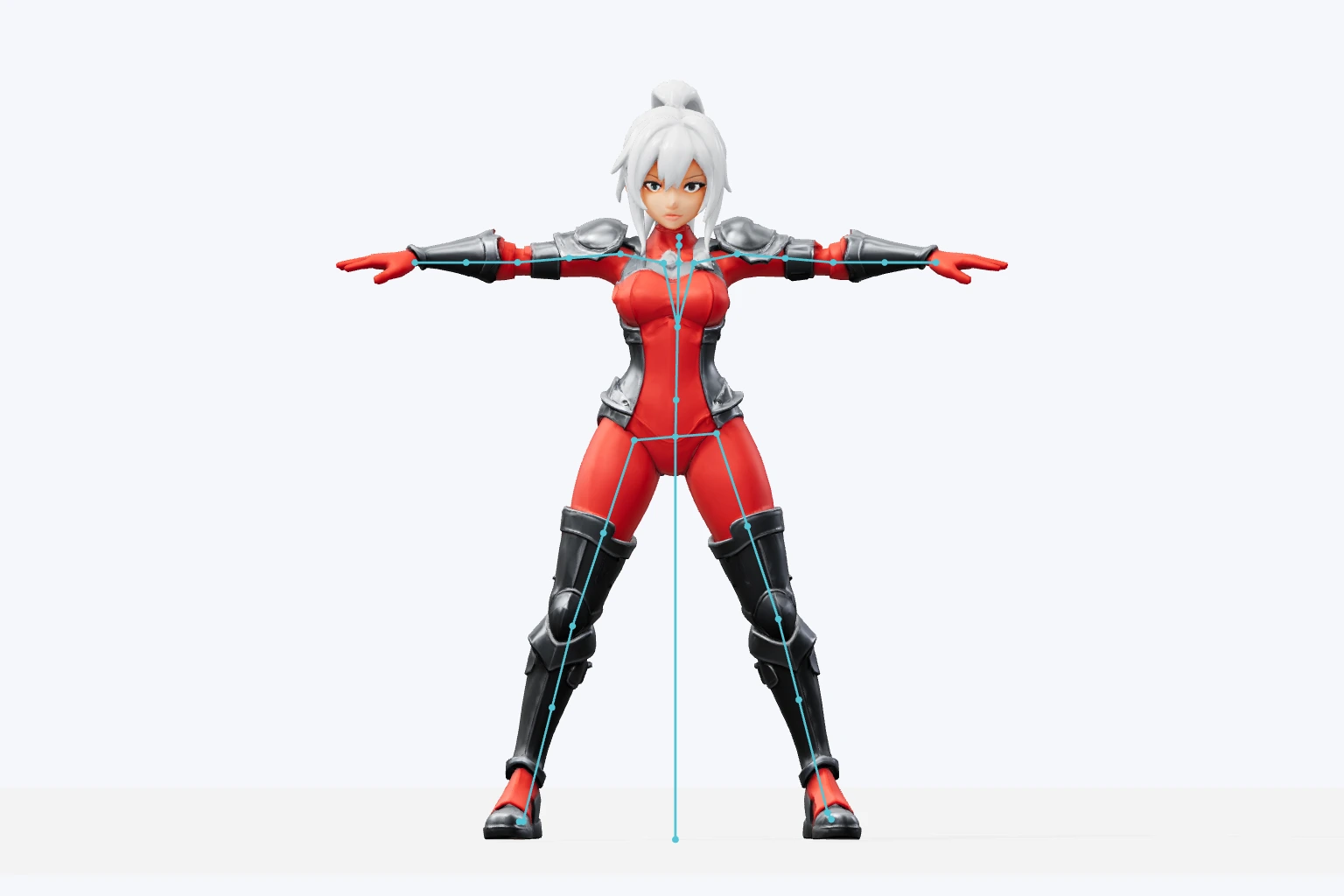
We selected the red version and chose Rig. The returned GLB contains a 41 joint humanoid skeleton and skin weights. This view shows its actual joints, so the next animation starts from the version we chose.
Check the rig
Rig creates another linked asset. This character used the two legged rig option. Inspect the successful result before requesting movement; animation needs a supported compatible rig.
The selected red version with its actual embedded rig
Watch the move on your own character.
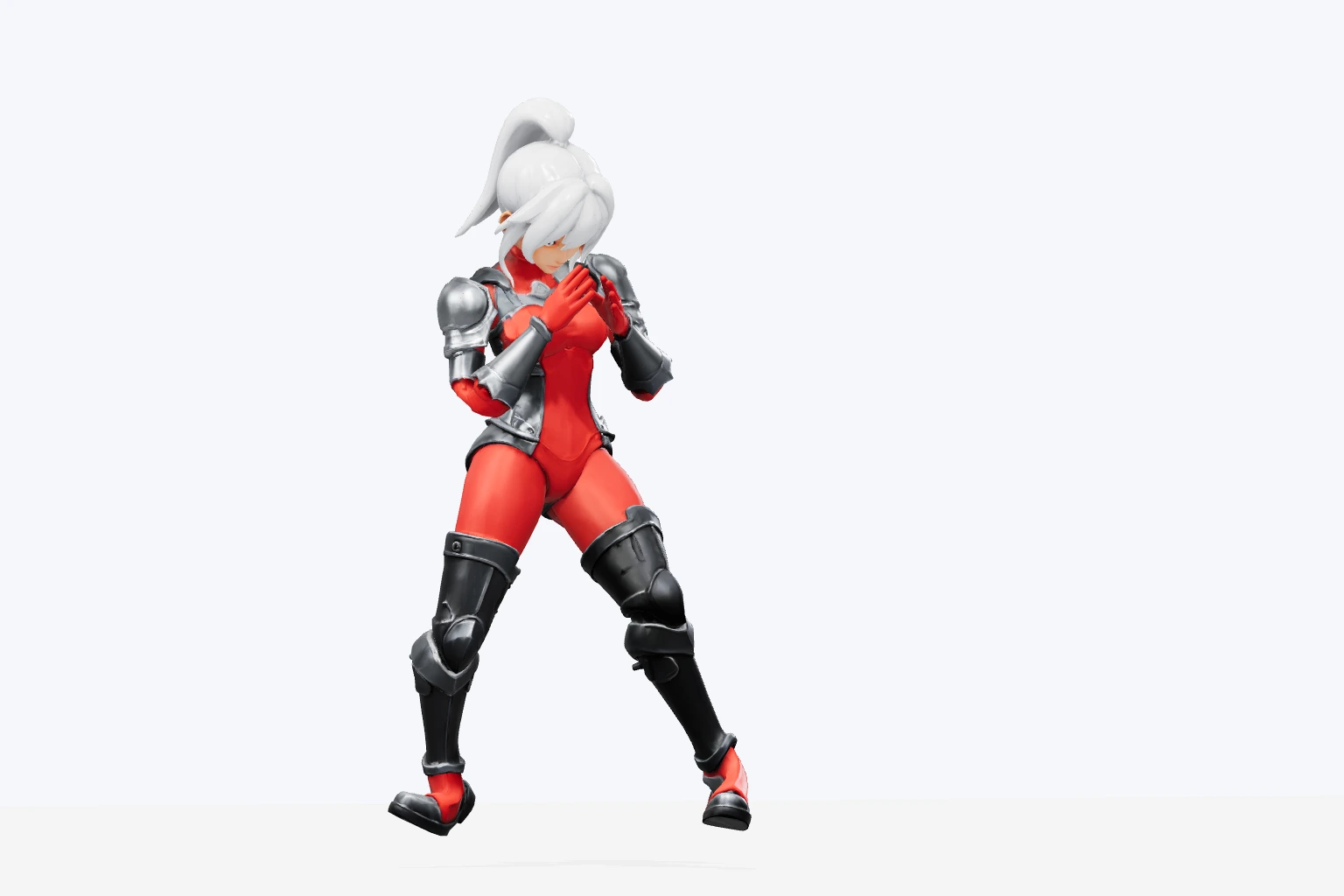
Box 01 was applied to the saved rigged version. This loop plays the embedded box_01 clip from the returned GLB. Review the movement before downloading that animated version or carrying it into a Game draft.
Choose the movement
The returned file contains the rig and a 2.23 second boxing clip. In Clico, open the model and choose the clip in the Animation menu. Check the movement on the character you selected, then keep the version that fits your project.
Box 01, played from the actual animated GLB
Your selected model is already in the draft.
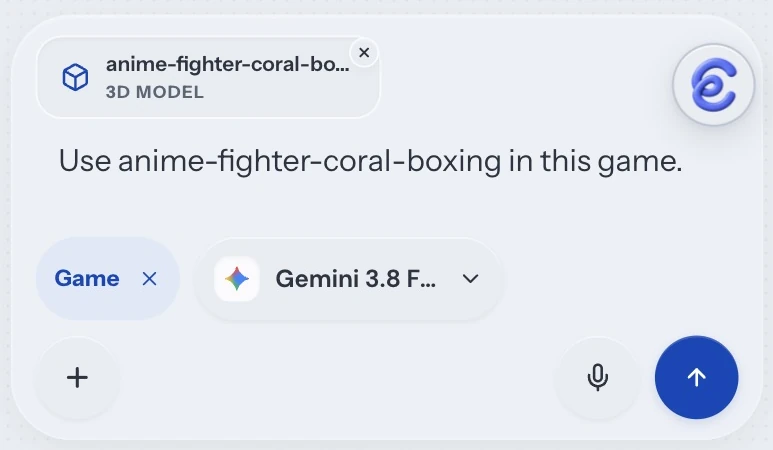
Choose Create game with this model in the preview. Clico attaches the exact selected saved asset to a Game draft. Add the world, controls and goal before building.
We chose Create game with this model on the boxing version. The new Game draft contained that exact saved asset and an editable starting brief. Add what the character does, player controls and a clear goal, then review before submitting the build.
Recreated from the verified draft with the selected boxing model attached
Choose the next step for your model.
A prop may need a new finish. A character may need movement. Start with your brief, inspect the result and continue with the selected version.
Describe the model or attach your images here. This composer carries the brief and 3D Artist into Clico. Use the 3D controls there to choose text, a single image or two to four labeled views with an identified front view.
Inspect and refine
Open the returned model in the preview. Choose Texture for a new finish or Rig for a suitable character. These operations create linked versions, keeping the source available. Use a successful compatible rig before requesting animation.
Continue with your choice
Review the selected model and any animation clip. Download that version, or choose Create game with this model to attach it to a Game draft. Add its role, controls and goal before submitting the game build.
Choose a model version and format.
Take your selected version into a game or another 3D tool.
Start a Game draft
Carry the selected model into an editable Game draft.
Download GLB
Download the selected version, with its materials and any rig or animation.
Use another 3D tool
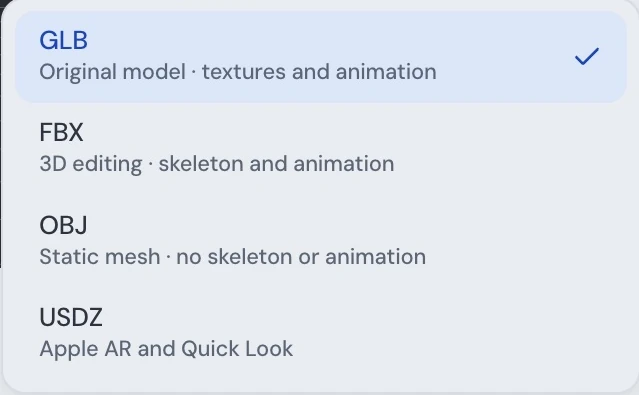
Export FBX, OBJ or USDZ. OBJ excludes skeletons and animation.
Creation, processing and first format conversions use credits. Saved conversions can be downloaded again without another conversion charge.
Yes. Describe the model for Text to 3D. Image to 3D uses one intended reference. Multiview uses two to four views of the same subject, including an identified front view.
Do changes replace my original model?+
Texture, rigging and animation create linked assets. The source remains available. Select the version you want before processing or downloading.
Can every model be animated?+
Animation needs a supported compatible rig. A suitable character can be rigged, then the successful rigged version can be animated. Static props and incompatible rigs need a different next step.
What can I download?+
Choose GLB for the saved model, or a supported FBX, OBJ or USDZ conversion. OBJ is a static mesh format. Check the exported model in the application where you plan to use it.
Does the Game action publish a game?+
It attaches the selected model to a Game draft. You still define the game and submit the build. Previewing and publishing are separate actions.