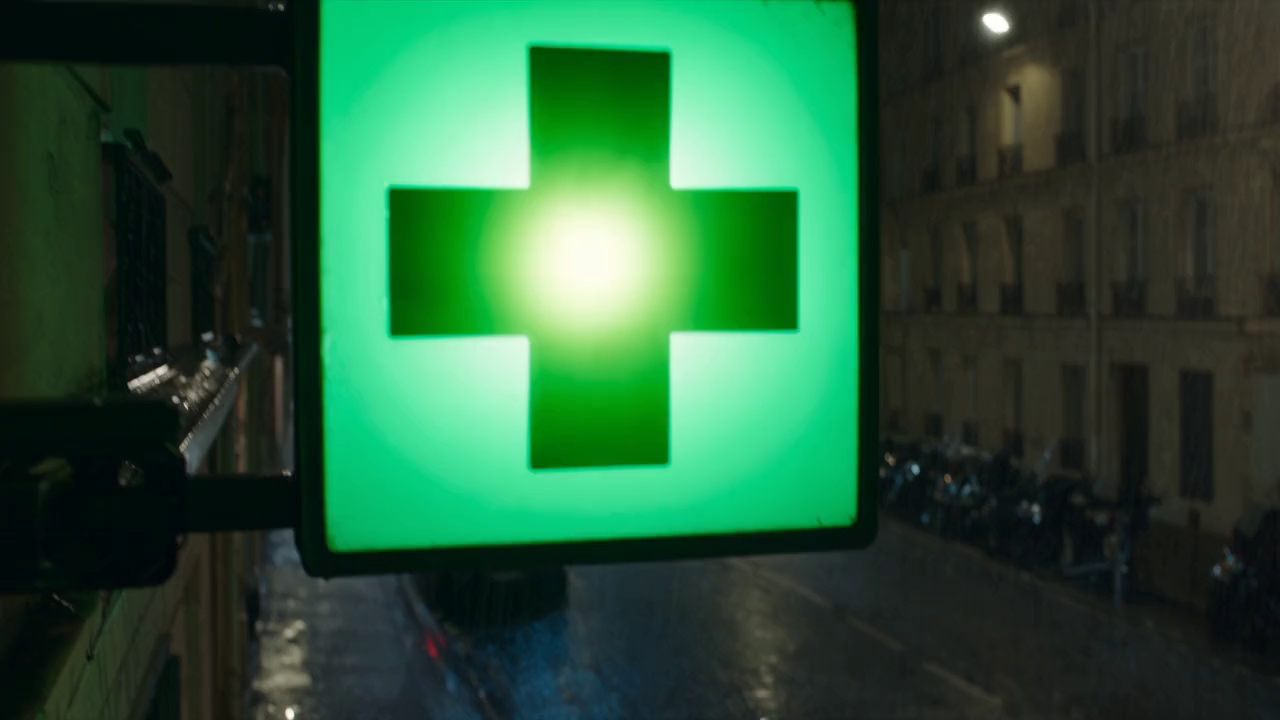
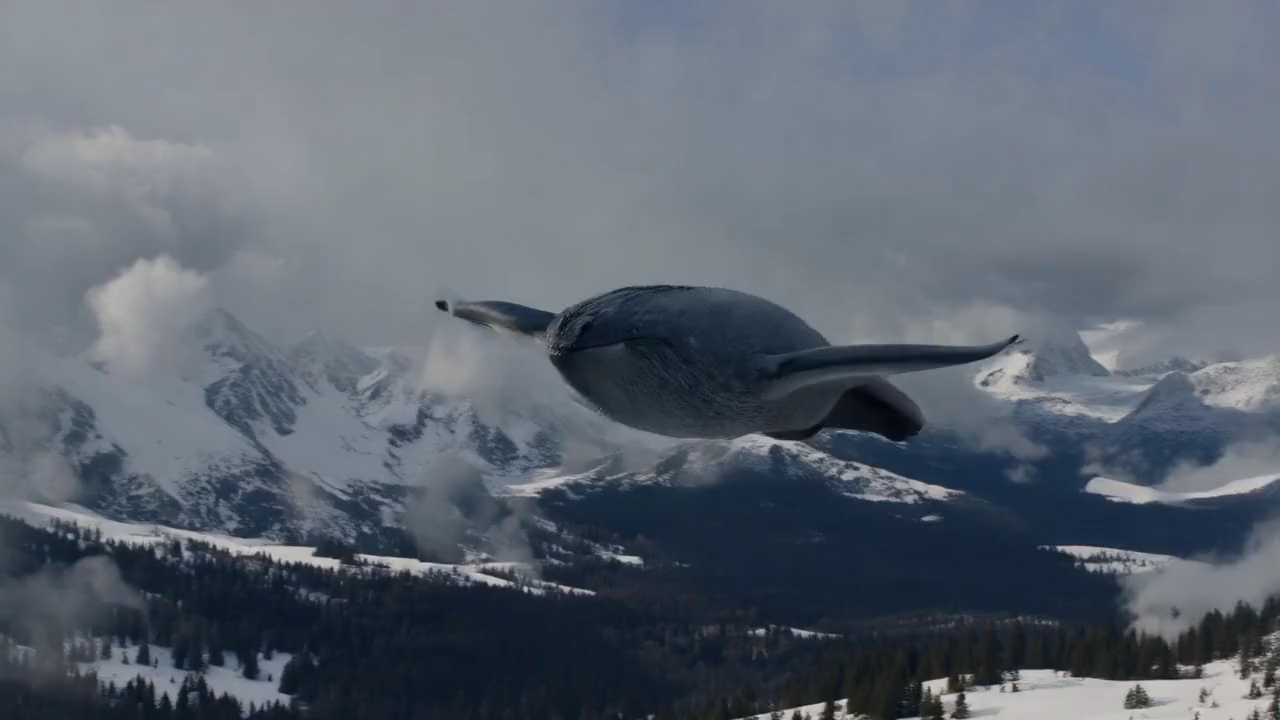
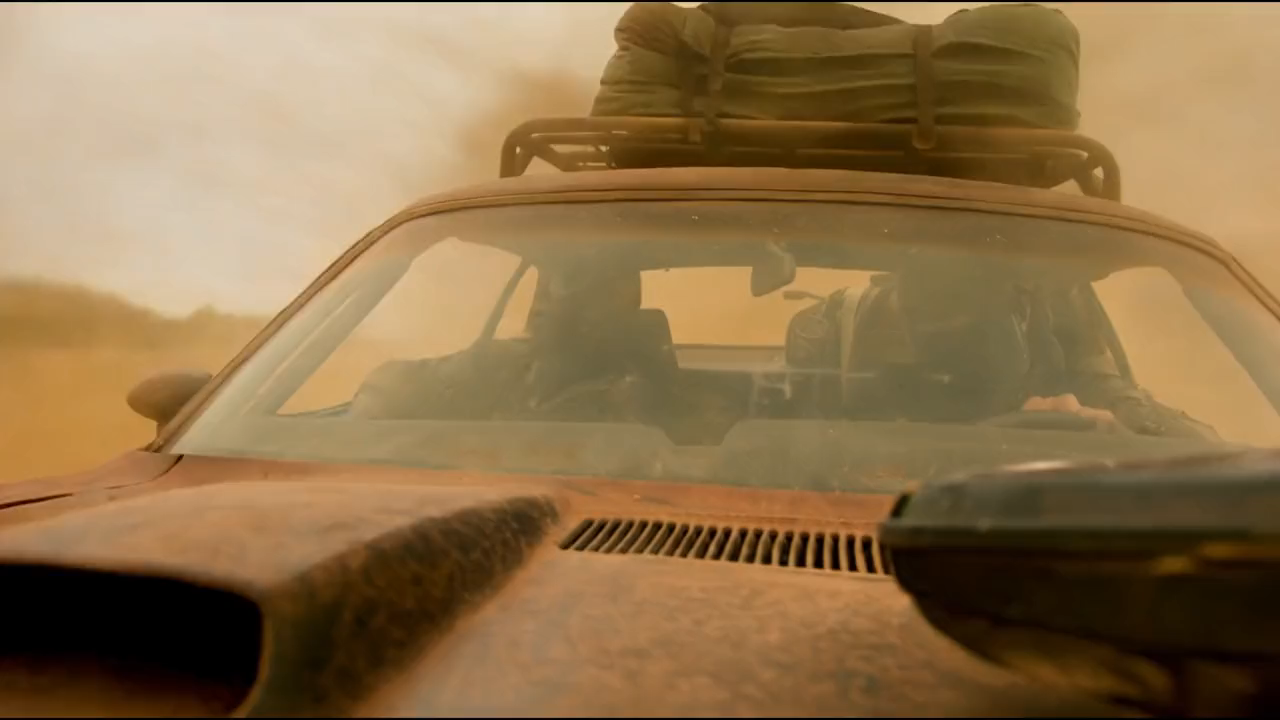
Put viewers inside the scene.
Go from text to video with Clico’s AI video generator. Add a reference image when needed, then direct cinematic camera movement and action with Video Director.

Plan the shot with Video Director in Clico Web, then choose a video model and review the draft before you generate. Start with text or an image. Video generation requires Pro or Max and credits.
Loading Clico composer…
Create cinematic scenes or bring a still image to life in Clico. Choose an example to open its reference and editable video prompt.
Go from text to video with Clico’s AI video generator. Add a reference image when needed, then direct cinematic camera movement and action with Video Director.
Animate a photo or illustration with Clico’s image to video generator. Guide realistic motion and an atmospheric look with Video Director while keeping your original image as the visual reference.
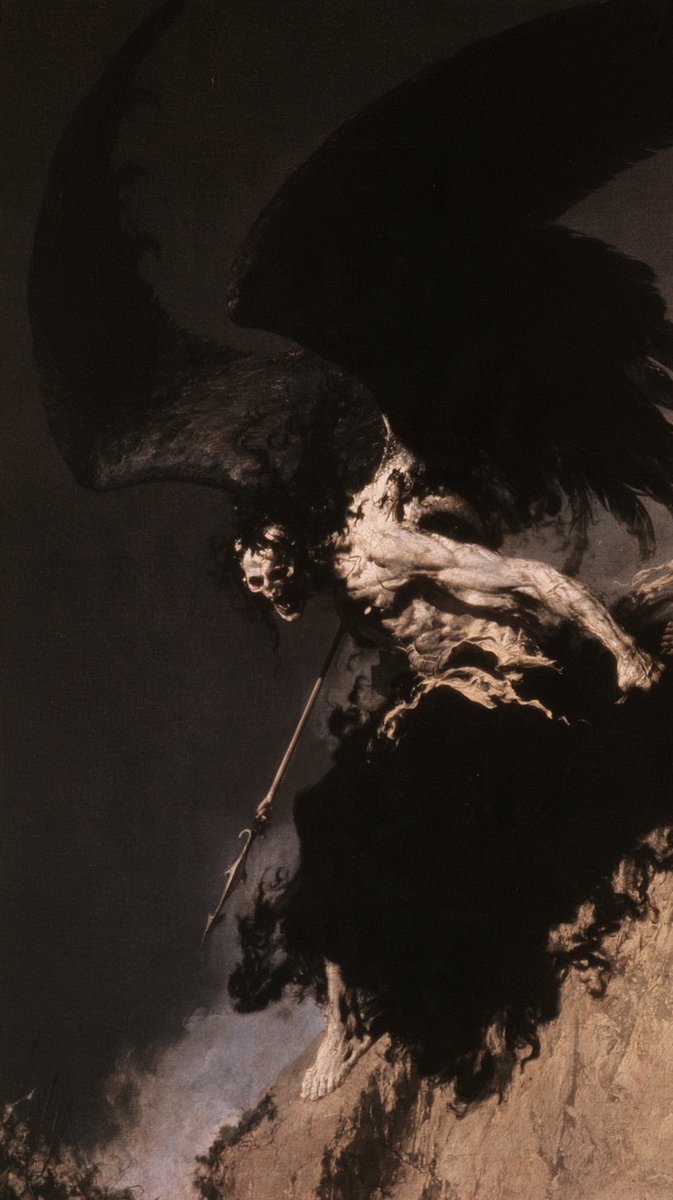
These are selected results generated with Clico Video Director and Seedance 2.5, using an eight second duration, the 720p preset and audio off. The reference images were prepared before generation. The Cthulhu image was developed separately; the angel uses reference artwork shared by Babs. The display files were normalized to eight seconds, with no added motion effects.
The buttons load the reference image and an editable starting brief. Review the draft in Clico Web before you generate. Video generation requires Pro or Max and credits. Browse Clico Gallery for more images, video examples and prompts to try.
Start with a simple idea or reference image. Clico’s Video Director helps turn it into a shot brief, working out the action, camera and details to keep before you generate.
Describe what you want to see in everyday language. Video Director helps work out the action, camera and ending, then shape them into a brief you can review.
Use Image Generator to create or revise a reference in the same chat. Choose the image to use, then describe its motion for a compatible video model.
Continue the same video brief when you switch models in the chat. Clico shows the inputs, length, aspect ratio, resolution and audio controls supported by your selection.
Open Edit on the video in your chat, refine the cut and create music for the scene. Keep the project in the conversation while you review and export.
Open Edit on the video in your chat. Tell Clico where to trim, how to arrange the clips or which title to add with AI Video Editor.
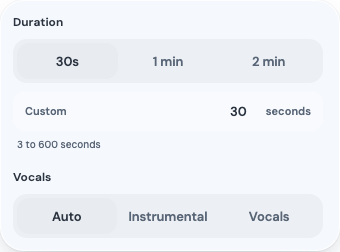
Ask AI Music Generator for a soundtrack in the editing conversation. Listen, choose a track, then ask Clico to add it and set its volume and fades.
Preview the saved edit and adjust the timing or sound. Use the download control to export the version you choose as MP4. Your generated clips are also saved in Library.
Load the forest traveler’s starting image and reconstructed prompt into Clico. Review the brief and Runway settings before generating your own version.
Load the forest traveler’s starting image and reconstructed prompt into Clico. Review the brief and Runway settings before generating your own version.
Source showcase. Reconstructed prompt, not yet tested. View source and model details.
Start with the seaside reference and a conversation brief. Review the characters, gestures and Seedance settings in the draft before generating.
Source showcase. Reconstructed prompt, not yet tested. View source and model details.
Load the pursuit prompt and starting frame into Clico. Review the low helicopter view, continuous action and Runway settings before submitting.
Source showcase. Reconstructed prompt, not yet tested. View source and model details.
Use the floating chair scene as a starting point for a video prompt. Describe how the chair, water and camera should move, then review the draft in Clico Web.
Load a brief for a raffia tote lifted from a cafe table. Specify the woven texture, handling and camera move before generating in Clico.
Start from the botanical prompt: one stem grows and unfolds into blossoms. Keep the background, visual style and ending clear in the brief.
Open a boat passenger view as a video brief. Direct the forward movement toward the villa and the water around the bow.
Load a motion brief for a painted figure raising a hand as stars drift outward. Ask to retain the chalky texture and inspect it in the generated clip.
Use the exhibition prompt to direct moving projections, changing light and visitors. Review the setting and camera path in Clico before generating.
Clico’s video composer offers Seedance, Runway, Kling and Veo. Select a model to see its supported frame inputs, duration, aspect ratio, resolution and audio controls. See the video model directory for details.
 ByteDance
Create from text or reference images, with first and last frame support.
Estimated credits per clip
≈ 240.36 credits8 sec · 720p · 16:9 · Audio offByteDanceCreate from text or reference images, with first and last frame support.
Estimated credits per clip
≈ 78.62 credits8 sec · 720p · 16:9 · Audio offByteDanceCreate from text or reference images, with first and last frame support.
Estimated credits per clip
≈ 157.25 credits8 sec · 720p · 16:9 · Audio offByteDanceCreate from text or reference images, with first and last frame support.
Estimated credits per clip
≈ 94.35 credits8 sec · 720p · 16:9 · Audio off MiniMax
Create from text, with first and last frame support.
Estimated credits per clip
≈ 83.2 credits8 sec · 768p · 16:9 · Audio offMiniMaxCreate from text or reference images, with first and last frame support.
Estimated credits per clip
≈ 135.2 credits8 sec · 2K · 16:9 · Audio off Alibaba
Create from text or reference images, with first frame support.
Estimated credits per clip
≈ 104 credits8 sec · 720p · 16:9 · Audio offAlibabaCreate from text or reference images, with first frame support.
Estimated credits per clip
≈ 145.6 credits8 sec · 720p · 16:9 · Audio offAlibabaCreate from text or reference images, with first and last frame support.
Estimated credits per clip
≈ 104 credits8 sec · 720p · 16:9 · Audio offAlibabaCreate from text or reference images, with first frame support.
Estimated credits per clip
≈ 102.75 credits8 sec · 720p · 16:9 · Audio off xAI
xAICreate from text or reference images, with first frame support.
Estimated credits per clip
≈ 145.6 credits8 sec · 720p · 16:9 · Audio offxAICreate from text or reference images, with first frame support.
Estimated credits per clip
≈ 72.8 credits8 sec · 720p · 16:9 · Audio off Kling
KlingCreate from text or reference images, with first and last frame support.
Estimated credits per clip
≈ 116.48 credits8 sec · 720p · 16:9 · Audio offKlingCreate from text or reference images, with first and last frame support.
Estimated credits per clip
≈ 87.36 credits8 sec · 720p · 16:9 · Audio offKlingCreate from text or reference images, with first and last frame support.
Estimated credits per clip
≈ 72.8 credits5 sec · 720p · 16:9 · Audio off Google
Create from text or reference images, with first and last frame support.
Estimated credits per clip
≈ 416 credits8 sec · 720p · 16:9 · Audio onGoogleCreate from text or reference images, with first and last frame support.
Estimated credits per clip
≈ 104 credits8 sec · 720p · 16:9 · Audio onGoogleCreate from text or reference images, with first and last frame support.
Estimated credits per clip
≈ 52 credits8 sec · 720p · 16:9 · Audio on Runway
Create from text or reference images, with first frame support.
Estimated credits per clip
≈ 124.8 credits8 sec · 720p · 16:9 · Audio off Black Forest Labs
Create from text or reference images, with first and last frame support.
Estimated credits per clip
≈ 176.8 credits8 sec · 720p · 16:9 · Audio offOutput estimates use the settings shown. Clico also uses credits for chat and other activity.
Video generation requires Pro or Max and available credits. Your monthly balance is shared across images, videos and chat.
$19.90USD / month
$49.90USD / month
Video example: 10 sec · 720p · 16:9 · Audio off. Other models and settings use different amounts. These examples use the full monthly balance; chat and other activity reduce the number available.
Video counts use Seedance 2.0 Mini at approximately 98.28 credits per clip. GPT Image 2.5 counts are broad estimates, not a fixed allowance for Flare or Sunburst at a specific quality or size. Max image counts scale the Pro estimate by its 2.5 times larger balance. Unused monthly credits do not roll over.
Yes. Describe the scene you want to create, including the subject, setting, action and camera movement. Choose a video model and its compatible settings, continue to Clico Web, then review and submit. You do not need an existing picture to start from a text prompt.
If a particular product photo, character design or composition must guide the clip, use Image to Video and supply that image. Review the result for changes to important details.
Write the shot in order: establish the subject and setting, describe one main action, then specify the camera and ending. For example: “A chrome car moves through a sunlit desert. The camera tracks beside it as sand drifts near the wheels, ending on a close view of the front wheel.” Add a visual style and sound only when they help define that shot.
Google’s Veo prompt guide explains these elements. Browse our AI video prompt examples to compare scene direction with the visible motion. A reference clip illustrates an idea, not a guaranteed reproduction.
Yes. Choose Video Director in Clico and ask for a concept, script, shot plan or motion prompt before requesting a render. Discuss the audience, visual style, key action and the details that should continue between shots. You can refine that plan in the same conversation.
Then choose a generation model and settings for the clip you want to make. Planning first helps clarify the request; it does not mean every proposed shot has already been generated. Browse video prompts in Clico Gallery for visual directions to discuss.
You can use Clico to develop scripts, character and scene references, shot descriptions and individual generated clips. For an ad, start with the product and the action that communicates its value. For a short drama, work through the sequence and continuity before generating each shot.
Keep important character and location details in the conversation and review clips as you go. The AI Image Generator can help establish visual references. Generating individual shots does not automatically produce a fully assembled, edited film.
Choose by the inputs and settings your shot needs: reference images, first or last frames, duration, aspect ratio, resolution and generated audio. These options vary across the models shown above. Clico updates compatible settings when you select a different model.
Test the same brief when comparing models, and judge motion, subject consistency and composition as well as sharpness. Google’s Veo documentation explains Veo capabilities, while the Clico composer determines which controls are available here.
Describe camera motion separately from subject motion. “The camera stays still while the person turns toward the window” is clearer than “make it cinematic.” Name clothing, product shape, lighting or scene details that should remain consistent, especially when using a reference image.
Google’s camera and framing examples help distinguish a pan, a tracking shot and a close view. These are generation instructions, so inspect the result for unwanted movement or changes.
Some video models expose generated audio, while others do not. Choose a compatible model and check the audio setting in the composer. When audio is available, describe the sound you want alongside the visual action, such as waves, footsteps or room ambience.
Google’s Veo documentation includes audio prompting examples. Provider audio capabilities are not shared by every Clico model, and a generated soundtrack still needs review for timing and suitability.
Duration, aspect ratios and resolution depend on the selected model. Choose a supported portrait format for a vertical composition or a landscape format for a wide scene. Check the model’s available settings before writing a sequence that needs a particular length.
For a longer story, plan several focused shots. FIELD 07 with a still camera in Clico Gallery shows a short product clip with its motion prompt and source image.
Video generation requires Pro or Max and available account credits. The model and requested settings affect the work being submitted, so check your account before generating multiple versions. Preparing a prompt on this page and opening its draft do not automatically submit a video request.
See Clico pricing for current plan information. Start by reviewing the brief and creating a focused clip, then use the result to decide which change is worth testing next.
Clico records generation as a task, so you can return to the conversation and check the pending request or completed result. Rendering time depends on the model, provider and request; opening a draft is separate from submitting a generation task.
Review the finished clip before requesting another version. In Clico Gallery, compare FIELD 07 with a still camera and FIELD 07 with a slow orbit, both made from the same product photo.