Let the work lead to an enquiry.
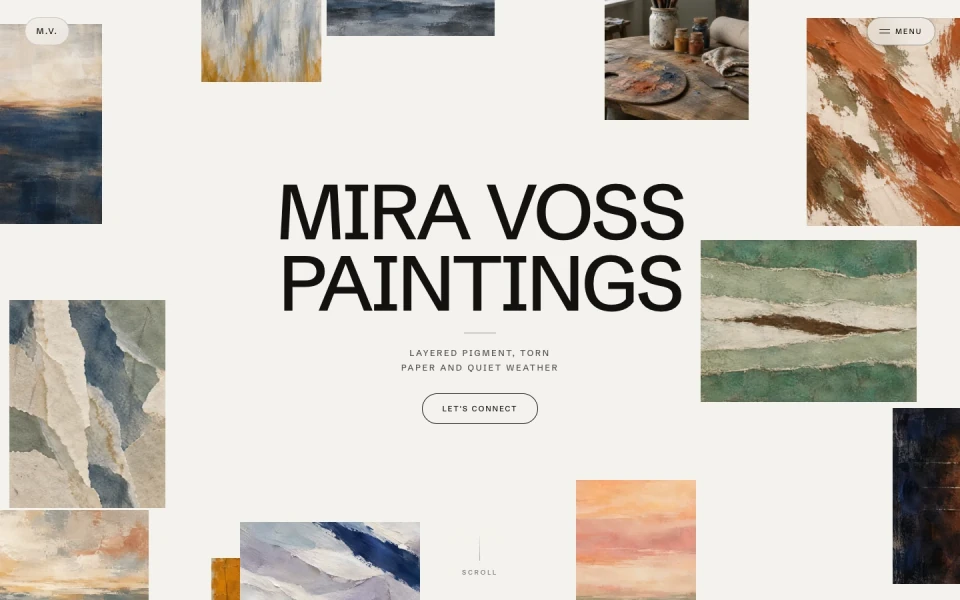
Mira Voss puts paintings first, then gives visitors the artist’s story and a way to get in touch. Explore the existing Clico portfolio to see how the work and the contact path fit together.
Explore the portfolio
Shape the copy and create its images in the same Clico conversation. Carry the chosen brief and available images into a Website project you can preview, revise and publish.
Mira Voss puts paintings first, then gives visitors the artist’s story and a way to get in touch. Explore the existing Clico portfolio to see how the work and the contact path fit together.
Explore the portfolio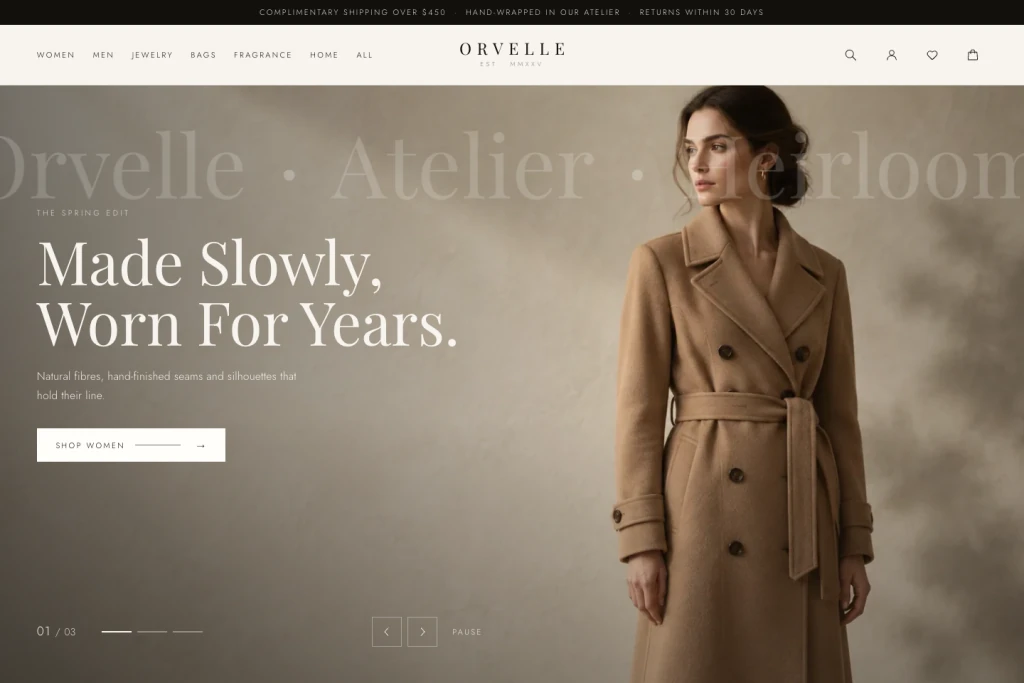
Orvelle introduces a collection through editorial imagery and collection navigation. A page like this can point visitors to an existing store, while the store handles checkout, inventory and customer accounts.
Explore the collectionShape the copy in chat, create the images it needs and carry the confirmed brief into Website. Your build starts with the decisions you have already made.
Paper Harbor started with artwork and a confirmed brief in Clico chat. Create website carried the chosen image into this launch page, with the premise, rules and controls. Its main button takes visitors straight to the instructions.
We confirmed the launch page requirements in the same conversation that held the generated harbor image, then chose Create website. The image entered the new project as a reference file and appears in its finished preview. The page is a launch draft: its button goes to Controls. Add and verify a real published game URL before promising that visitors can play from it.
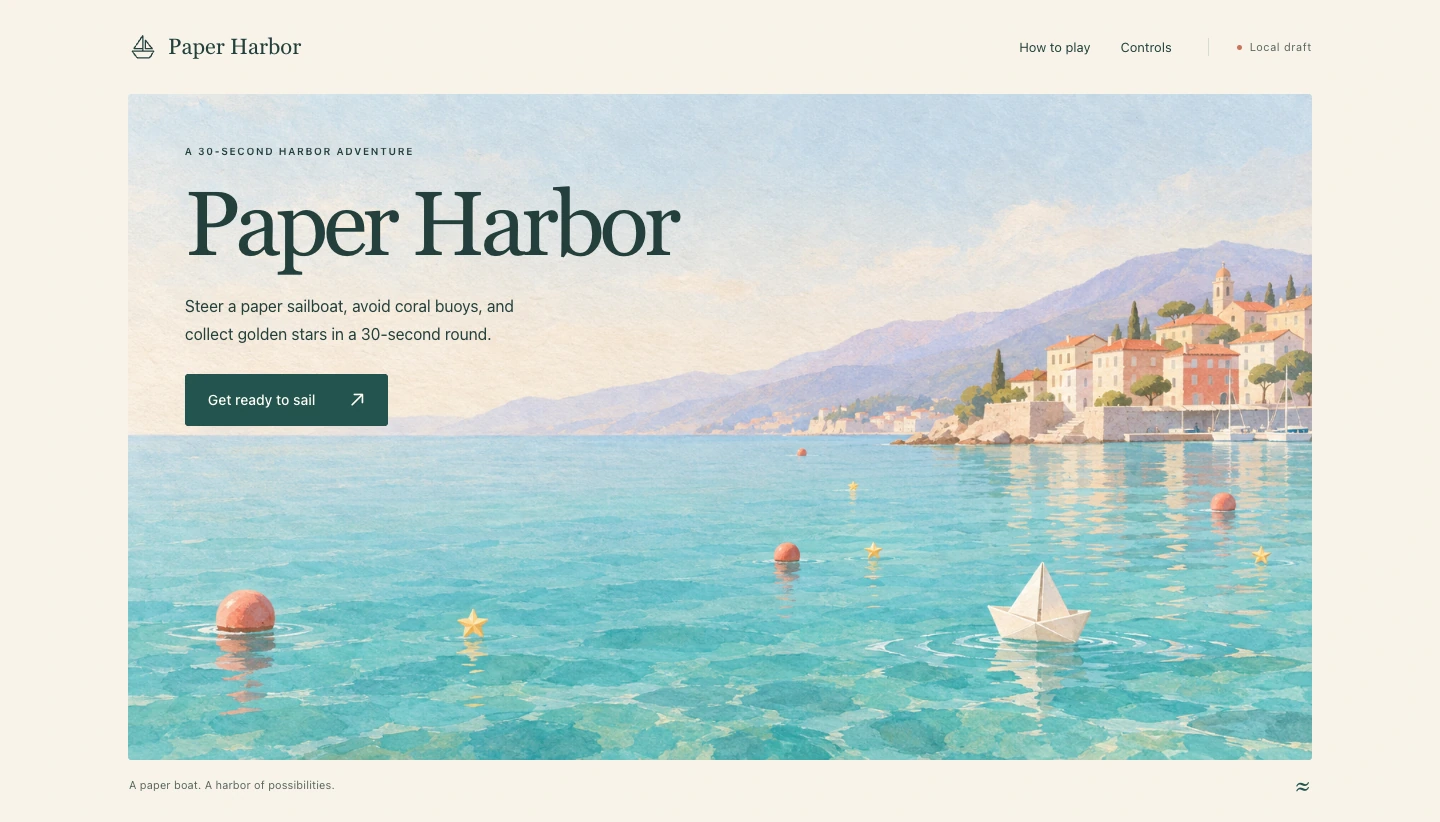
This Paper Harbor launch image was generated in Clico and reviewed for its page role. The brief pairs a paper boat, buoys and stars with a quiet upper left area for the headline. Choose the image you want, then carry it with the confirmed brief into a Website project.
Direct the image for the job it needs to do. For Paper Harbor, the launch image introduces the boat, hazards and collectibles while leaving room for copy. Check the returned composition before selecting it. In the planning conversation, confirm the selected image and page requirements, then choose Create website. Available supported images and the confirmed brief can carry into a new Website project.
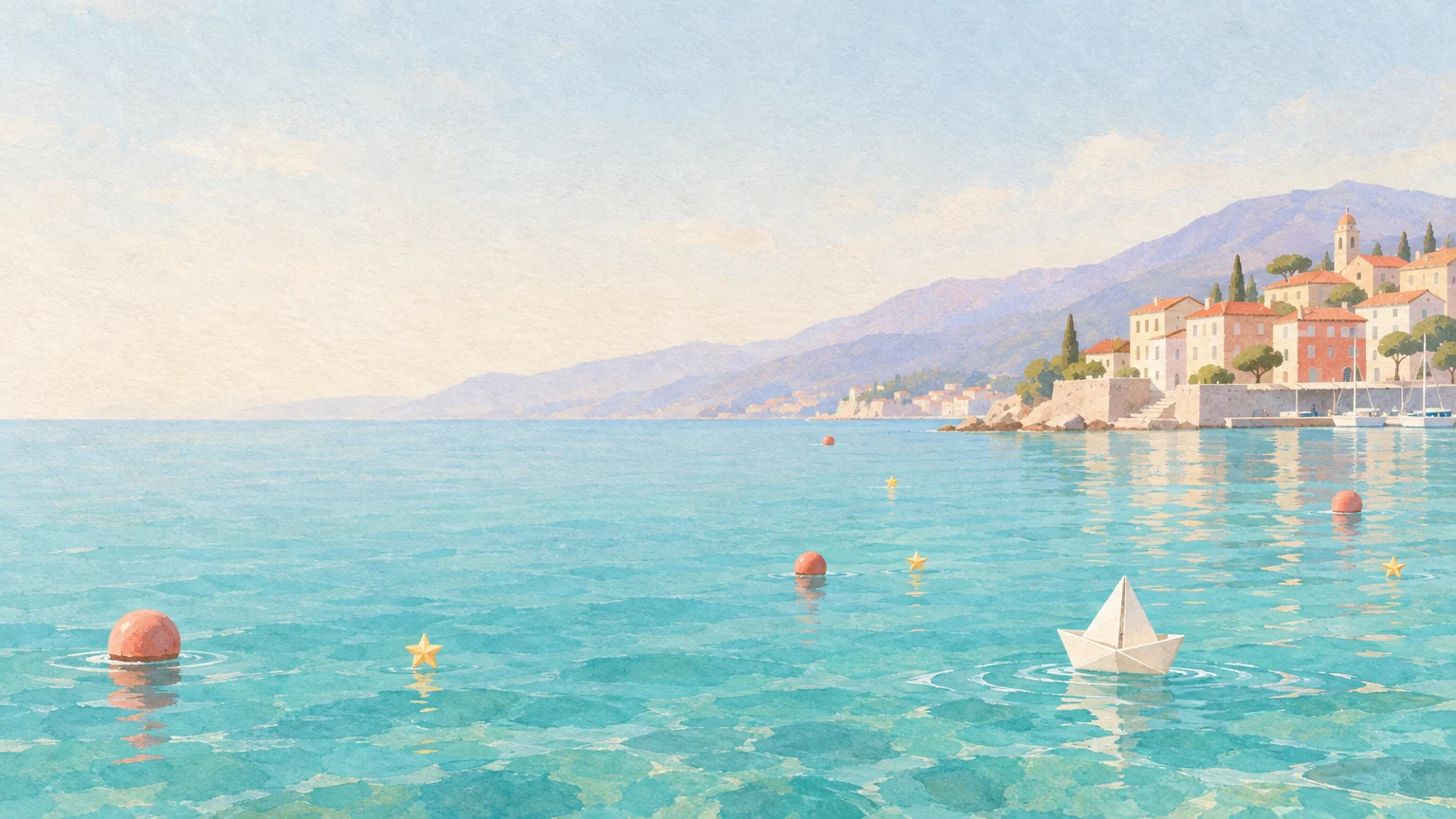
This Paper Harbor export contains the source, built site and the original generated image. On Pro or Max, download the ZIP to continue in your editor, connect your services or arrange hosting. The same image is included with the page.
The downloaded ZIP contains the project source and a built preview that opens locally. Both include the exact original harbor image. Open the source in your editor when the next step needs your own hosting or services. Dependencies and external APIs still need their own setup; exporting a frontend does not supply a backend.
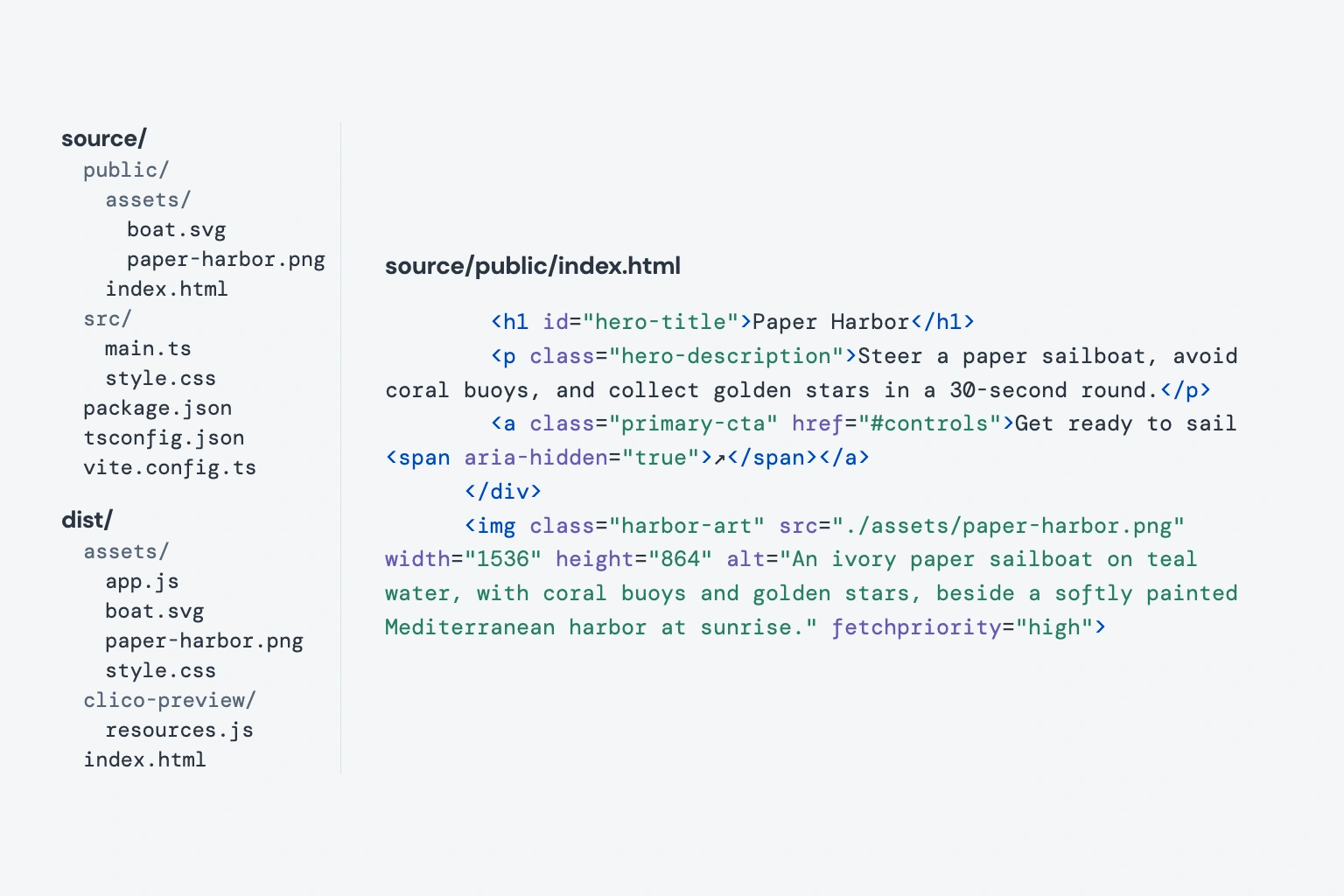
Start with what visitors need to understand and do. Paper Harbor introduces the game, shows its world and explains the controls.
Confirm the copy, selected image and main action in Clico chat, then choose Create website. The requirements and available supported references enter the new project. On this page, Build website carries your editable brief into Clico for review and submission.
Open the preview and follow the page’s main action. For Paper Harbor, that means reaching Controls and understanding how a round works. Ask for a focused revision in the project conversation and check the updated page on desktop and phone.
Publish creates a public site link. Use Publish changes when a later revision is ready. On Pro or Max, download the source ZIP if you want to continue in a code editor or connect services you already use.
Publish a public link, keep revising the same site, or take the source with you.
Share a public link. Keep editing, then publish changes when you are ready.
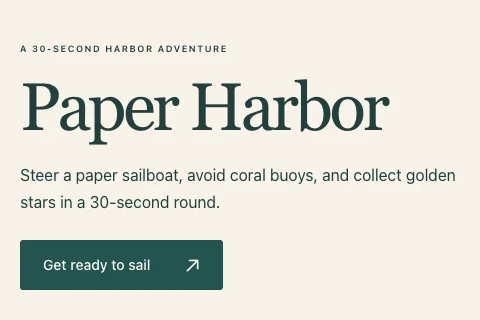
Add your page, product or signup URL to the brief. Check the button in the preview.
In your Website project, choose Download source and build. The ZIP contains source files and an available built preview. Dependencies, external APIs and server features still need their own setup.
Yes. Add your approved copy and supported image references to the brief. You can also prepare copy and generate or edit images in Clico chat before choosing Create website.
The explicit Create website action carries the confirmed requirements, source conversation and available supported references into a new Website project. Confirm which materials to use. Availability, ownership, supported types and task limits still apply.
Yes. Continue in the saved Website project conversation and request a focused change. Inspect the updated preview before publishing the revision.
Clico can create a storefront or booking page interface and link to a service you already use. Payments, inventory, accounts and databases need their own services and integration.
No. Building and previewing are separate from publishing. Choose Publish to create a public site link, and Publish changes when a later revision is ready.
On Pro or Max, download the source and the built preview where available. The ZIP does not include runtime dependencies, and projects using external APIs, hosted files or server routing still need those dependencies.