From browser shortcuts to an AI creative studio for knowledge work, this is Clico’s story.
Video editing
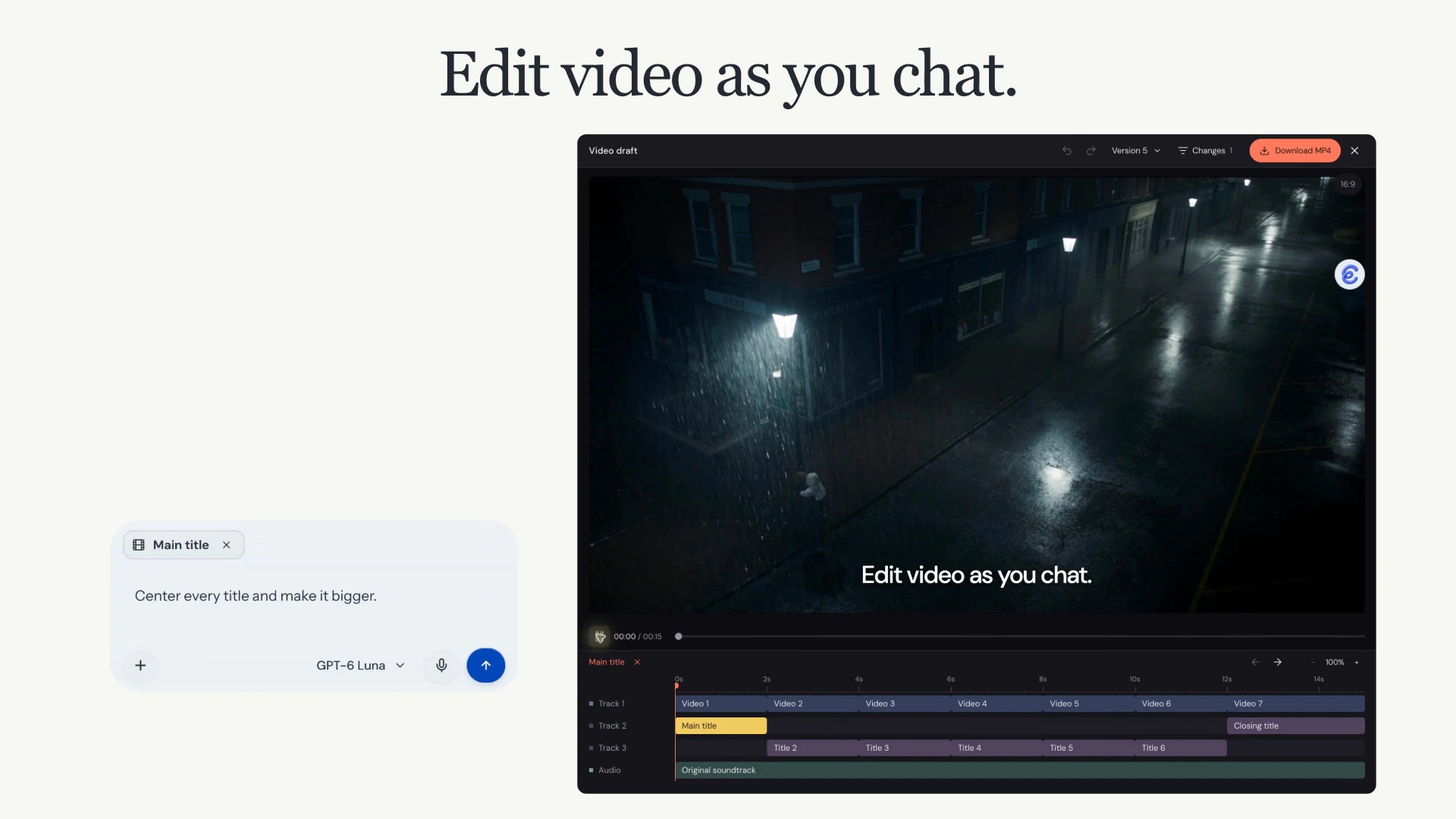
The chat request “Center every title and make it bigger.” moves “Edit video as you chat.” from the bottom to the center and enlarges it. The timeline shows three visual tracks and one audio track, followed by the exported video.
Trim clips, change titles and adjust audio through chat, then preview your edits and export an MP4 in Clico Web.
Open updateClose update+
Edit video as you chat
Upload an MP4 of up to 100 MB and ask Clico to edit it, or choose Edit on a video in your chat. The preview and timeline open beside your conversation. Select a clip, text layer or audio layer to give your next request a clear target.
What you can change
Ask Clico to trim or combine clips, change the layout for a different aspect ratio, add titles or captions, and create transitions or animated graphics. You can also place audio, adjust its volume and add fades.
Edits are saved as versions of the same video project. Preview the result and describe the next change in the same chat. On mobile, switch between the video and the conversation.
Choose the model for your edits
Your selected chat model handles editing requests, with model choices based on your plan. Choose another model for your next request and continue with the same saved project. Models that accept images can review sampled video frames.
This update does not include a benchmark comparing video editing quality or speed across models.
Review versions and export
Revisit a saved version or restore it as a new version. Export MP4 renders the version you choose without asking the model to edit it again. Download the finished file when the export is ready.
Current MP4 exports use 30 fps, with each side up to 1920 pixels and videos up to 10 minutes.
Website andgame builder
Build websites and browser games from a prompt. Preview, refine, and publish in Clico Web.
Open updateClose update+
Two new ways to create
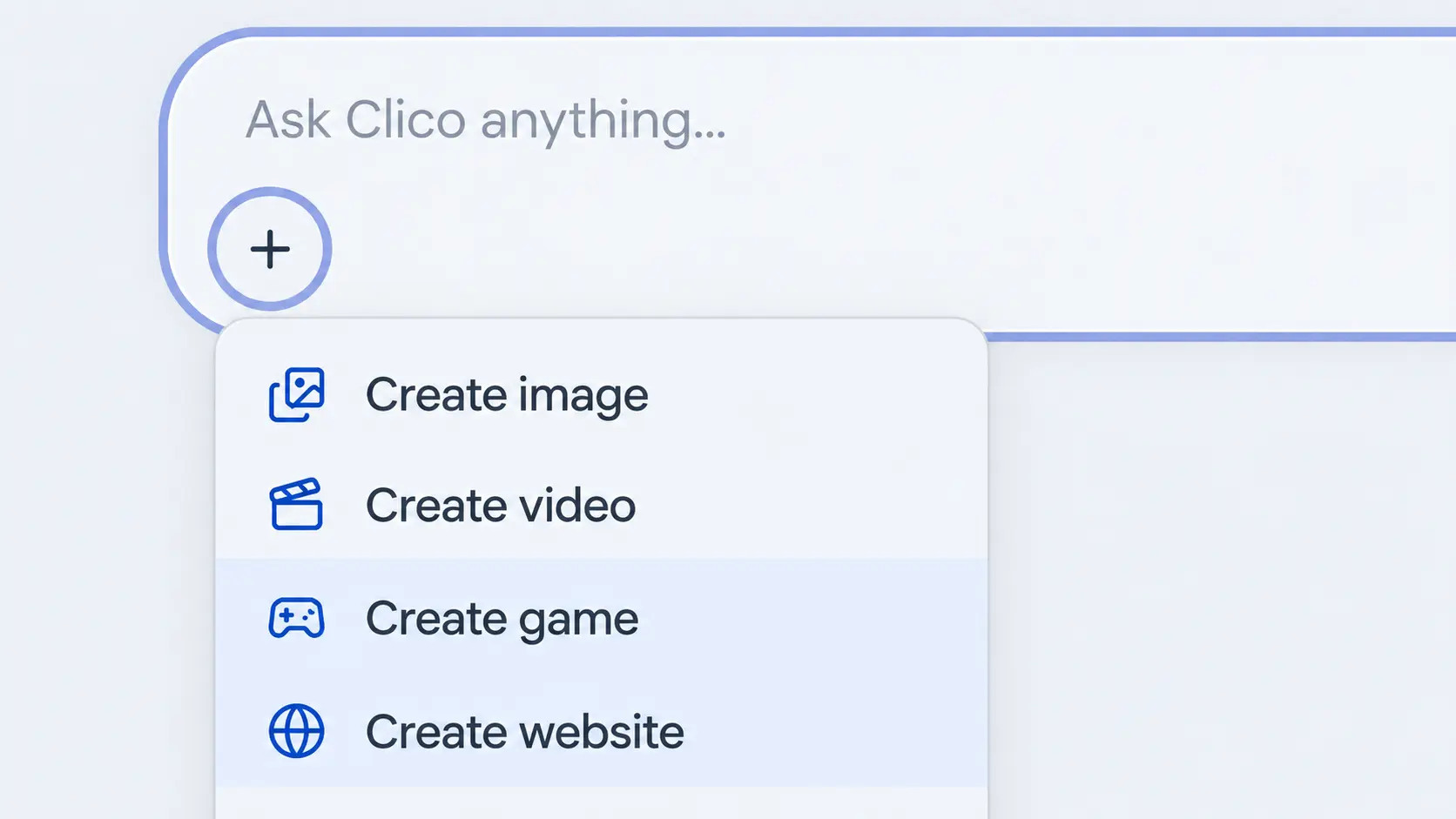
Open the + menu in the Clico Web composer and choose Create website or Create game. Describe a portfolio, a landing page, or a game you want to play. Add your content and references, then build from the same familiar conversation.
Explore the website or play the game in the preview. Ask for a different layout, a new section, tighter controls, or a change of pace. Inspect the project files and return to the conversation to keep refining your work.
Publish when you are ready
Use Publish to make your project public. You choose when to publish later changes and can unpublish it. Sharing the conversation is a separate action.
Pro and Max include a ZIP download of the source code and built preview. Website projects focus on static sites and frontend experiences; live payments, accounts, and server features need their own services and setup.
Open the + menu in the Clico Web composer and choose Create image or Create video. Describe what you have in mind, add a reference if you need one, and choose a model and its available settings before you create.
Make a product visual, a poster, or a new scene with the AI Image Generator. To work from an existing picture, bring it into the AI Image Editor and describe the background, lighting, or details you want to change.
Bring the scene into motion
Describe a scene and how it moves with the AI Video Generator, or use Image to Video to start from a photo or an image you have created. Give the subject an action, add a camera move, and choose the settings your video model supports.
Review your prompt and references before submitting. Finished images and clips are available in Clico Web and your Library. Video generation requires Pro or Max.
Library andGallery
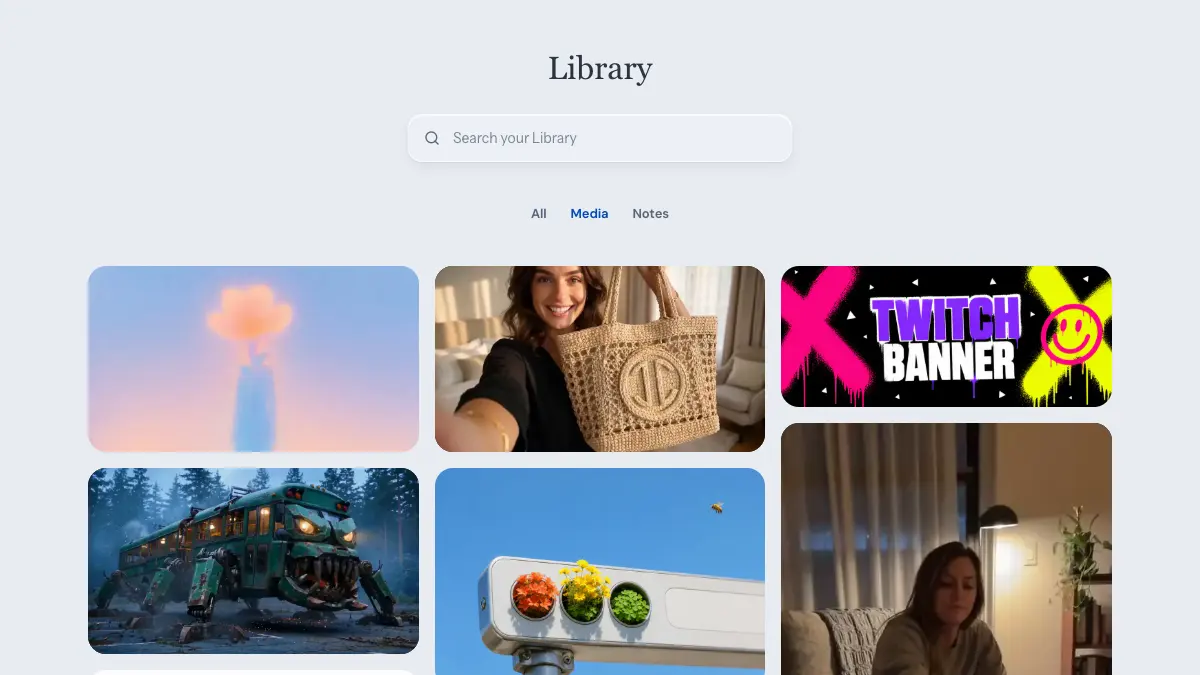
The Library Media view, shown with sample content.
Find an idea in Gallery, create your own version in Clico Web, and keep your work and saved references in Library.
Open updateClose update+
Find inspiration. Keep your work.
Gallery brings image and video examples together with reusable prompts. Search by subject or style, copy a prompt, or choose Create image or Create video to continue in Clico Web. You can edit the prompt and reference before you generate.
The Library in Clico Web brings generated images and videos together with images, page summaries, YouTube and PDF summaries, and highlights saved through the Chrome Extension. Search for a piece of work, or switch between All, Media, and Notes. Your conversations remain in the chat sidebar.
Open an image or video for a closer look, download it, or bring it into a new chat as a reference for the next idea. Video reuse depends on the selected model and the file it can accept.
For generated images and videos with a saved generation prompt, create a public link that includes the result and its prompt. You can revoke that link later. Deleting a Library item asks for confirmation and keeps the original conversation.
Library arrived on September 4, with media previews and sharing added on September 5. Gallery opened on September 8.
From an imageto a useful prompt
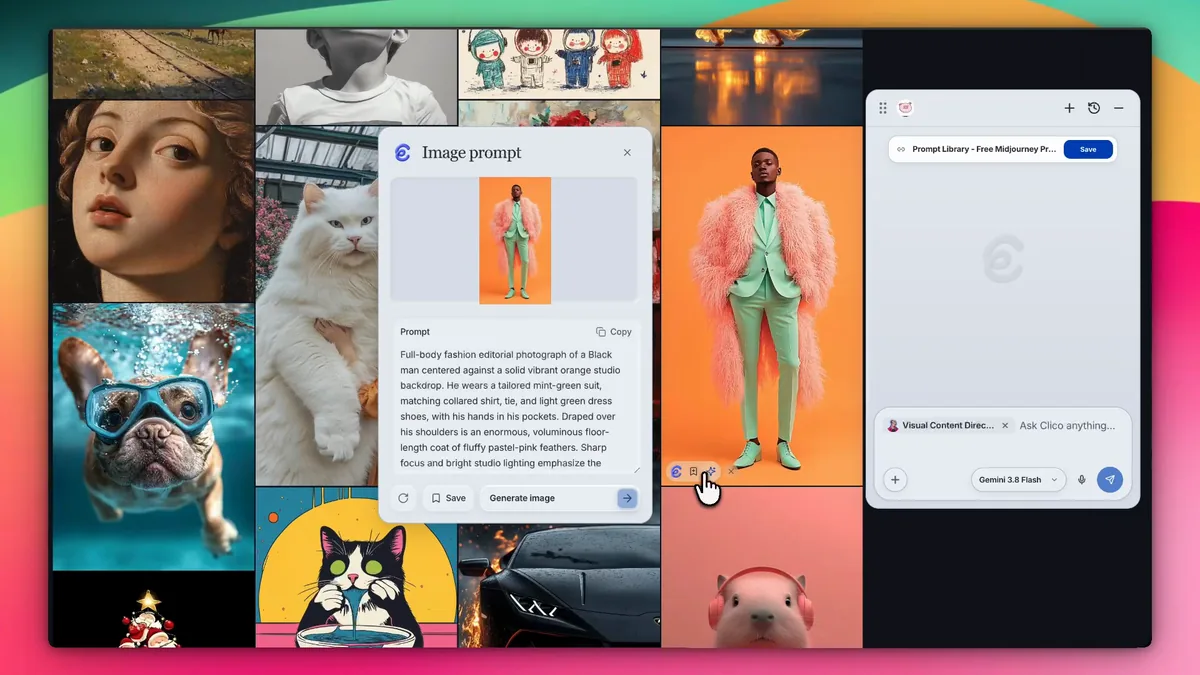
Keep the source image in view while you read and edit its visual prompt.
An image you find in Chrome can become a starting point for your next creation. Extract a visual prompt, edit the details, and save it with the image.
Open updateClose update+
Put visual inspiration into words
In the Clico Chrome Extension, hover over a supported image and choose Image to prompt. The panel reads the visible subject, composition, colors, lighting, and texture, then turns those observations into an editable prompt.
Copy the prompt, save it with the image, or choose Generate image to continue in Clico. The prompt describes what is visible in the reference. It does not recover the original creator’s hidden prompt or settings.
The same image and settings reuse a recent result for five minutes, so reopening the panel is quicker. Regenerate prompt asks for a fresh analysis when you need one. Sign in to use image prompt extraction.
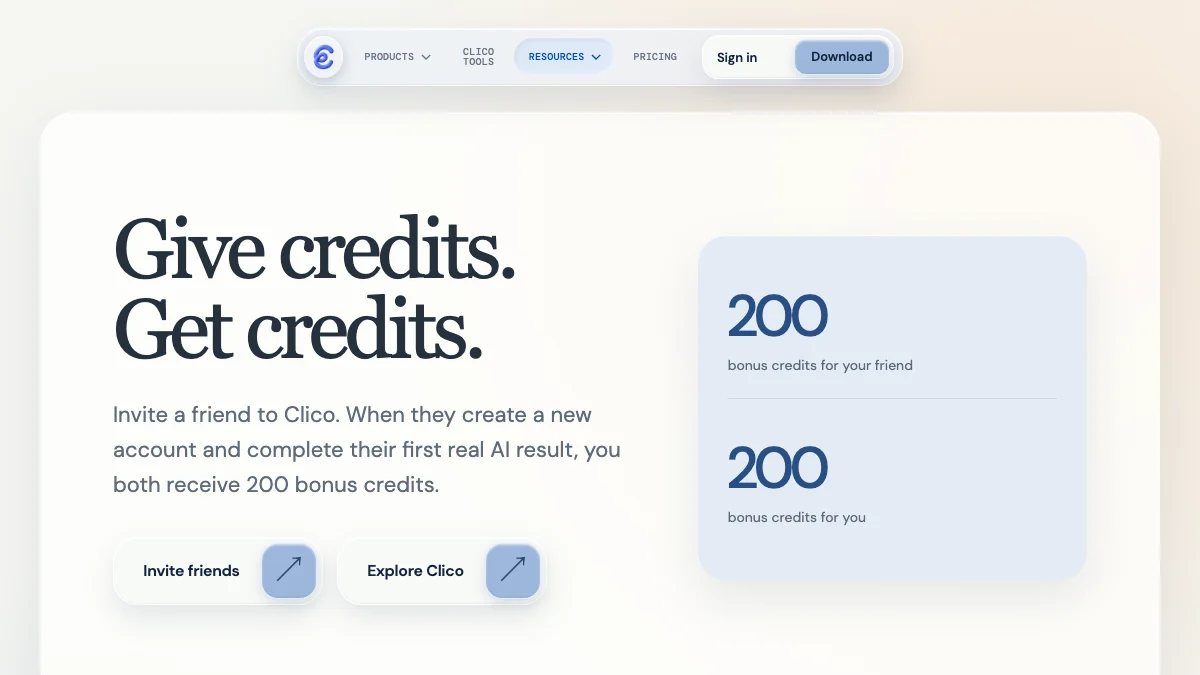
Share Clico with a friend and earn credits for your next idea.
Invite a friend to Clico. You can both earn 200 bonus credits after their first eligible AI result within 30 days.
Open updateClose update+
More credits to create together
Open the Referral Program, sign in, and copy your personal invitation link. Your friend creates a new Clico account through that link, then completes a successful AI result that uses credits within 30 days.
After that first eligible result, Clico normally adds 200 bonus credits to each account. Your invitation page shows who joined, who completed a result, and which rewards you have earned.
You can earn rewards for up to 10 friends each month. Eligible friends still receive their credits after you reach that limit. Bonus credits do not expire. Some rewards may take up to 72 hours for review.
Browser Usein Chrome
Ask Clico to work across browser tabs, read pages, and fill in forms. Browser Use brings page actions into the Chrome Extension chat.
Open updateClose update+
From reading a page to taking action
In the Clico Chrome Extension, sign in and open the composer’s add menu to find Use Browser. Ask Clico to work with the current page or follow a task across browser tabs.
Clico can read a page, open links, click controls, type into fields, choose options, and move between tabs. Follow browser activity in the conversation and cancel the task when you need to stop.
Work on the current page stays in that tab. Research across sites can open separate tabs in a Clico Browser Use group, which remains available for you to inspect when the task ends. This feature works on ordinary web pages in Chrome.
Clico becomes anAI creative studio
Web, Desktop, and Chrome
Clico Web became the public home for research, images, and video.
Clico Web became our public home, one place for knowledge workers to research, create images and video, and turn ideas into finished work.
Open updateClose update+
A bigger home for creative work
Clico began with a simple idea: keep AI close to the work. Clico Web expands that idea into a saved workspace where people can research current questions, work with files, create finished images, and create finished videos on Pro or Max, all in one conversation.
Research and creation now live beside each other. A question can begin with current sources or a document, continue through notes and decisions, then become a finished image or a finished video on Pro or Max, without starting over in another workspace.
The Chrome Extension stays close to the page, helping people collect inspiration and useful material through page context, highlights, memos, and saved chats. Clico Desktop brings Clico beside work across Mac apps.
For focused reading, writing, and refinement, Clico tools give people a direct place to begin with the task already in front of them.
Together, these surfaces define Clico today: an AI creative studio for knowledge workers who move between finding, thinking, and making.
We brought Invoko’s Mac experience and the Clico Chrome Extension under one name, creating a clearer product for work across the browser and desktop.
Open updateClose update+
One name for work across Mac and Chrome
Invoko was built to sit beside work on a Mac. That experience became Clico Desktop, while the existing Clico Chrome Extension continued to work beside the page already open.
On Mac, the assistant could stay close to work that crossed apps, files, and screen context. In Chrome, Clico remained focused on the current page, selected text, and the field where someone was already writing.
The goal was not to make both experiences identical. It was to let each one do what it did best under a single Clico identity, then give people a clearer way to choose between browser work and desktop work.
This is why older screenshots and references may still say Invoko. Invoko is part of Clico’s history, and its ideas continue in Clico Desktop.
Clico gets a new look
Chrome Extension
The redesigned Clico browser experience was featured by Awwwards later that month.
We redesigned the Clico Extension and its public home to make the product feel clearer, faster to scan, and easier to understand at a glance.
Open updateClose update+
A browser tool that finally felt like Clico
The redesign gave the Chat Panel, history, saved artifacts, settings, and quick actions one visual system. People could see where to start, what context Clico was using, and where earlier work had gone.
Features that had arrived one by one now felt like parts of the same product. The prompt stayed primary, supporting actions became easier to scan, and saved work had a clear place instead of competing with the current task.
We carried the same clarity into the website. The message became direct: Clico was an AI Chrome Extension that worked inside the page for writing, replies, summaries, and research.
That principle still guides our Clico product guide: start with the surface closest to the work, then move only when the task needs a different kind of context.
Awwwards selected that public experience as a nominee on June 29, preserving a visual snapshot of this chapter in Clico’s history.
Clico starts building with students
Chrome Extension
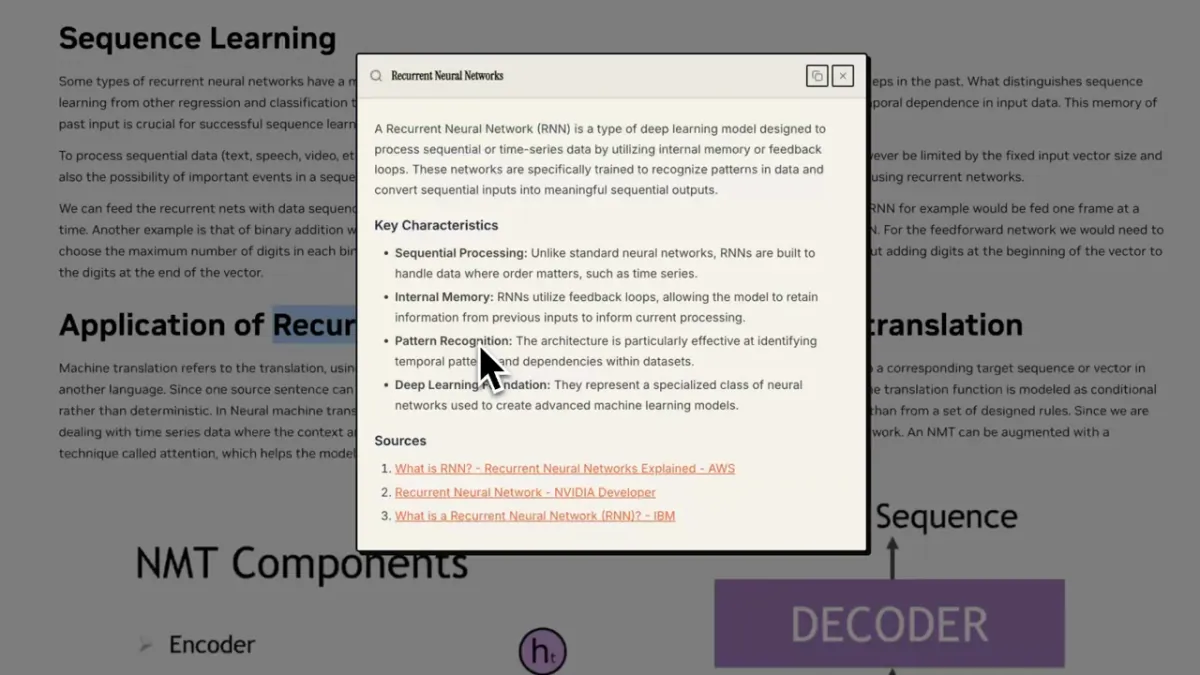
A selected text research demo from May 2026, showing the workflow students helped shape.
Students pushed Clico beyond quick writing. We added faster ways to understand readings, summarize PDFs, research selected text, and keep useful material close.
Open updateClose update+
Reading became an active workflow
Long readings made the next problem obvious. Students did not only need help drafting. They needed an AI reading and research assistant that could explain a selected passage, summarize a page or PDF, and keep the useful parts for later.
The AI summarizer grew from that need. It helps turn pages, PDFs, emails, and documents into a useful shape while the source remains close enough to check.
For a single long reading, the article summarizer focuses on the argument, findings, and details that deserve another look.
Writing mattered just as much as reading. AI for Google Docs brought drafting and rewriting into the document instead of sending students through another copy and paste loop.
The essay writer connected the next step, moving from visible sources to an outline and a first draft that could still be reviewed and changed.
These student workflows became the foundation for the broader research and collection experience that Clico supports today.
Personas shape better AI output
Chrome Extension
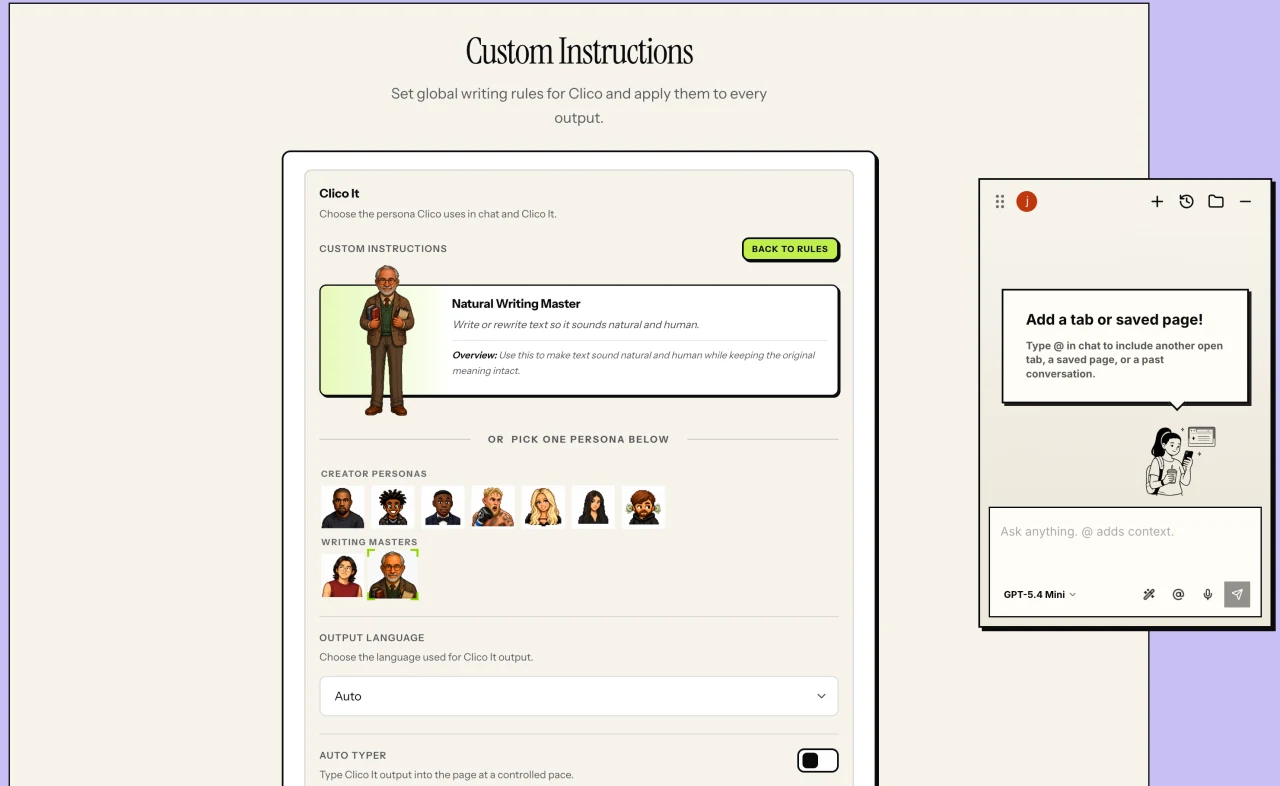
Personas let people choose how Clico should approach and shape an answer.
Instead of asking everyone to write the same long prompt, Personas let people choose the working style, voice, or specialist that fits the task.
Open updateClose update+
Better answers start with clearer direction
The first Persona release let a selected style guide how Clico responded. It gave people a simpler way to ask for natural writing, a particular voice, or an approach suited to the work without repeating the same instructions in every prompt.
That idea is easy to see in Humanize AI text. The goal is not to replace the meaning, but to choose a more natural rhythm and voice for the same message.
Our prompt generator approaches the same problem from the other side. It helps turn a rough request into clearer context, constraints, and an output shape before the model begins.
The catalog grew later to include specialists for research, strategy, visual work, video, technical work, and writing. A Persona guides the method and voice of the answer. It does not turn Clico into a separate autonomous worker.
Personas remain part of both the Chrome Extension and Clico Web because useful AI output depends on how the work should be done, not only what the prompt says.
The shortcutgrows into a Chat Panel
Chrome Extension
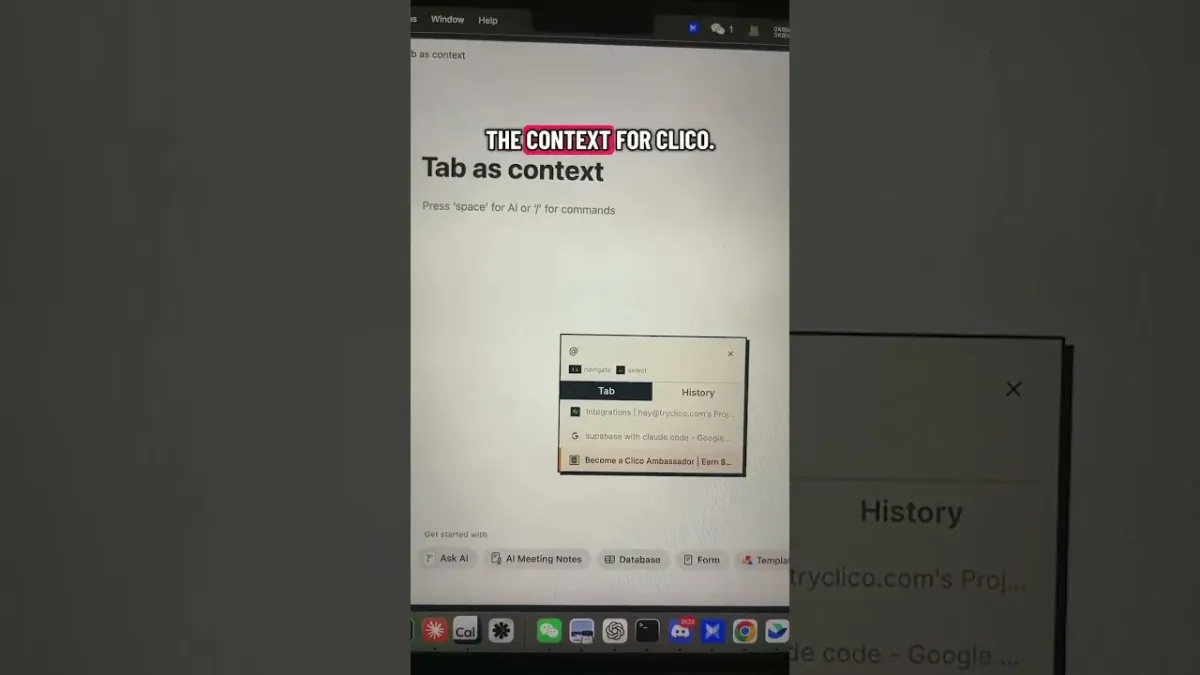
An early Chat Panel and tab context demo shared by Clico on YouTube.
Clico expanded from a quick prompt beside a text box into a place for longer conversations, page context, history, and saved material without leaving the tab.
Open updateClose update+
The browser became part of the conversation
The first shortcut was ideal for a fast draft or rewrite. The Chat Panel made room for follow up questions, longer answers, and context from the page or another open tab.
A person could begin with a selected passage, ask a second question, and bring another tab into the same conversation. That made the browser itself part of the working context instead of something that had to be copied into a separate chat.
History gave people a way back into earlier conversations. Highlight and Memo results later gathered inside Artifacts, so useful material did not disappear when the immediate task was done.
The current Clico Chrome Extension carries that idea forward: work with the page already open, keep useful material close, and continue without rebuilding the task elsewhere.
This shift turned the Clico Extension from a quick input helper into a browser workspace that could stay with a task for longer.
Clico begins inside the text box
Chrome Extension
Early Clico store artwork showing the original shortcut led experience.
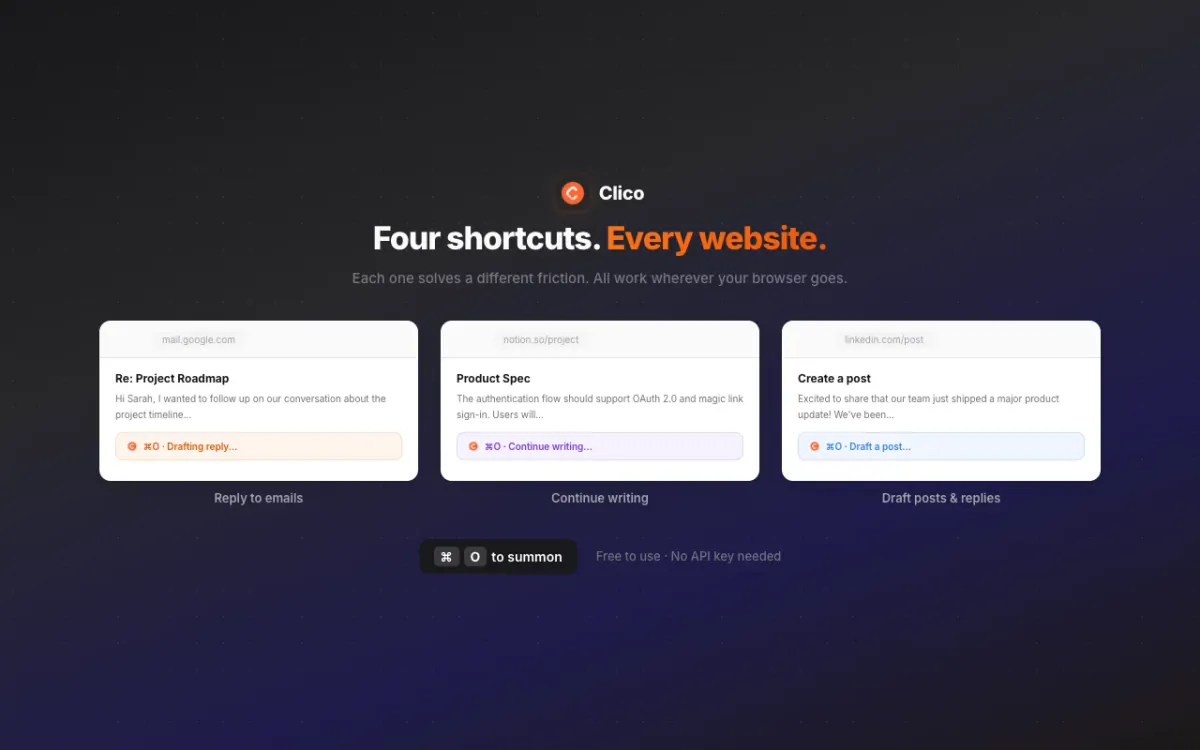
The first Clico Chrome Extension opened with a keyboard shortcut, generated text beside the page, and placed the result back where the user was writing.
Open updateClose update+
One shortcut, less copying
The earliest version of Clico focused on a common interruption: leaving Gmail, Google Docs, Notion, or another text box to ask an AI for help, then copying the answer back.
The first writing workflows were practical. The email polisher helped turn an unfinished reply into a clearer message without losing sight of the conversation around it.
The auto typer carried the result back into the active field, keeping the final text visible and editable where it belonged.
The prompt and result stayed beside the writing. The page and selected text could provide useful context, while the user stayed in control of what was inserted or replaced.
That small interaction became the starting point for everything that followed: a Chat Panel, student tools, Personas, Desktop, and finally Clico Web.
The changes worth remembering
This page follows the moments that changed how people use Clico. Smaller fixes stay in the product. The shifts that changed the experience, the audience, or the direction belong here.