Describe your idea
Start with what you want to create. Add the context and details the AI needs, or paste a prompt you want to improve.

Turn an idea into a clear prompt. Or fix the one that missed the mark.
AI powered. No sign in. Free trial usage applies.
AI prompt generators expand your idea into detailed instructions. Clico uses your task, context and requirements to shape a prompt you can review and copy.
Start with what you want to create. Add the context and details the AI needs, or paste a prompt you want to improve.
Choose a prompt type or leave it on Auto. Clico builds instructions around your task and the requirements you add.
Check the prompt, then copy it into your AI tool. Try it on your task and refine the instructions from the result.
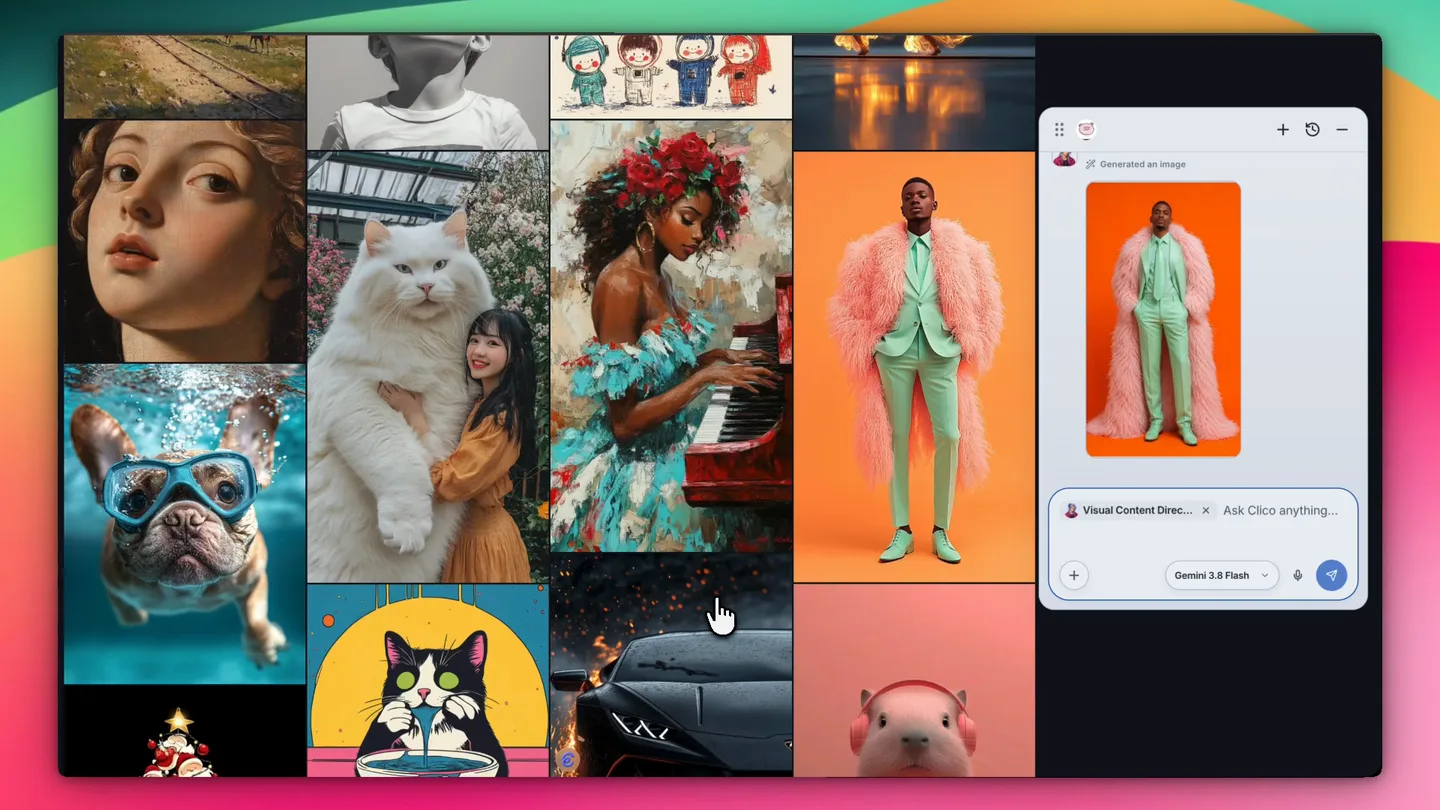
Keep the result in view while you fix the prompt. Use Clico Extension to add what’s missing and replace the text in supported input fields on ChatGPT, Gemini, Grok Imagine, Google Flow, or Kling.
Keep the subject. Define the light, framing, and texture. Refine your prompt beside ChatGPT, Gemini, or Grok Imagine.
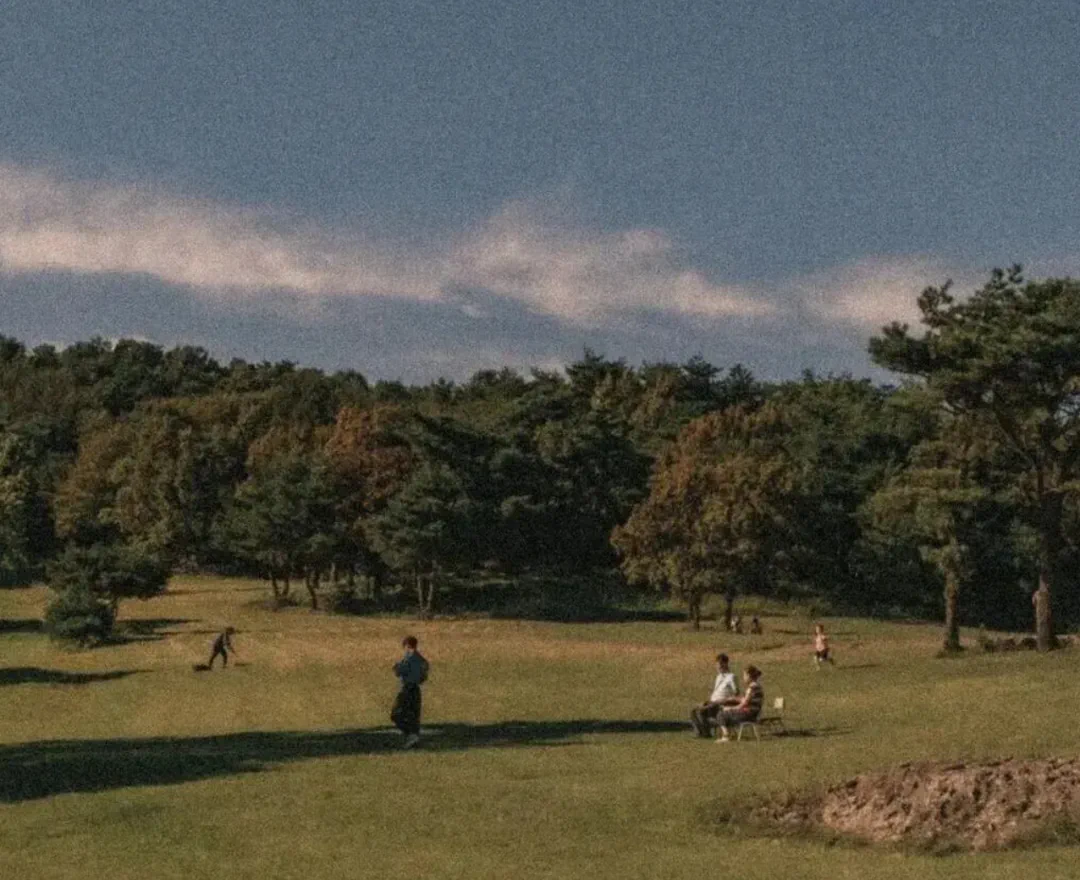
1 / 3 Composition
Define what moves, how the camera behaves, and what stays consistent. Take a clearer scene brief to Google Flow, Grok Imagine, Kling, or your video tool of choice.
Improve: “Make an immersive gallery video.”
Create a wide shot inside an immersive art gallery.
Cover the walls and floor with blue blossom projections. Let petals drift as visitors walk slowly through the room.
Keep the camera steady and the architecture consistent, in one continuous shot.
Create a wide shot inside an immersive art gallery. Cover the walls and floor with blue blossom projections. Let petals drift as visitors walk slowly through the room. Keep the camera steady and the architecture consistent, in one continuous shot.
Example prompt paired with the gallery video from Clico’s homepage.
Writing prompts need an audience, source facts, and a next step. Give AI a brief that keeps your meaning.
 ChatGPT
Tell workspace admins they can save and reopen views. Note that permissions stay unchanged. Use a direct tone. Close with one action: save a view.
Original result
We’re excited to introduce saved views, a powerful way to take your productivity to the next level.
Refined result
Workspace admins can now save views and return to them later.
Your existing permissions stay unchanged.
Try saving a view your team uses often.
Improve: “Announce saved views.”
Admins can save and reopen views. Permissions stay unchanged.
Tell workspace admins they can save and reopen views.
Note that permissions stay unchanged.
Use a direct tone. Close with one action: save a view.
Choose a task, then replace the bracketed details with your own.
Create an image of [subject] in [setting].
Start with a rough idea or a prompt that missed the mark. A prompt generator turns it into clearer instructions, whether you need usable writing, a checkable answer, or a specific visual result.
A campaign image needs more than the right subject. Specify the light, composition, and details to preserve in ChatGPT, Gemini, Grok Imagine, or your image tool of choice. Here, the difference is a scene that matches the intended mood.


Illustrative results, not a model benchmark. Your output will depend on the model, references, and settings.
For an ad, product reveal, or short scene, define the opening, subject action, camera movement, and ending. The goal is a coherent sequence, with the subject staying consistent throughout.
Take that brief to Google Flow, Grok Imagine, Kling 3, or another video tool. Set the duration and sound using the controls supported by your chosen model.
Use a writing prompt generator for an email, article, announcement, or rewrite. Bring the facts, name the reader, and explain what they should do next.
Instead of a generic “we’re excited to announce,” get a draft that explains what changed, why it matters, and how to use it. Refine the tone without losing the facts.
Comparing tools or making a decision? Specify the options, criteria, and sources. Ask for a recommendation with evidence you can open, and uncertainty you can see.
WebP supports transparency and both lossy and lossless compression. JPEG does not preserve transparency. PNG also supports it, so compare actual exports before choosing the smaller file.
For debugging, give the runtime, relevant code, actual error, and expected behavior. Ask for the smallest fix and a test that reproduces the problem and checks the change.
For a plan, name the goal, resources, and constraints. Ask for prioritized steps with owners and completion checks, not another list of possibilities.
Keep improving it where you work. Keep the page, reference, and result in view. Open Clico Extension, ask for the missing detail, and copy the revised prompt back into your tool. The advantage is continuing your task without rebuilding the brief in a separate chat.
Already have a reference? An image or clip can be another starting point. Describe what you want to keep, then adapt it to your own idea.
Choose an image on the page in Clico Extension and open Image prompt. Turn the subject, framing, and lighting into an editable description. Correct anything it missed, then copy or save the prompt for your next image.
Video to prompt starts with a clip rather than a blank page. Attach it in Clico Extension or Clico Web and choose a model that supports video input. Ask for the opening, camera movement, subject action, ending, and any audible sound. Adapt that sequence for your own scene before taking the prompt to a video tool.
A reference description cannot recover the original prompt, seed, or hidden settings. This page builds text prompts and does not analyze uploads. Use Extension or Web for supported media analysis; generating a finished video is a separate task.
No reference yet?
The most useful details are the ones AI cannot infer: which facts to trust, what must stay, and how the result should unfold.
A writing prompt should explain who will read the result and what they need to do next. For an email, that might mean a clear request and a friendly tone. For an article, it might mean an outline, a reader’s level of knowledge, and the facts the draft must include. Give ChatGPT, Gemini, Claude, or Copilot that context before asking for polished wording.
For research, make the answer checkable. Name the options to compare, the sources to use, and the decision you are trying to make. Ask the model to distinguish verified facts from assumptions. A request for citations does not make every citation reliable, so open the sources and check that they support the conclusion.
For a research comparison, try:
Compare these three tools for a team of ten. Use current pricing, cite your sources, and recommend one. Flag any detail you cannot verify.
An image prompt gives the model decisions that a subject alone cannot express: where it sits in the frame, what surrounds it, how the light falls, and whether the result should look like a photograph or an illustration. “A product photo” leaves those choices open. A clear composition and lighting brief gives you something specific to evaluate.
When editing a reference in ChatGPT, Gemini, Grok Imagine, or another image tool, separate what stays from what changes. Name the product shape, material, colors, or label that must be preserved. Then describe the new setting. Attach the reference and choose the aspect ratio in the destination tool; instructions in a prompt are not a guarantee that every detail will be preserved.
For a campaign image, try:
Keep the product shape, colors, material, and label unchanged. Use a simple studio setting with soft directional light. Leave the left side clear for copy, but do not add text.
A video prompt needs more than a description of a good still image. Explain the opening frame, what the subject does, how the camera moves, and where the shot ends. Keep camera movement separate from subject motion: a camera moving closer to a stationary product is a different shot from the product moving toward a fixed camera.
For Google Flow and Veo, Kling 3, Grok Imagine, or Sora, start with one clear action and a short sequence. Add dialogue, ambient sound, or silence when the selected model supports audio. Check available duration, reference inputs, and aspect ratio in the tool before generating. The same creative brief can travel between tools, but their controls and supported inputs differ.
For a product shot, try:
Begin on the product reference. Move closer for six seconds, then hold for two. Preserve its shape and label. Subtle room tone, no dialogue.
An AI prompt is the instruction you give a model. Tell it what you need, what it can work from, and what a useful answer looks like.
Explore each part, or choose a task above to build your own. The generator sends your brief to an AI model to create or improve your prompt. Review its suggestions before using them.
Give the model a specific job.
This page creates the instructions. Your chosen model creates the result. In Clico Web, you can create images and, with Pro or Max, finished videos.
Create in Clico Web ↗You can try the AI prompt generator without signing in. Requests use Clico’s shared guest trial allowance and are subject to availability and usage limits. Clico Extension and Clico Web have separate account and usage requirements.
No. Create, improve, and copy a prompt here without an account. Sign in is required for Clico Web and account based Extension features.
Yes. Paste your current instructions into the same input. Under Add details, describe what went wrong or what should change. An AI model revises your prompt using your brief and requirements. It does not inspect an earlier AI response unless you include it, or automatically test the revised prompt.
Yes. The output is plain text you can edit and paste into compatible AI tools, including ChatGPT, Gemini, Claude, Copilot, and other chat models. Image and video tools such as Grok Imagine, Midjourney, Google Flow, Kling, and Sora accept different settings and references. Check the destination before generating.
Yes. Choose Image or Video from Prompt type. Image prompts describe the frame and details to preserve. Video prompts add chronological action, timing, camera behavior, sound, and continuity. This free page produces the prompt, not an image or video. Clico Web can create images and, on Pro or Max, finished videos.
An image prompt starts with your written idea and directs an image model. Image to prompt starts with an existing image and describes its visible composition, lighting, palette, and details. Use the Clico Extension Image prompt panel for that second task. It cannot recover the exact original prompt or hidden generation settings.
This free builder does not analyze video uploads. In Clico Extension or Web, choose a model that supports video input, attach the clip, and ask for its scene, camera movement, action order, and sound as a reusable prompt. This describes observable content, not the exact original prompt. Analyzing a video is separate from generating a new one.
Start with the subject and setting. Describe the action and camera movement separately, then add the lighting, timing, ending, and sound you want. Use a reference when continuity matters. Choose Video in this builder, then check duration, audio, and reference settings in Flow. The builder writes instructions; it does not operate Flow or render the clip.
No. Add details that resolve uncertainty, not length for its own sake. Keep important constraints consistent and remove contradictory instructions. Say what should remain unchanged. Use a separate negative prompt field only when your chosen image or video model supports one. Review the result before deciding what to change next.
Your brief and optional details are sent to Clico’s backend and its model provider to generate the result. A guest identifier supports trial access and usage metering. Do not include secrets or sensitive personal information. Copying writes the output to your clipboard. See How Clico handles your data for data handling policies.
It brings prompt work beside the current page. Choose an image to build an editable image prompt, or use selected text, screenshots, and supported files as context in a conversation. You can copy the result and insert or replace text in supported editable fields. Page access and model support still apply.
Bring your idea. Leave with instructions you can use.
Need inspiration? Browse AI prompt examples for images and videos.