
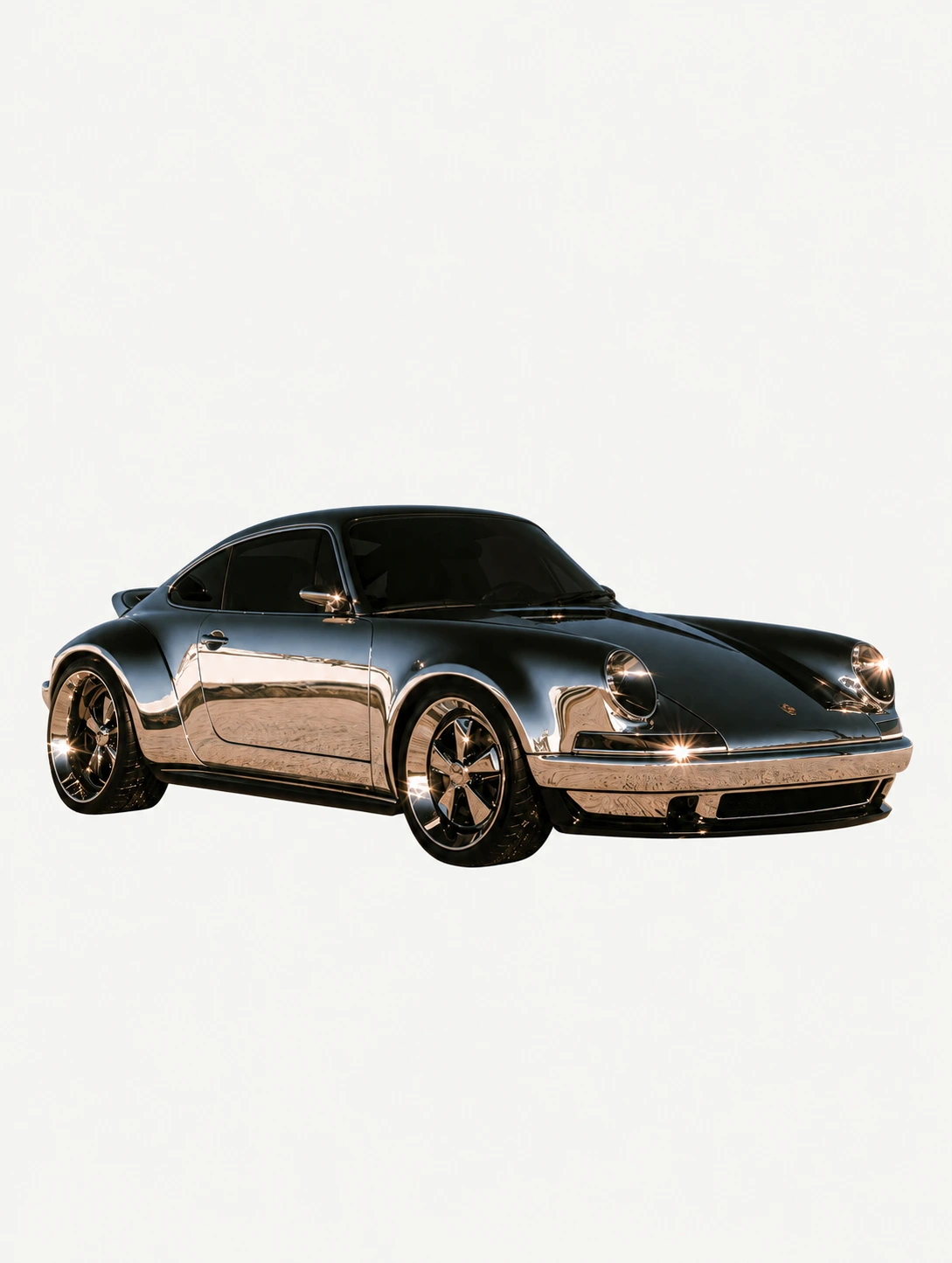
Change or remove image background
Replace the background with a new setting, or ask Clico in chat for a transparent background. This demonstration starts with the chrome car from Clico Gallery.

Upload an image and describe what to change. Continue in the same chat to adjust the background, lighting or composition using the version you choose.
Loading Clico composer…

Editing demonstration using Browser Bloom from Clico Gallery. Open an image in Clico Web to use the editing controls.
See three edits made from the same product photo in Clico Gallery. Drag the divider to compare each result with the original.

 OriginalEdited
 OriginalEdited
 OriginalEdited
Replace the background with a new setting, or ask Clico in chat for a transparent background. This demonstration starts with the chrome car from Clico Gallery.
Replace the background with a new setting, or ask Clico in chat for a transparent background. This demonstration starts with the chrome car from Clico Gallery.

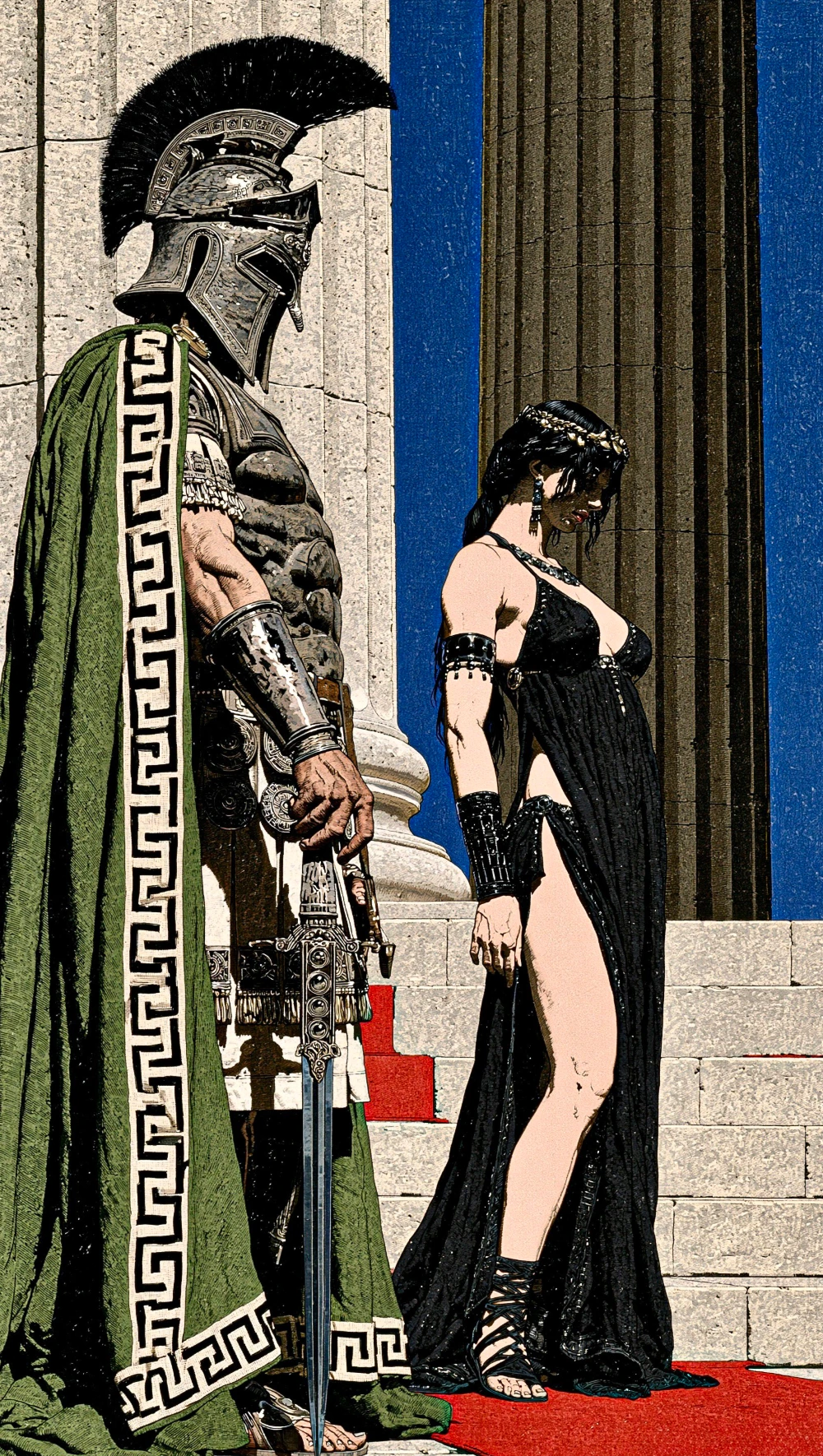
Ask for a wider view with more of the surroundings visible.

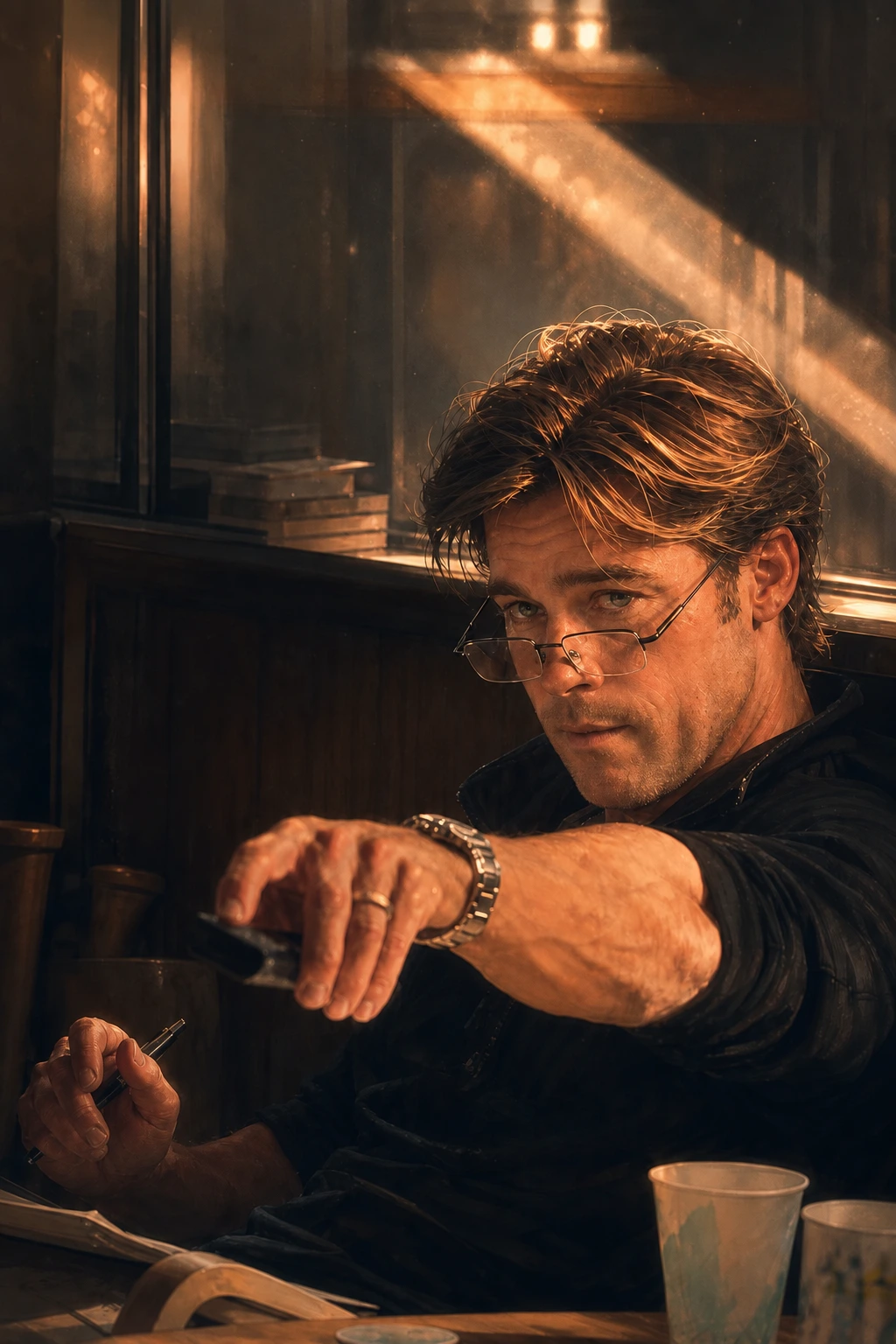
Ask for more light on the face while keeping the room dark.

Name the object to remove and describe what should remain.
Choose a model for your edit, attach your image and describe the change. Review the result before making the next adjustment.
 OpenAI
Create and edit images across 8 aspect ratios with 5 quality options.
Example credits per image
≈ 6.87 creditsHigh · 1024 × 1024 · No referencesOpenAICreate and edit images across 8 aspect ratios with 5 quality options.
Example credits per image
≈ 6.87 creditsHigh · 1024 × 1024 · No referencesOpenAICreate and edit images across 8 aspect ratios with 3 quality options.
Charged by actual usage
Quality, size and references affect credits. Google
Create and edit images across 10 aspect ratios.
Charged by actual usage
Quality, size and references affect credits.GoogleCreate and edit images across 14 aspect ratios.
Charged by actual usage
Quality, size and references affect credits.GoogleCreate and edit images across 14 aspect ratios.
Charged by actual usage
Quality, size and references affect credits. ByteDance
Create and edit images across 13 aspect ratios.
Estimated output credits
≈ 5.85 credits1K · 1 imageByteDanceCreate and edit images across 13 aspect ratios.
Estimated output credits
≈ 4.55 credits2K · 1 image xAI
xAICreate and edit images across 9 aspect ratios with 2 quality options.
Estimated output credits
≈ 5.2 credits1K · Low quality · 1 image Black Forest Labs
Create and edit images across 8 aspect ratios.
Estimated output credits
≈ 3.9 creditsStandard output · 1 imageBlack Forest LabsCreate and edit images across 8 aspect ratios.
Estimated output credits
≈ 9.1 creditsStandard output · 1 imageBlack Forest LabsCreate and edit images across 8 aspect ratios.
Estimated output credits
≈ 1.82 creditsStandard output · 1 imageOutput estimates exclude additional input usage. GPT Image 2.5 figures use one High quality sample per variant, not an average. Actual usage varies.
Images, videos and chat.
One shared monthly balance.
$19.90USD / month
$49.90USD / month
Broad GPT Image 2.5 estimates. Quality, size and references change how many images you can create. These examples use the full monthly balance; chat and other activity reduce the number available.
Video counts use Seedance 2.0 Mini at approximately 98.28 credits per clip. GPT Image 2.5 counts are broad estimates, not a fixed allowance for Flare or Sunburst at a specific quality or size. Max image counts scale the Pro estimate by its 2.5 times larger balance. Unused monthly credits do not roll over.
Upload a PNG, JPEG or WebP image up to 8 MB, then describe the change and the details that should stay. For example: “Replace the background with a pale studio wall. Keep the bottle shape, label wording and camera angle.” Choose an image model, continue to Clico Web and review the draft before submitting.
Our FIELD 07 edit in Clico Gallery includes the edited image, original reference and prompt.
Attach the source image and describe the background you want, such as a clean studio setting, a different room or a simple solid color. Name the subject details that matter, including edges, lettering, reflections and shadows. Inspect those details after the edit, especially for product photos.
For an isolated subject, explicitly ask Clico in chat for a transparent background. Clico supports transparent background requests and uses a dedicated model for them. For a new setting, describe the replacement scene instead. The car image in Clico Gallery is the source for the background demonstration on this page. Check the returned file’s transparency and subject edges before using it.
Yes. Identify the object and describe what should fill its place: the existing wall, tabletop, sky or surrounding texture. If several objects look similar, specify its location and appearance. Keep the request focused so the intended change is clear.
In our FIELD 07 object removal in Clico Gallery, a flower and stem were removed from a product scene. The repaired stone surface was generated, so check nearby edges, shadows and repeated textures before accepting an edit.
Yes. In Clico Web’s image editor, use Quick edit for a whole image instruction, select an area and add a comment for a local change, or paint over an unwanted detail with Erase. Erase removes the selected content and reconstructs the surrounding scene; it does not make the selected area transparent. Name the details that should stay unchanged.
Google’s image editing examples describe this approach as conversational or semantic masking. It is still an instruction to a generative model, so review the whole output rather than assuming everything outside the requested area is identical.
You can ask for warmer light, softer shadows, a brighter subject or a more restrained color palette. Say whether the change should affect the whole scene or one subject, and describe any colors that must remain accurate. A specific request such as “brighten the face while keeping the room dim” gives a clearer target.
Review skin tones, reflective materials and product colors carefully. Google’s refinement guidance includes small follow up changes to lighting and appearance.
Ask for a wider view and describe what should appear around the existing subject. Choose a compatible output aspect ratio and name the details to preserve, such as the main building, subject position or perspective. This is useful when adapting a close composition for a banner or a wider scene.
The added area is generated content, not recovered information outside the original photograph. Compare perspective, architecture and repeating details. Marble Court in Clico Gallery provides a visual reference for a more expansive composition.
An edit can keep a subject recognizable while changing fine details. Faces, hands, packaging text, reflections and small edges deserve close review. State what must remain consistent, keep the original file and compare both images at a useful viewing size.
Our FIELD 07 desert edit in Clico Gallery documents recognizable labels alongside changes in lighting and surface appearance. Treat a result as a proposed edit to inspect, not a guarantee that only the requested pixels changed.
Yes. Identify the version you want Clico to use and describe the next change. Available image results from the conversation can become references for later edits, so you can refine the background, lighting and composition without rewriting the whole brief each time.
If a revision moves away from the look you wanted, return to an earlier version and narrow the instruction. Google’s image generation guide also recommends iterative refinement instead of expecting every detail to be perfect on the first attempt.
Choose a model that accepts image references and offers the output format you need. Clico’s model cards show reference limits and available settings; the composer adjusts its controls when you switch models. Use the same source and instruction when comparing results so the difference is easier to judge.
Model capabilities vary, including quality controls and reference limits. Check Clico pricing and your account credits before larger batches, then review a small edit before committing to a broader series.
Yes. Once the image looks right, use it as the starting image for a compatible video model. Keep the editing brief and the motion brief separate: first establish the composition, then describe what the subject, environment and camera should do.
The Image to Video page covers that next step. A stable, clearly composed source is easier to direct than an image with unresolved details, and video generation requires Pro or Max with available credits.