
Image to prompt
Turn a picture in Chrome into a prompt you can use. Clico’s Chrome Extension describes the subject, composition, lighting and materials, then lets you edit, copy or save the result.
Add to Chrome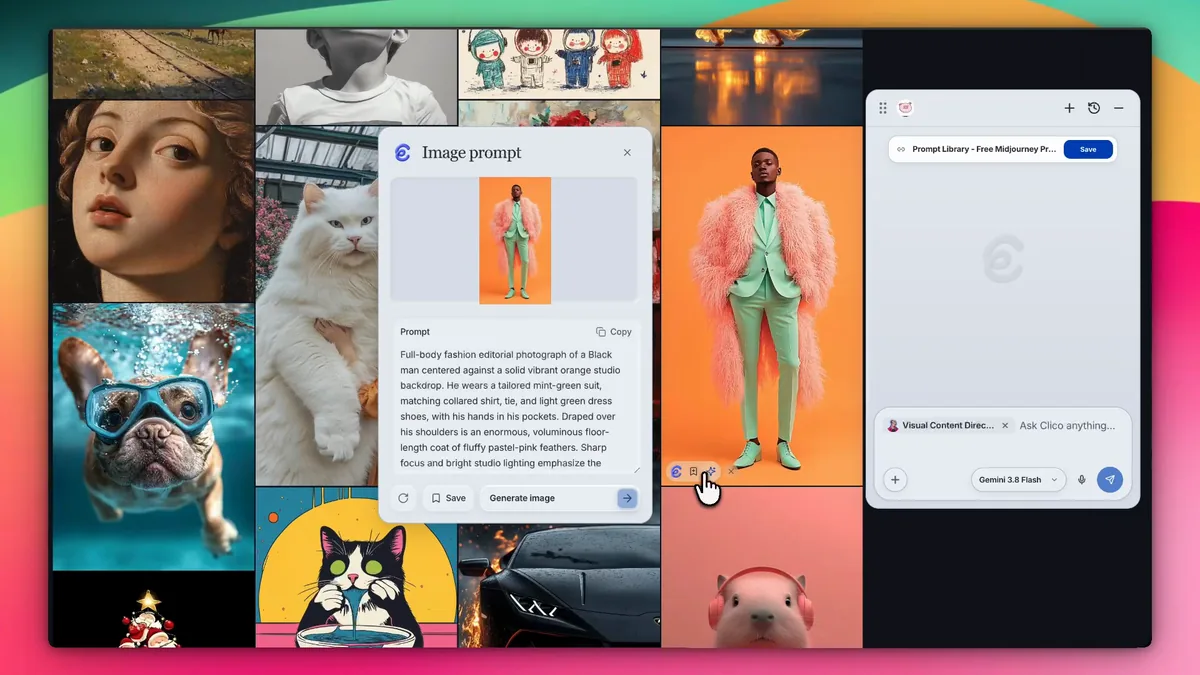
See how Clico describes an image.
This recording shows Image to prompt on a fashion reference in Chrome. The picture remains in view while Clico describes it in the Image prompt panel.
Extract and edit the prompt.
Choose an image
Hover over an image in Chrome and choose Image to prompt. Clico opens the description beside the reference.
Check the description
Compare the subject, lighting, colors and materials with the image. Edit the text to correct a detail or describe a different result.
Copy, save or generate
Copy the prompt or save it with the image. Generate image opens a new conversation with your edited words.
What should an image prompt describe?
A reference can show a color palette, a composition or a material you find hard to name. Image to prompt puts those visible choices into editable words. Your next decision is which details to keep and what the new image needs to do.
Check the details in the reference
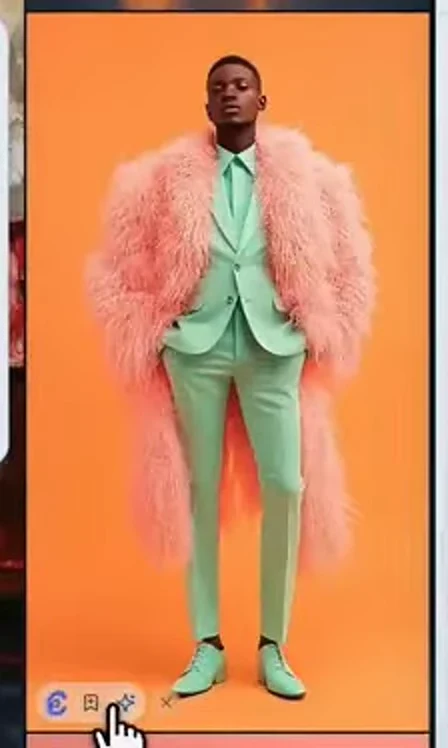
In this reference, the mint green suit, pink coat and orange background establish the palette. Centered framing and bright studio lighting describe the composition. Check those details against the image before reusing the text.
Add the purpose of your next image
The picture cannot tell Clico your audience, campaign format or where copy should fit. Add those requirements yourself. Google’s image prompting guide likewise separates subject, composition, action, location, style and editing instructions.
How can you reuse an image prompt?
Describe the look
Pull out the subject, composition, lighting, palette and materials that make the picture recognizable. Read the prompt alongside the source image.
Change the direction
Edit the returned text to keep the light or composition while choosing another subject. The revised prompt becomes your brief for a new image.
Keep the reference
Save the prompt with the image, or copy the text into the image tool you want to use. You can also choose Generate image in the Clico panel.
How to turn an image into a prompt.
Open the image toolbar
Add Clico to desktop Chrome and sign in. Make sure Image toolbar is on in Clico settings. Hover over an image on a web page, expand the Clico image toolbar and choose Image to prompt.
Read and edit the prompt
Clico opens the Image prompt panel beside the picture. For the fashion example shown here, the text describes the mint green suit, pink coat and orange background. Adjust the wording for the image you want to make.
Choose how to use it
Copy takes the prompt text. Save keeps the current prompt with the image. Generate image starts a new Clico image generation conversation using the edited prompt. Review the generated image when it returns.
How to adapt an image prompt for your project.
Image to prompt starts with what is visible. Prompt Generator starts with what you want to make. Use the extracted description as context, then add the purpose and constraints of your next image.
Write a prompt for a new image
Copy the extracted text into Prompt Generator with your new brief. Explain which visual choices should carry over and which should change. For this fashion reference, a starting instruction could be:
Keep the mint, pink and orange palette and bright studio light. Create a landscape fashion campaign image with the subject on the right and clear space for copy on the left. Do not add text.Build your next image prompt
Edit the original image
Use the AI image editor with the original image attached when you need to preserve a particular product, person or layout. A text description alone does not carry the original pixels.
For a fresh image, use the edited words in an AI image generator, or choose Generate image in the extension panel. That opens a new conversation with your edited prompt. Check the result against your brief; the description cannot recover an original seed or guarantee an exact copy.
Who can use image to prompt?
Image to prompt is available to signed in Clico users, including the Free plan, with sufficient credits. Prompt extraction uses your allowance; generating a new image is a separate operation. Check your current plan and credits before a larger batch.
View plans and allowancesImage to prompt FAQs
What is image to prompt?
Image to prompt starts with an existing picture and creates a written description for image generation. Clico describes visible subjects, composition, lighting, palette, materials and style. You can edit that description before using it.
Does it recover the exact original prompt?
No. A picture does not reveal the exact instructions, seed or hidden settings used to make it. Clico creates a new description of visible details. A generated image may resemble the reference while differing in layout or fine detail.
Where do I use this tool?
Use Image to prompt in the Clico Chrome Extension on desktop Chrome. Hover over an image on the web page and choose Image to prompt from the Clico image toolbar. This page explains the feature; extraction happens in the extension.
Which images can it read?
The extension reads supported images displayed on web pages. The image input accepts PNG, JPEG, WebP and GIF data up to 8 MiB. Very small images, inaccessible files and unsupported image elements may not offer a usable toolbar or result.
Can I edit or save the result?
Yes. Edit the prompt text in the Image prompt panel, copy it, or save the current prompt with the source image. Save keeps your edited wording; regenerating the prompt asks Clico to analyze the image again.
Can I create an image from the prompt?
Yes. Choose Generate image in the panel to start a new Clico image generation conversation. You can also copy the text into another image generator and adjust it for that tool’s settings.
Is image to prompt free?
Signed in Free plan users can access the feature when they have sufficient credits. Prompt extraction consumes allowance based on model usage. It is not an unlimited free extraction tool.
Can I use the prompt in another image generator?
Yes. Copy gives you editable text that you can paste into another image generator. Review that tool’s supported settings separately. The text does not transfer a model, seed, image reference or hidden generation settings, so results will vary between tools.
Why is Image to prompt missing from an image?
The extension needs to detect a supported image and read its data. A blocked image URL, a very small image or an unsupported page element may prevent that. Open a page with an accessible image, confirm Clico is enabled and try its image toolbar again.