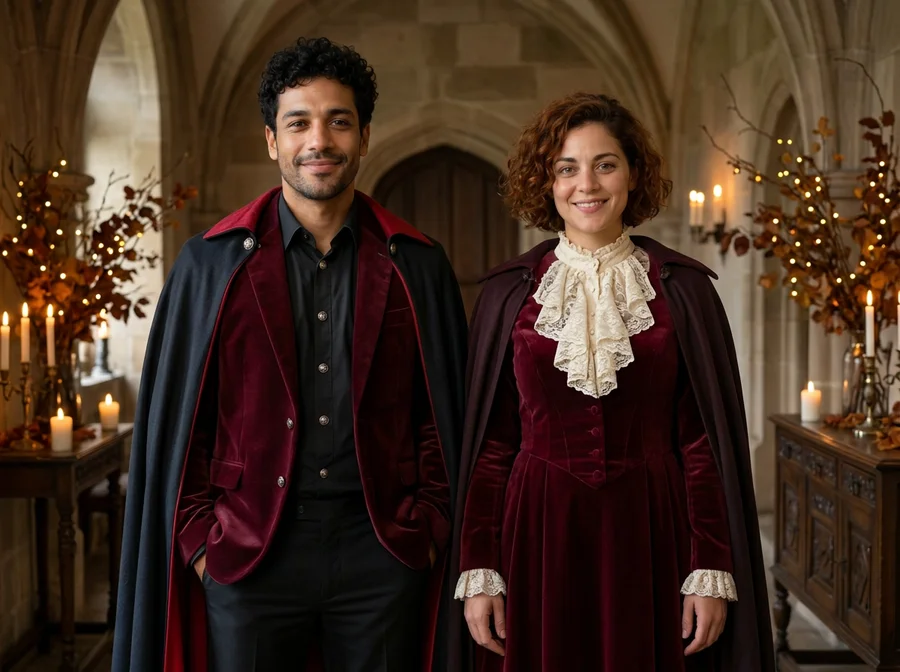
Matching vampire costumes
Two familiar faces, coordinated velvet and one very theatrical evening.

See how a Halloween costume could look on you. Choose a style, add your photo and continue in Clico to create the image.
Preparing your photo workspace…
Open Clico to create your costumeMidnight witch selected.


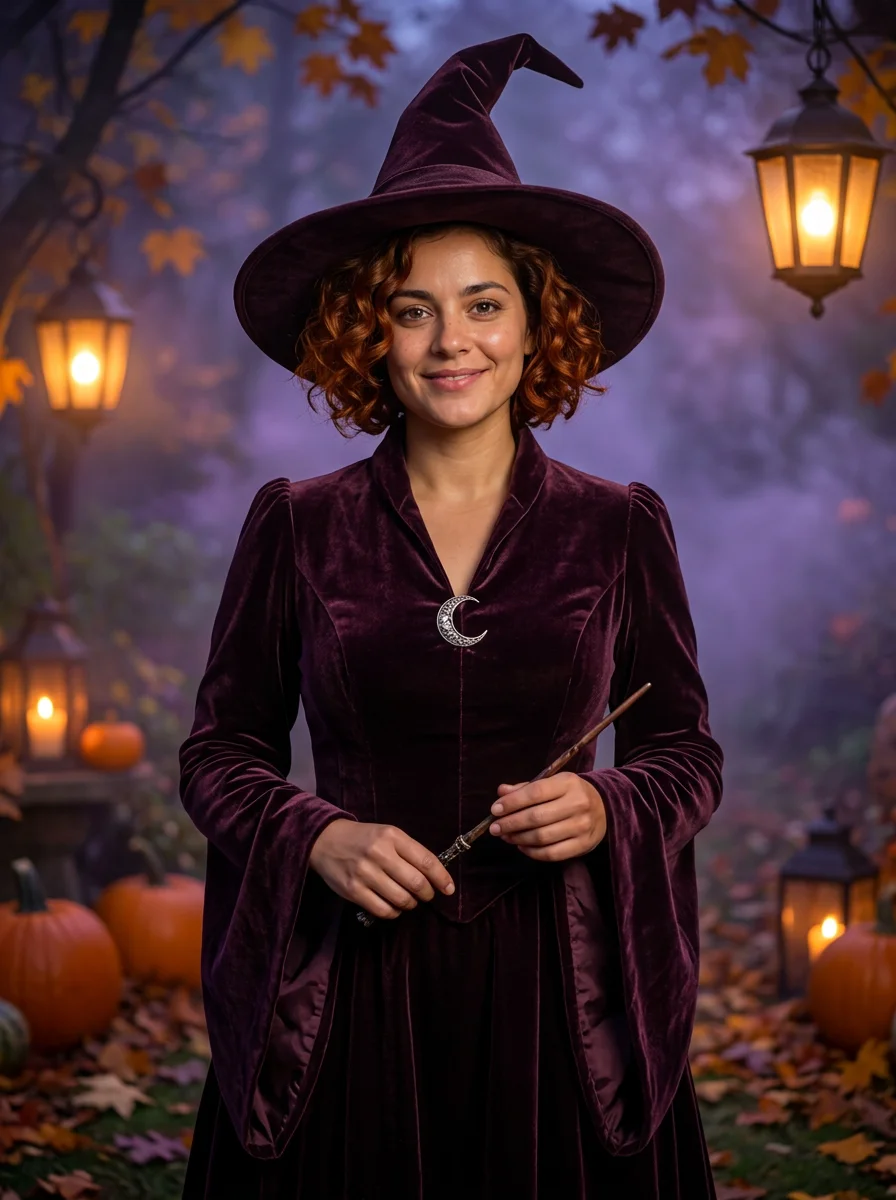
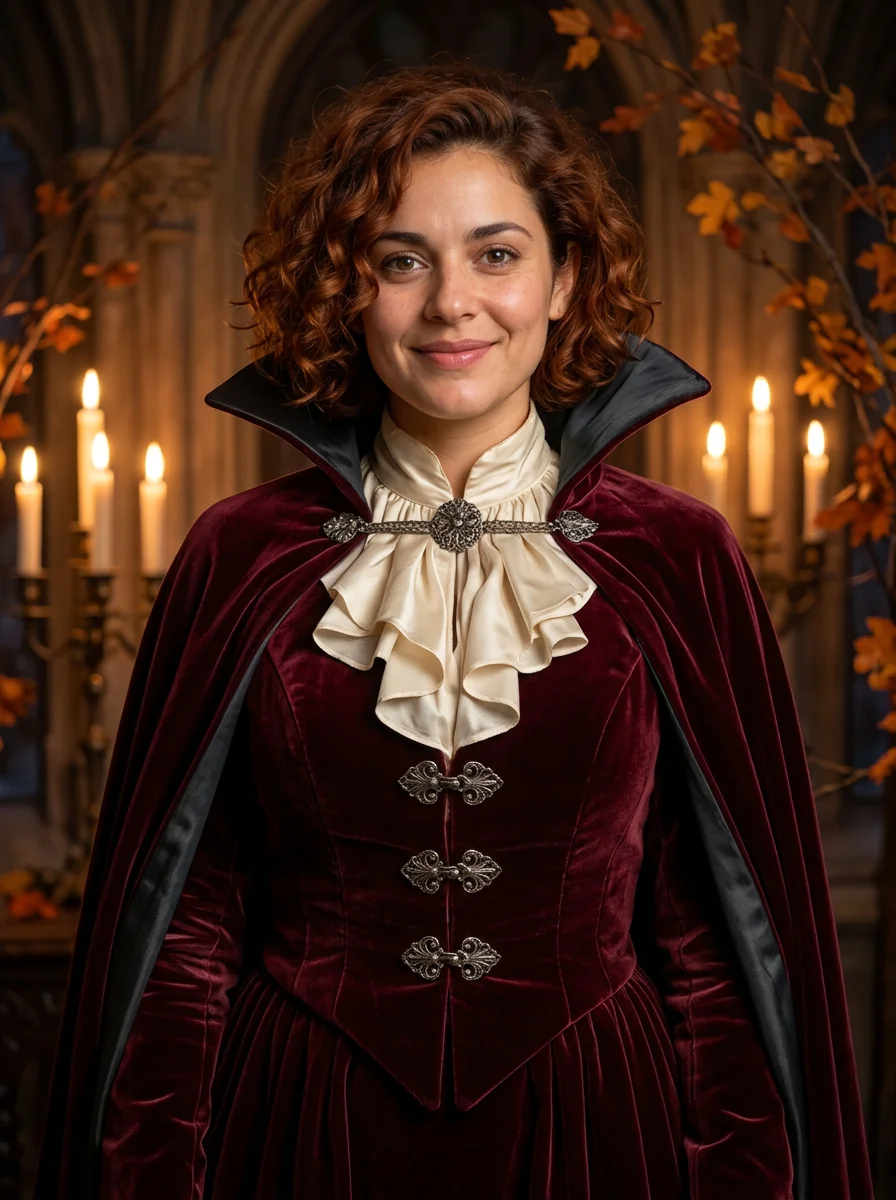
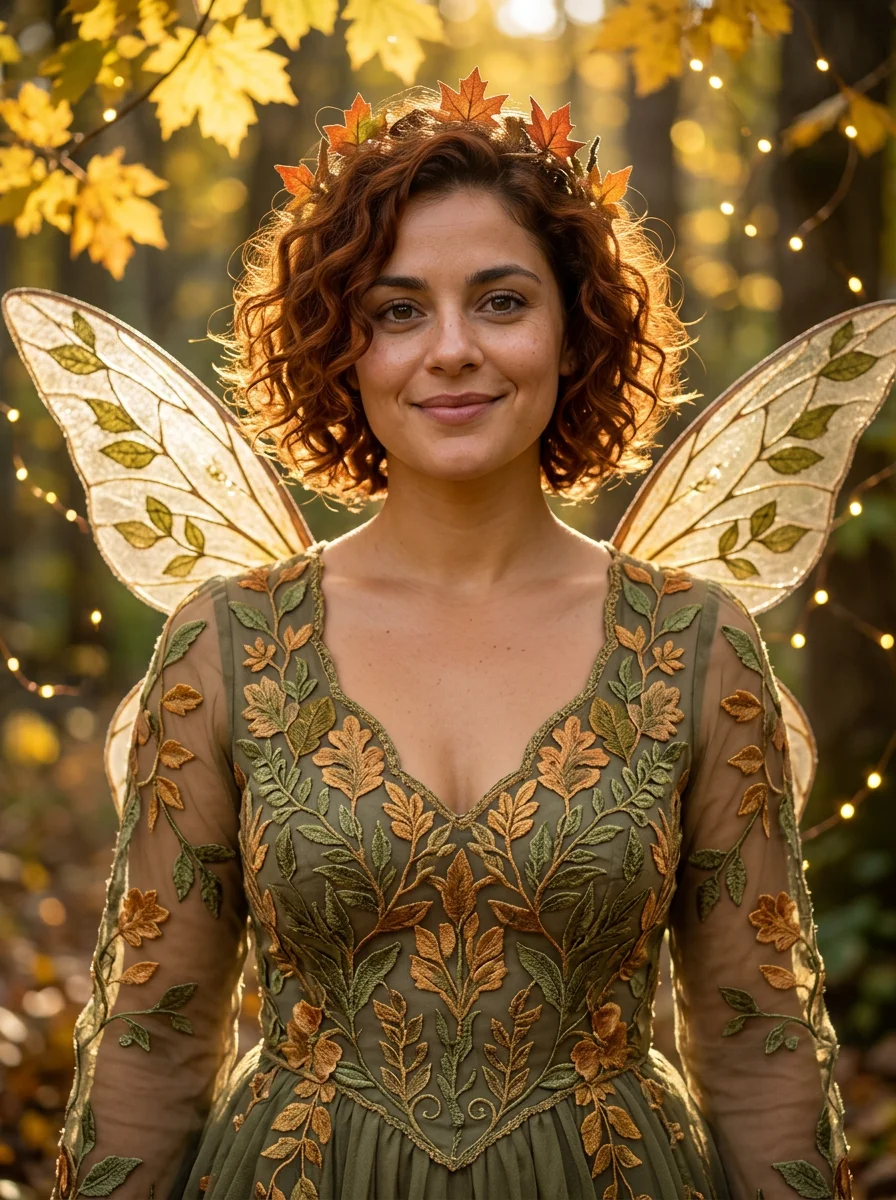
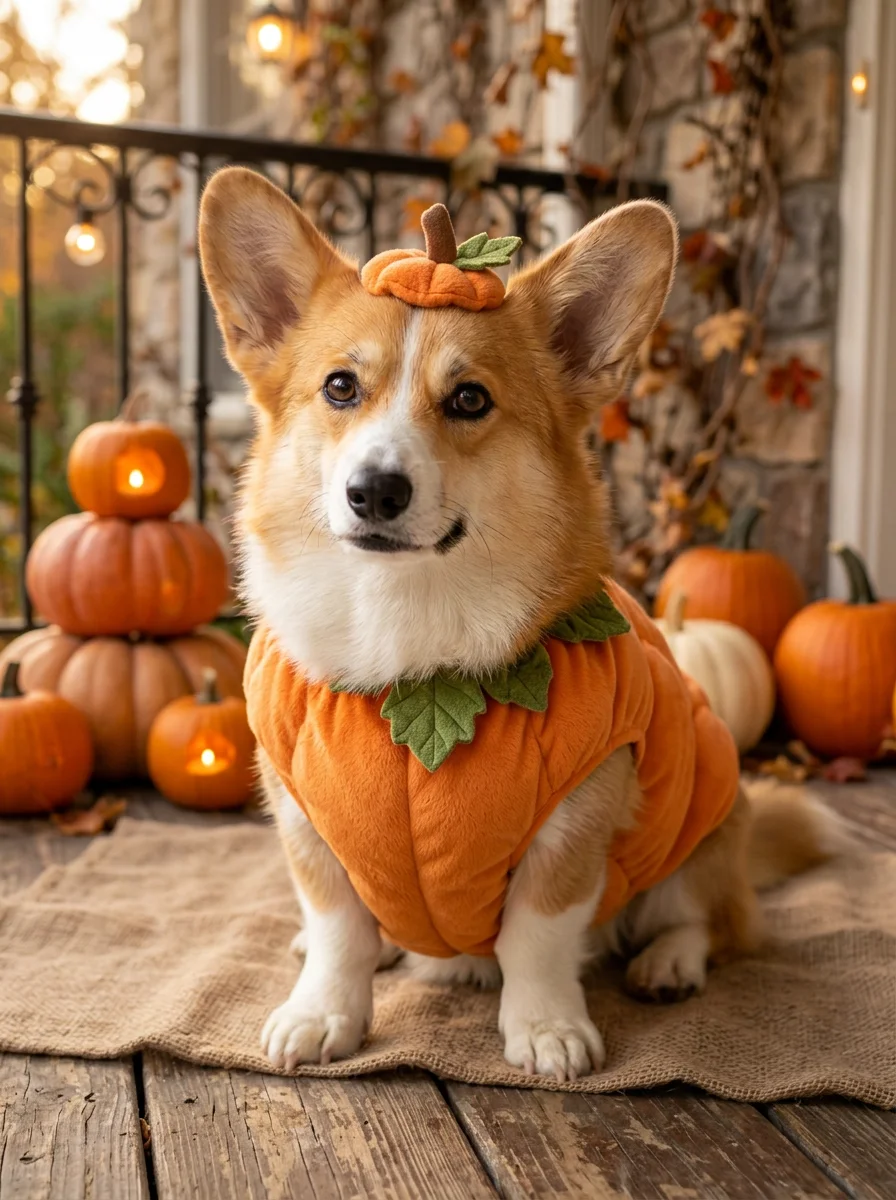
Generated with these presets. AI results vary.
The photo gives the look its starting point. The outfit, accessories and setting bring the Halloween idea to life.
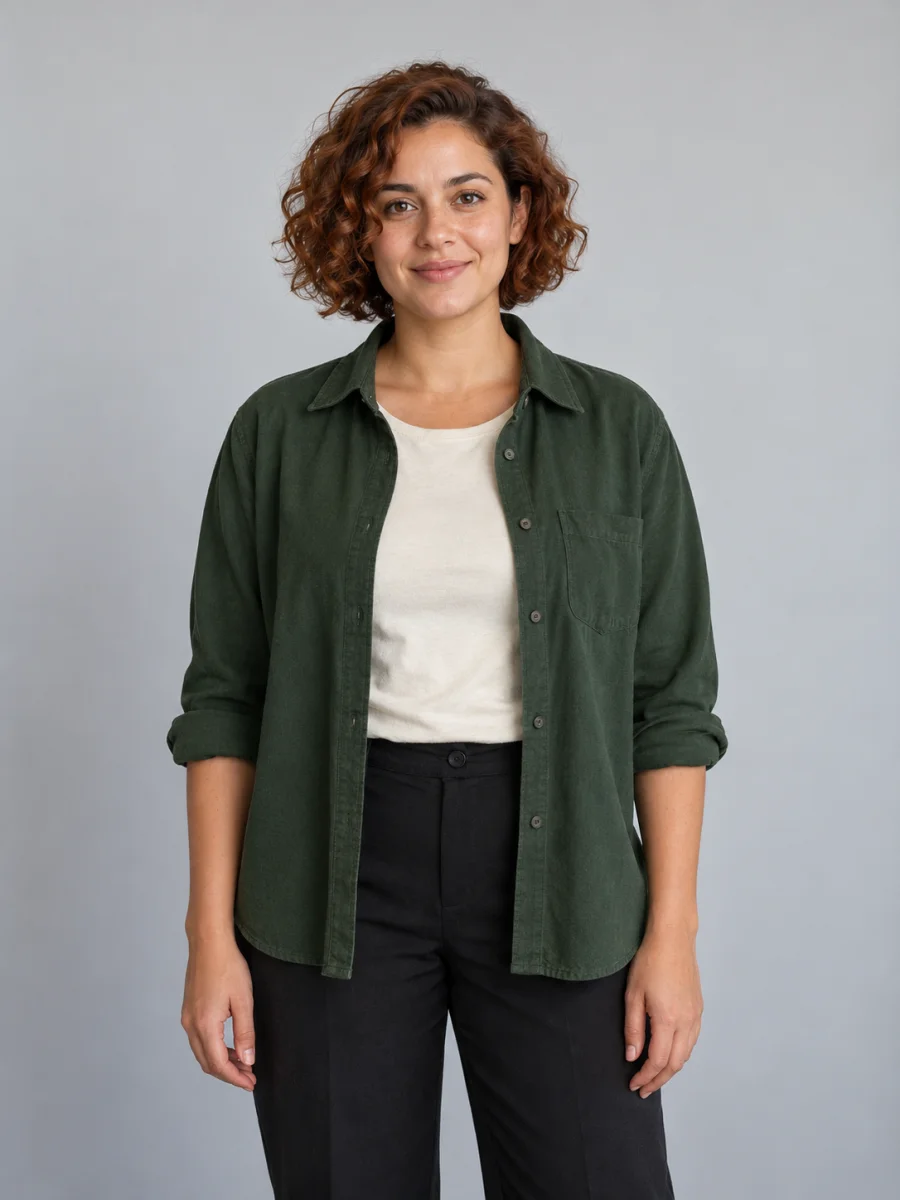
Drag across the image to compare. Use the arrow keys to move the divider, or Home and End to reveal either photo.
A solo entrance, a matching duo, or the smallest guest at the party. Start with a clear photo of who you want to dress up.
Two familiar faces, coordinated velvet and one very theatrical evening.
A soft little outfit, a leaf collar and the same very good dog.
A favorite color, a different setting, a detail you want to keep. Start with a costume and add your own direction.
Pick the person, choose the idea, then review your creation in Clico.
Use a clear portrait, a couple’s photo or a pet picture. A visible face and a simple pose make a good starting point.
Try a prepared look or add your own colors, fabrics and setting. You can switch styles while keeping your photo.
Continue in Clico with the photo and directions saved in your draft. Check the settings and credit estimate, generate, then download your image.
Give the costume idea somewhere to go. To animate your finished costume photo, use the AI video generator with a compatible model. Video generation requires Pro or Max and credits.
See how a witch’s hat, a pirate coat or a dramatic cape feels before you plan the real outfit.
Give your avatar a seasonal cameo, with a face your friends can still recognize.
Make a matching portrait for your Halloween invitation. Add your event details afterward in Clico.
It edits a photo into a Halloween costume picture. Choose a prepared look, add your photo and continue in Clico. The photo guides the person or pet; the prompt describes the outfit, accessories and setting.
Add your photo in the composer and choose a costume. You can edit its prepared directions in the main input. Continue in Clico to review the photo, prompt and image settings, then generate. Choosing a style or opening the draft does not start a paid generation.
Use a sharp, well-lit JPG, PNG or WebP, up to 8 MB. Keep the face visible and avoid strong filters. A waist-up or full-body photo gives the model more room to show the outfit. Use a photo you have permission to transform.
The prepared prompts ask the model to preserve facial features, hair, skin tone and body proportions. AI can still change small details, hands or accessories. Review the result, and keep your original photo attached when requesting a revision.
Yes. Edit the prepared prompt in the composer to add a fabric, color, prop or setting. For a different idea, describe the outfit you want. Changing the preset replaces its prepared directions while keeping your uploaded photo.
Use one clear photo with everyone visible. The template asks for coordinated outfits and separate, recognizable identities. The couple example was generated from one two-person photo. Larger groups and overlapping faces can be harder to preserve.
Yes. Use a clear photo showing the face, ears and body. The pumpkin example uses the same preset compiler as the person examples, with clothing adapted to the animal. These are virtual pictures; they do not change the real animal or guarantee a physically wearable outfit.
Choose a witch, vampire, fairy, pirate, space explorer or pumpkin look. Add colors, fabrics, props or a setting in the main input. You can also edit the prepared directions in Clico to explore another costume.
Browsing the examples and preparing a draft are free. Image generation in Clico uses credits, and availability depends on your plan and balance. Check the estimate in Clico before you send the request.
The examples use Nano Banana 2 at 1K with the same prepared prompts supplied by this page. Solo and pet looks use portrait format; the matching-couple example uses landscape. You can change the image settings in Clico, and results will vary.
Download the finished image from Clico. You can use it for a profile picture, party invitation, group chat or costume mood board. Review the final image and use photos and characters you have permission to use.
It is a creative photo transformation. It can help you explore a Halloween idea, but it does not measure garment fit, find products to buy or predict how an actual costume will fit.
One photo. A Halloween look to make your own.