Focus on the finish
A closer camera move and raking light draw attention to the glass, label and base.
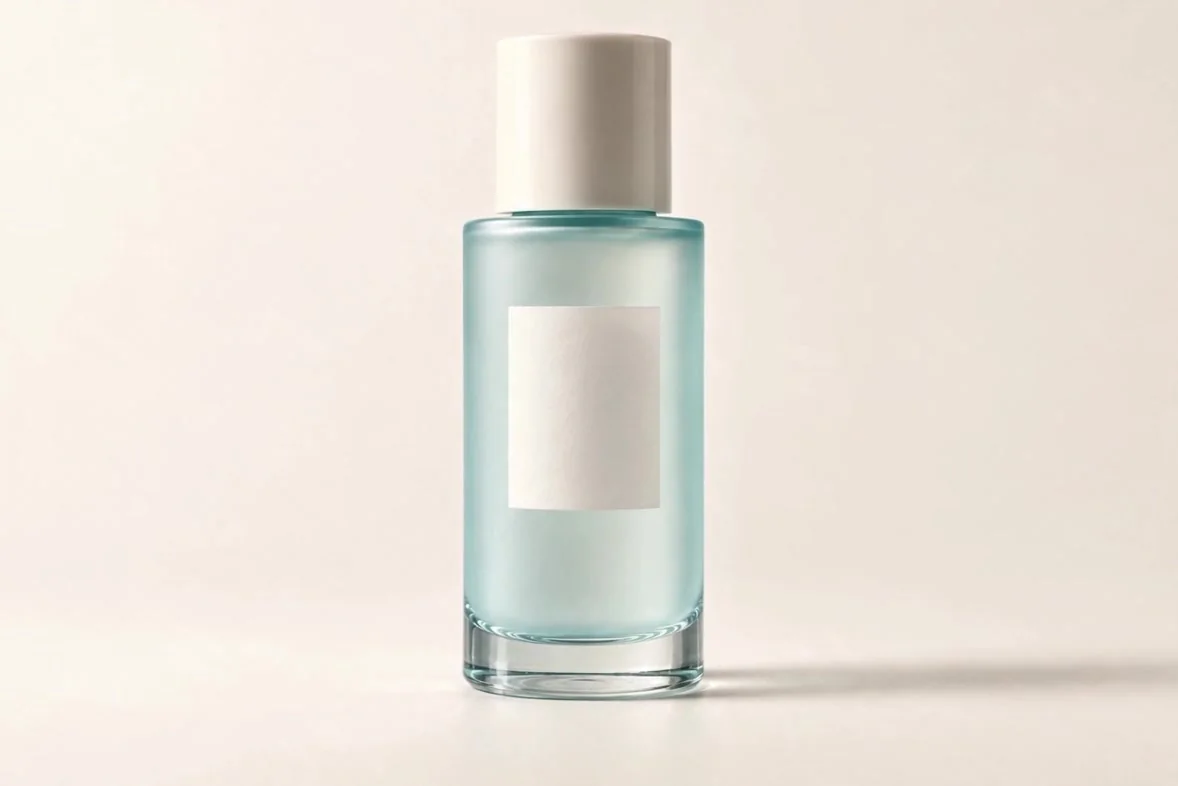
A closer camera move and raking light draw attention to the glass, label and base.

Turn product photos into videos for ads, online stores and social launches. Show what shoppers will receive, how they can use it, and why they might want a closer look.
Preparing your video workspace…
Open Clico to create your video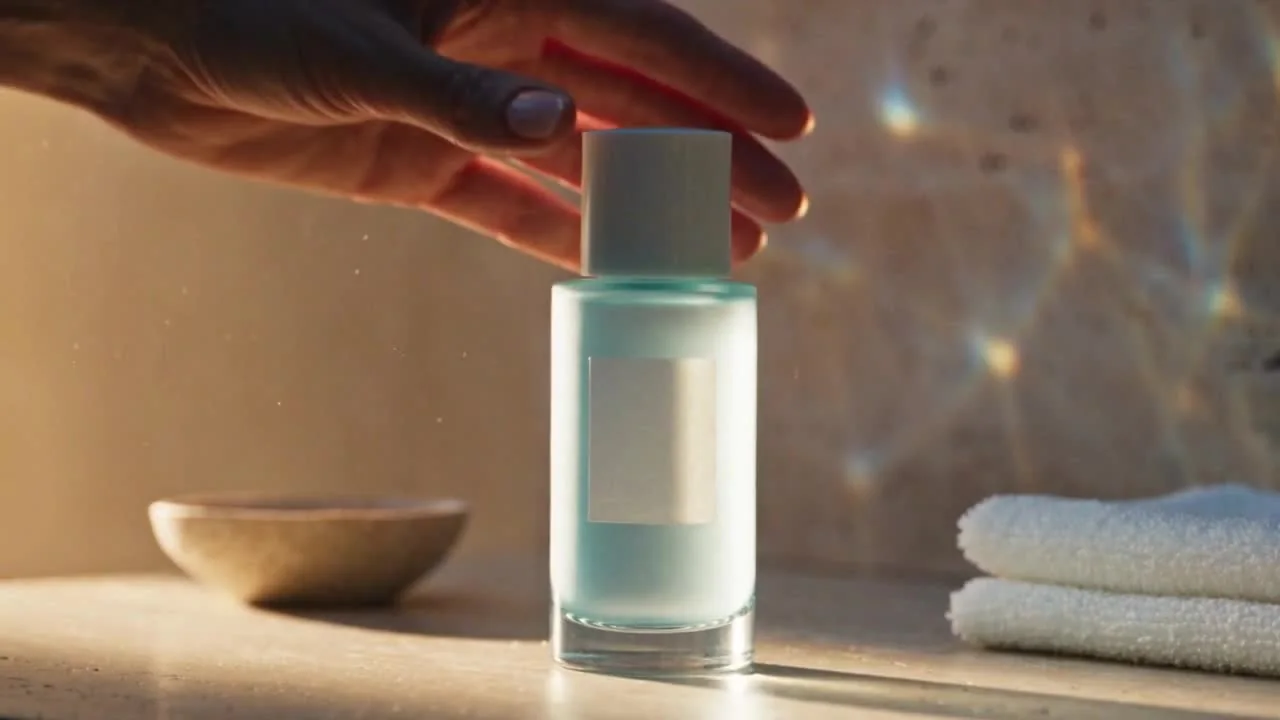
A skincare bottle enters a sunlit morning routine, followed by pouring into a palm, application and a closing product shot with music.
Start with a clear product photo, then describe what you want shoppers to see. Compare the original with a frame from the finished video.
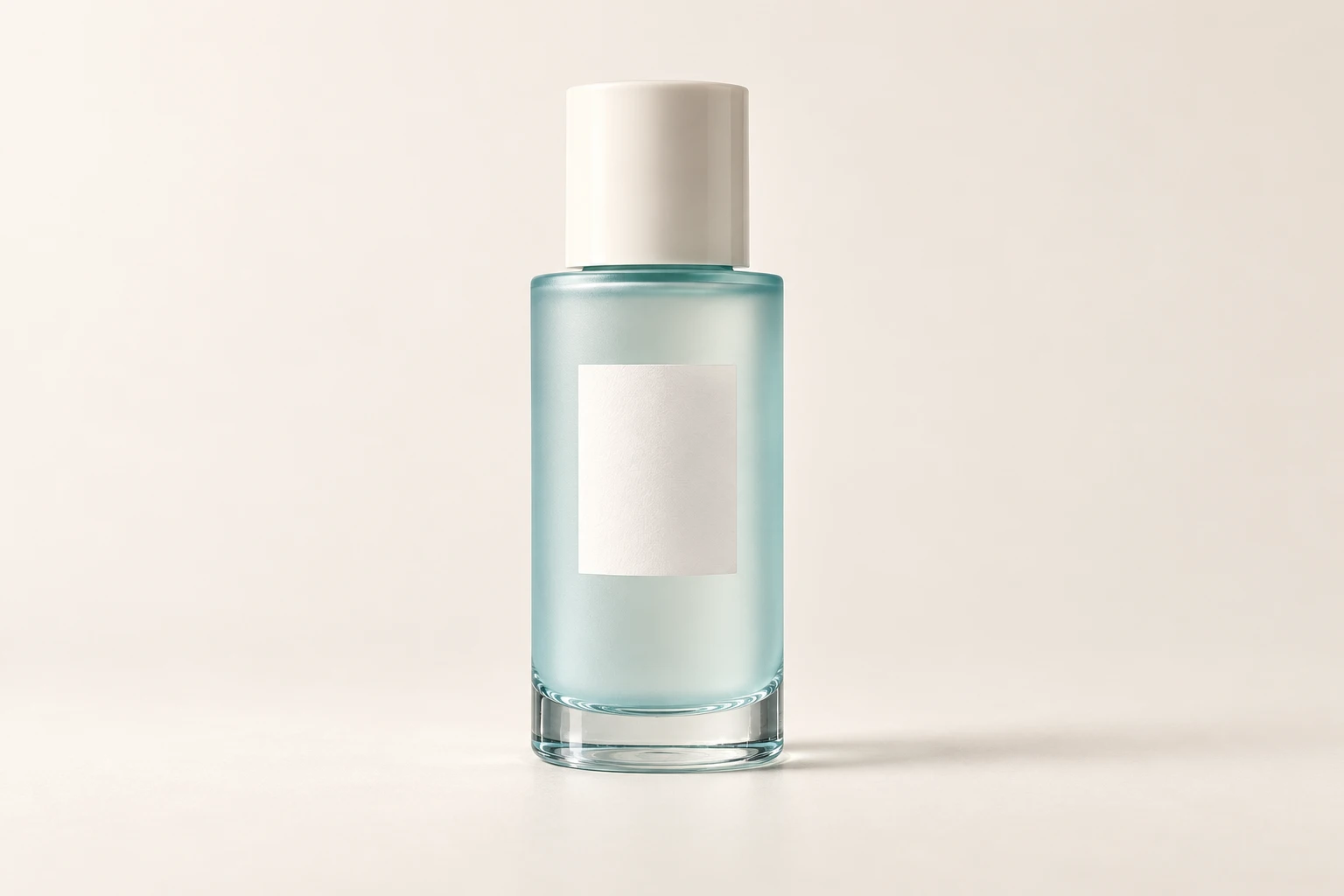
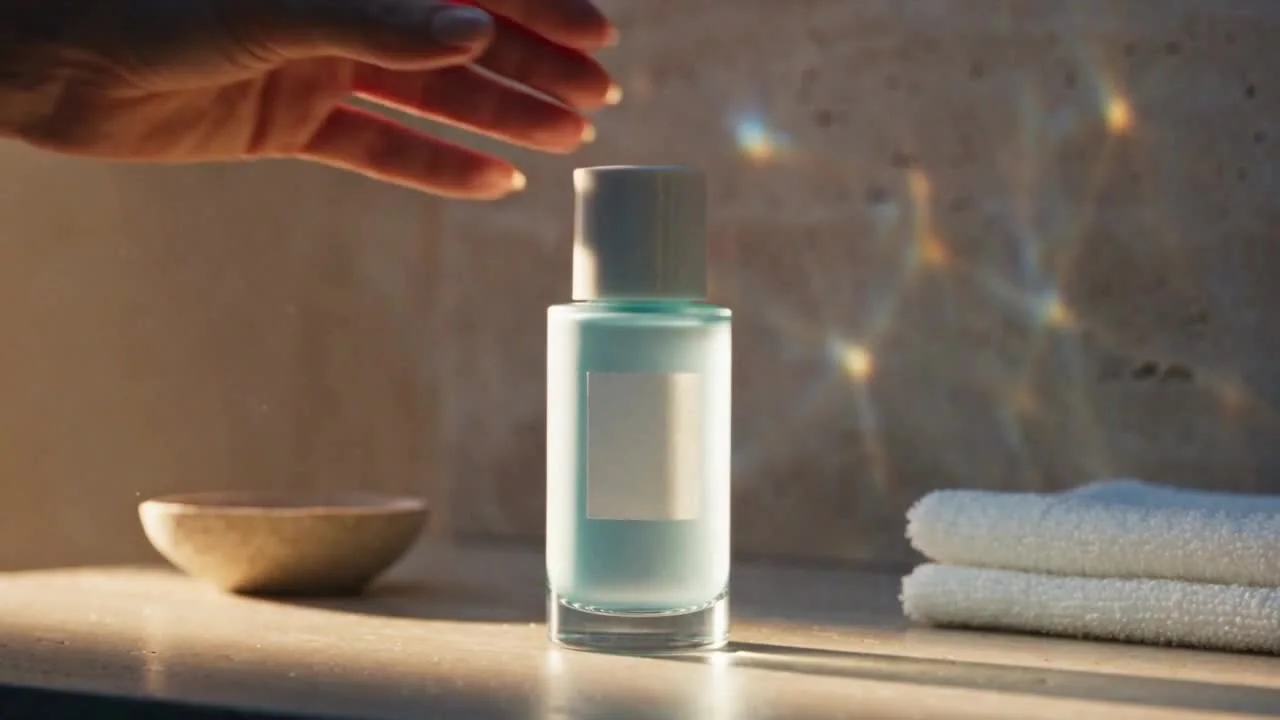
Use your photo to guide the shape, color and packaging. Check the whole video against the original: fine text, logos and proportions can change.
Show what comes in the box, introduce a new product or put it in an everyday setting. Describe the action and camera direction in your request.
Choose from the model’s available formats and durations. A portrait ad and a product-page detail shot need different framing and emphasis.
Answer a buying question with one clear action: what arrives, how it is used or what makes a new product worth a closer look.
Show the lid opening, the bottle coming out and the included cloth. Help shoppers understand what arrives with the set.
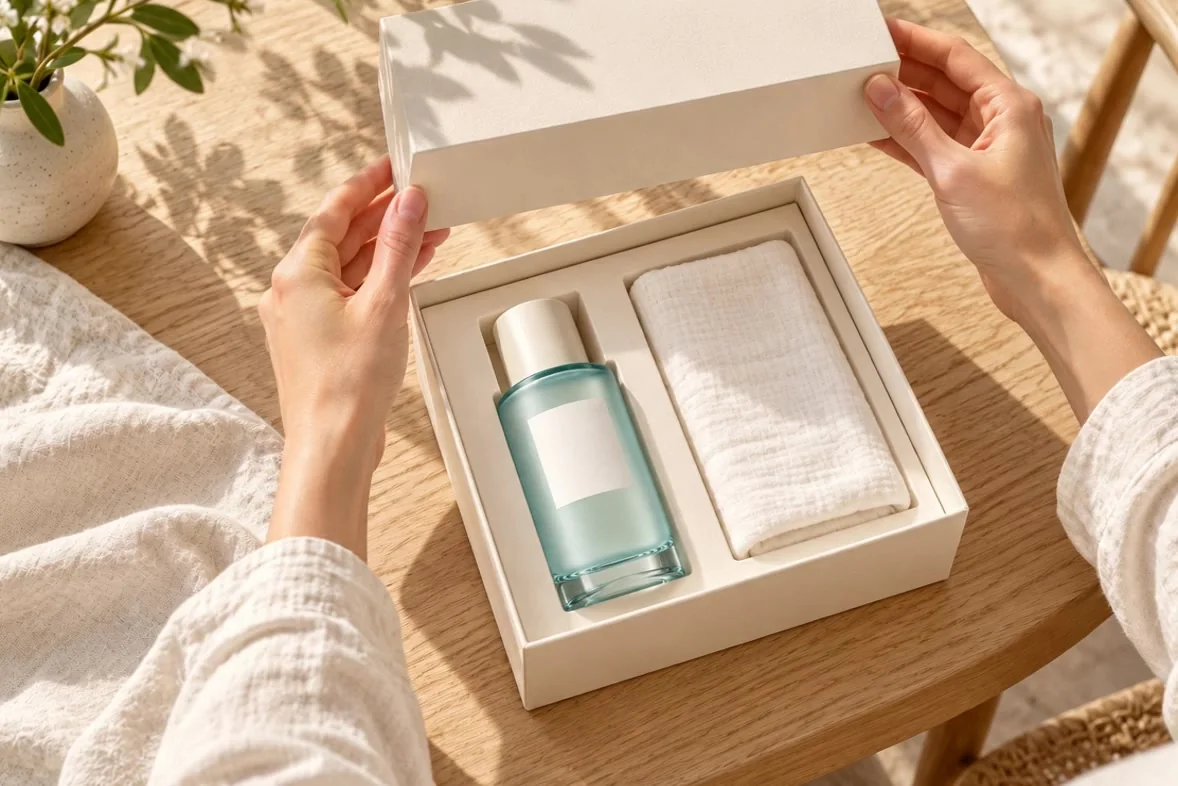
Show the lid opening, the bottle coming out and the included cloth. Help shoppers understand what arrives with the set.
Generate the product reveal, then add a headline and a call to action. See how the footage becomes a launch creative for a phone screen.
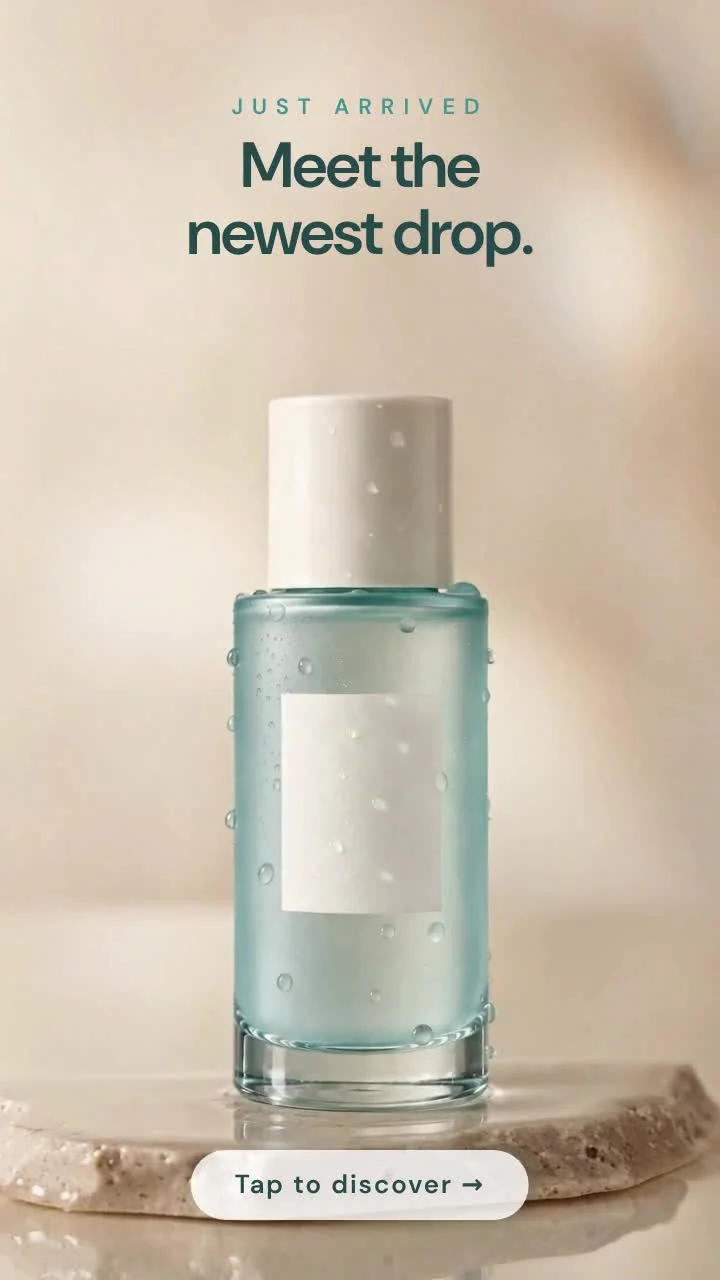
A vertical skincare launch ad with a falling water drop, bottle reveal, stone display, English launch headlines and a Tap to discover ending.
A falling water drop leads into the bottle emerging from the surface. The same plain-background photo becomes a new scene in a true vertical frame.
“Meet the newest drop.” and “Tap to discover” were added in Clico after the footage was generated. Use your own launch message, check the result, then export it for your campaign.
Use this social ad briefGive buyers a closer look at the material, shape and finish. A short video can sit beside your product photos and answer a question before checkout.
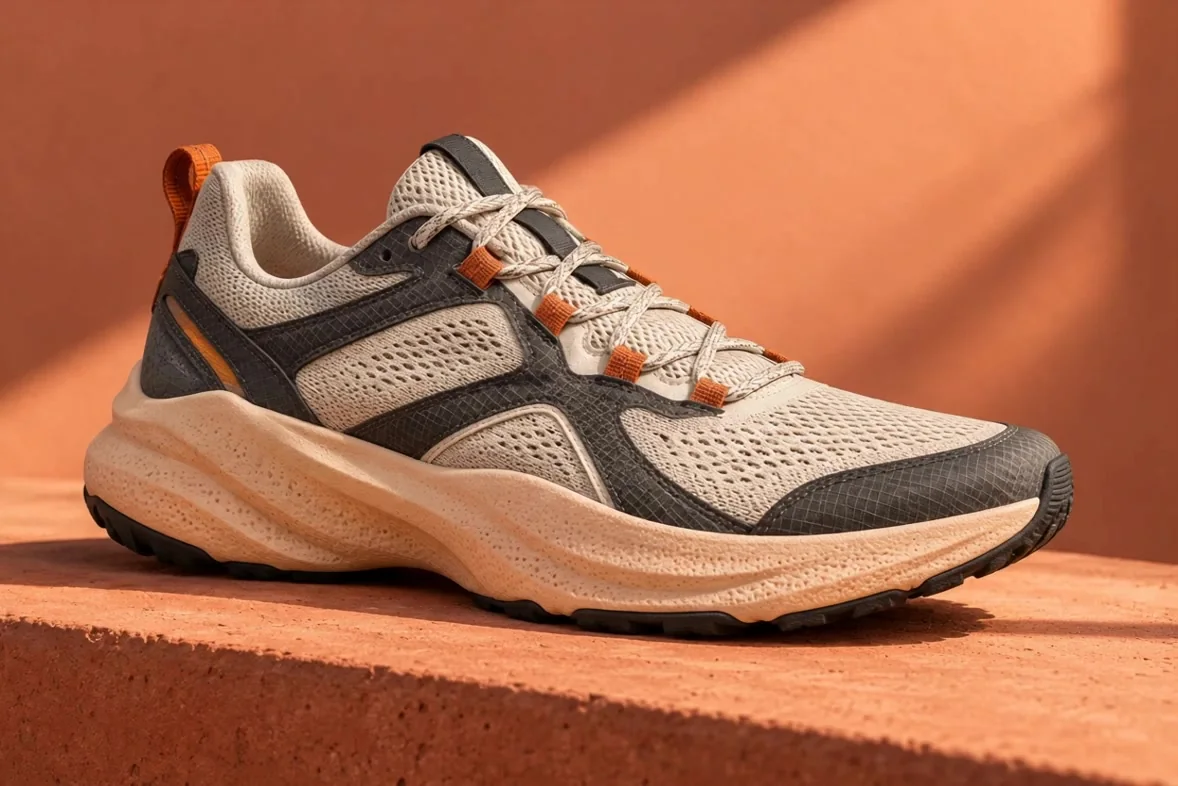
Let the texture, stitching and silhouette lead the shot.
Footwear / Everyday runners
See the knit, layered panels and sculpted sole from a moving viewpoint.
Download your approved video and upload it using your store’s own product-media workflow.
Both clips start with the same plain-background product photo. Compare a close view of the finish with a familiar morning setting. Test which angle helps your audience understand the product.
A closer camera move and raking light draw attention to the glass, label and base.
A closer camera move and raking light draw attention to the glass, label and base.
A bathroom setting and a simple hand action give the same product an everyday context.
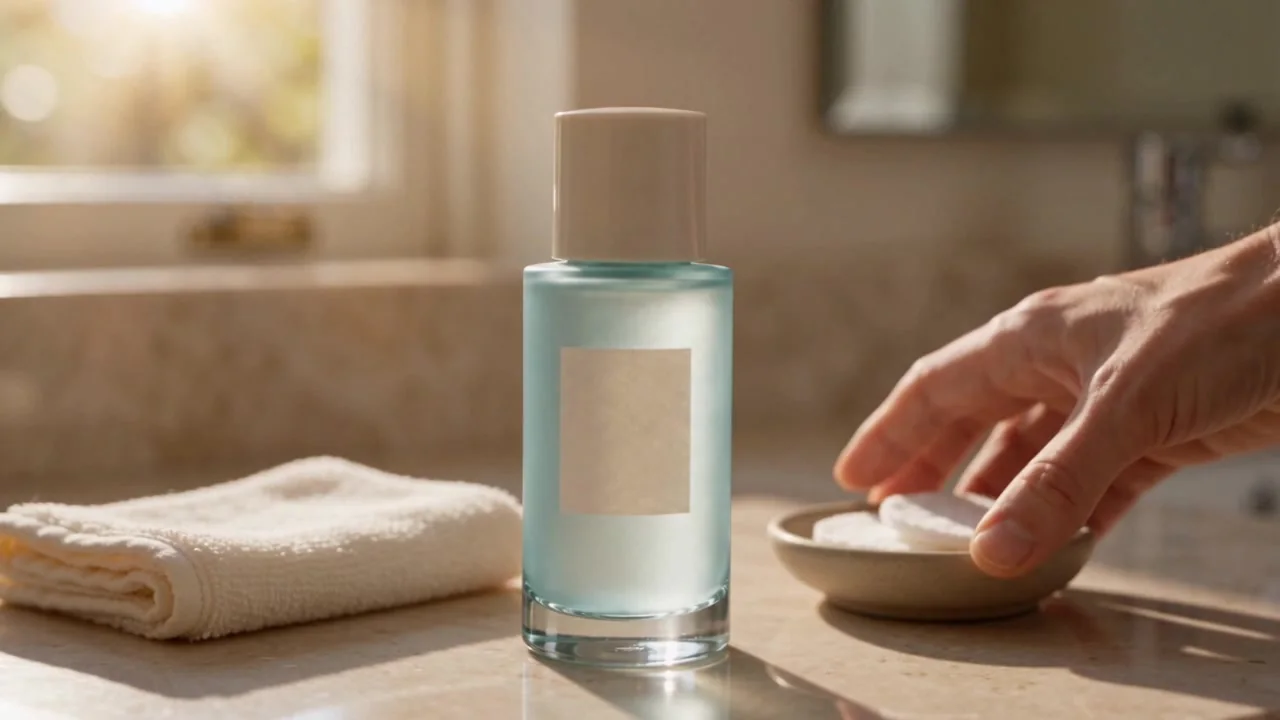
A bathroom setting and a simple hand action give the same product an everyday context.
Use a clear product photo or a prepared scene. For an unboxing, include the real packaging and contents you need to show.
Say what you are making and what shoppers should notice. Continue in Clico, review the format and cost, then generate and watch the full result.
Check the product, motion and any text. Download the video, make any final edits, and upload it through your store or ad platform. For other subjects and video styles, explore Clico’s AI video generator.
Generation uses credits and requires an eligible plan. Check the cost and settings in Clico before submitting. View plans
Upload a clear product photo and describe what the video is for. Include packaging, accessories or a prepared scene when those details matter. Each example lets you inspect its actual input; the new launch and social examples also include the creative brief used in Clico.
Not always. A reference guides the product’s appearance, but AI can change text, labels, proportions and reflections. These skincare examples use an unbranded concept bottle, so they do not prove exact logo reproduction. Check the entire video against your original product before publishing.
Describe a close view, camera movement, background or action in your request. These are creative directions, not precise physical controls. You can also work with Video Director to develop a concept and ask for changes after reviewing the result.
Choose an available aspect ratio and duration in Clico’s video settings. Options depend on the selected model. This page includes a portrait example and short clips of about 5–10 seconds. Check the downloaded file’s dimensions and full playback before placing it in an ad or listing.
The page includes both product clips and an edited social ad. The portrait ad combines generated footage with English headlines and a call to action added in Clico. Finishing an ad is an editing step: ask for the text, soundtrack and ending you need, then review the exported video. Other examples remain simple silent clips.
Video generation uses credits and requires an eligible plan. Check the current cost, model, duration and resolution in Clico before submitting. The page’s Continue button prepares your draft for Clico; it does not generate or charge you here.
Download the finished file and upload it through your store or marketplace’s own media workflow. Check its supported format and file limits. The listing shown here is an illustrative layout, not a store integration or automatic publishing feature.
They give you different creatives to test. Compare openings, details or settings with the same offer and audience in your ad platform. Clico does not guarantee an increase in clicks or sales.
Use product images, brand assets and music you have permission to use. Check the generated details, any product claims and the applicable model terms before publishing. Loading an example imports its reference and request; it does not guarantee the same output. The launch and social briefs open Video Director, while older shot examples use video mode.
Start with your product photo and one thing you want shoppers to see.
Create product video