
How to Make a 24 Card FlickAI Video With One Photo
Make a 24 Card Flick AI video from one portrait. Check when the grey coupe appears and choose where to trim the reveal.
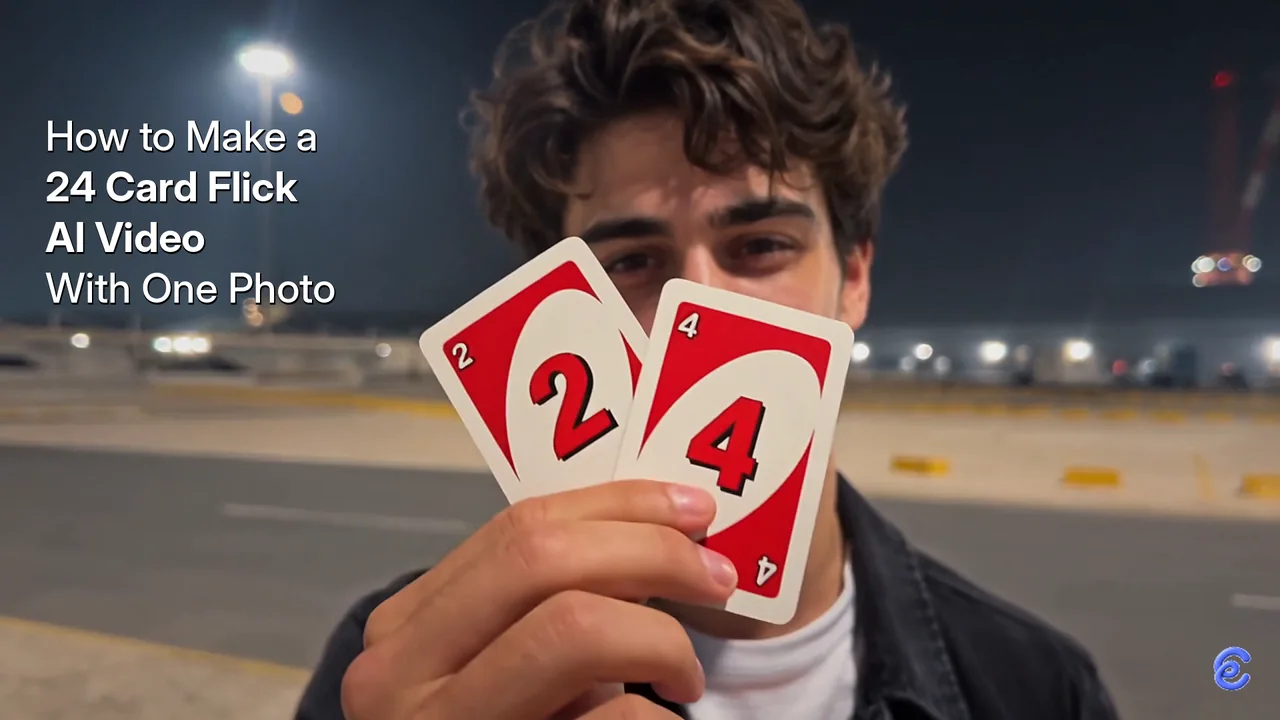
To make a 24 Card Flick AI video, upload one portrait to Clico’s 24 Card Flick template. Clico supplies the red 2 and 4 cards, the parking lot, the grey sports car and the reference sound. The template makes a 15 second landscape video.
I tried it with a portrait of a man in a black jacket. The car appeared as his hand cleared the lens. I liked the reveal, but the extra movements afterward made me want to cut the ending shorter.
How the card flick reveals the car
The two numbers set up the shot. Once you can read the 2 and the 4, the performer brings their hand toward the lens. The cards briefly hide the scene. When the hand moves away, the car is there. In an edited video, that moment would be a natural place to join a take of an empty lot to one with the car in it. The template recreates that sequence from a photo.
Make the video from one portrait
Choose the card holder
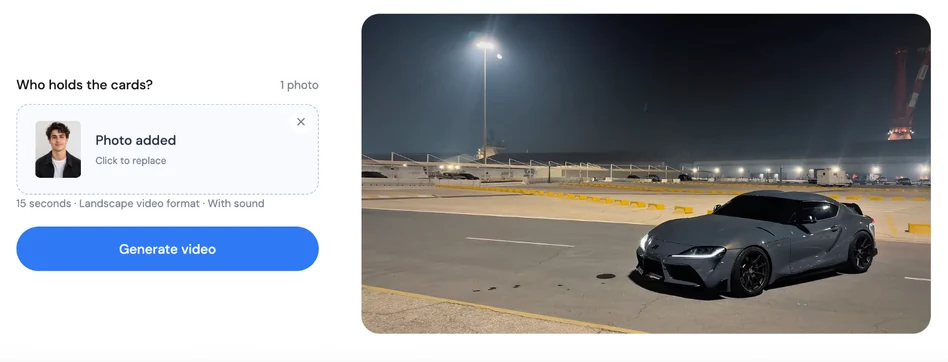
Open the 24 Card Flick template and select Add your photo under Who holds the cards? Pick a photo of one person with a clear view of their face and outfit. Those details help you recognize the person when they turn to look at the car.
I used a portrait I had already made in ChatGPT. It showed a man with curly brown hair in a black jacket and white shirt against a plain background. The upload box showed his portrait beside the template preview.
Open the prepared request
Select Generate video to continue in Clico. Sign in if prompted and check the request in the workspace. If it opens as a draft, submit it once the photo and settings look right. In my test, the portrait carried over with a prompt asking for the red cards, the grey car reveal and the original sound. I used that prompt and kept Wan 3.0 Prime selected.
Play the reveal before saving
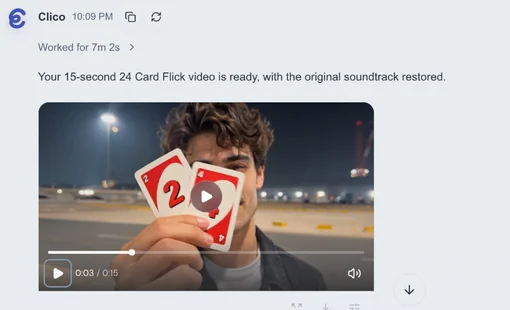
My video took 7 minutes and 2 seconds to complete. Clico showed it in the conversation, where I could play it with sound and download it. My MP4 was 1280 × 720 at 30 frames per second.
Check the reveal and choose where to cut
The clip opened on an empty parking lot. The performer walked in about a second later and raised the cards at around four seconds. I could read both numbers before his hand crossed the lens. The car appeared as the blur cleared, and I could still recognize his hair and jacket when he turned toward it.
The clip kept going after the reveal. He looked at the car, turned back to the camera, touched his hair and eventually walked out of the frame. I’d cut after a clear view of the car for a quick reveal. For an ending that holds on the car alone, keep the shot after he leaves.
Once you have a reveal you like, browse Clico’s viral video templates for your next scene. Watch the sample and check how many photos it takes. That helps you choose between another solo clip and a scene with several roles.
Frequently asked questions
Can I use a photo of my own car?
The public preset has one photo slot for the card holder. It supplies the grey coupe. A clip built around a particular car calls for a video workflow where you can provide that car as a reference.
Can I start with a group photo?
Crop it to one person before uploading. Keep their face and shoulders in the crop so the template has a clear subject and a visible outfit to work from.
What if a card number or a hand looks distorted?
Check the last still moment before the flick. If the 2 and 4 read clearly there, a little blur during the sweep may look fine at normal speed. If a number changes while the cards are held up, try another take.
What if the car is visible too early?
Replay from the opening shot through the flick. If the car is already there while the cards are held up, another take gives you a better chance at a proper reveal. Trimming works best when the reveal itself looks right and the ending just runs long.
Can I crop the MP4 for a Reel or TikTok?
Place the export on a 9:16 canvas. Check both the raised cards and the first clear shot of the coupe before settling on a crop. If they fall on opposite sides of the frame, fit the full landscape clip inside the vertical canvas.
Can I use my own sound?
The preset includes reference audio. To use a different track, replace the audio after export and line up an audible beat with the moment the car appears.
Does it cost credits to try again?
Generating a clip uses Clico credits. Review the estimate shown for your request before you confirm another take. My test used a Max account.