
Higgsfield Genjutsu Alternativesfor Trending AI Videos
Compare social video templates, face swaps and motion reference workflows.

Clico is a Higgsfield Genjutsu alternative for turning your photos into trending videos with face swap templates. Choose Tiny Desk, Bulin 47 or Hotel Lobby, add the requested portraits, and review the credit quote before generating. If you have your own reference clip or want more control over the finished edit, Higgsfield Genjutsu, Kling Motion Control and Kapwing offer different routes. CapCut is worth checking for quick photo effects and social templates.
These tools do not all do the same job. A prepared performance saves setup but limits your choice of scene. A motion reference gives you more freedom but requires a suitable clip and more decisions. Here is what each workflow asks you to bring and where it makes sense to start.
| Tool | Good starting point | What you provide |
|---|---|---|
| Clico | A specific prepared trend | Portraits for the template's roles |
| Higgsfield Genjutsu | A library trend or your own performance | A library motion or video and reference images |
| Kapwing | A custom recast that needs finishing | Character images, a motion reference and an editing plan |
| Kling Motion Control | One character following a performance | A character image and motion video |
| CapCut | Quick social effects and templates | Photos or media requested by the chosen template |
Clico: Make a trending video from photos
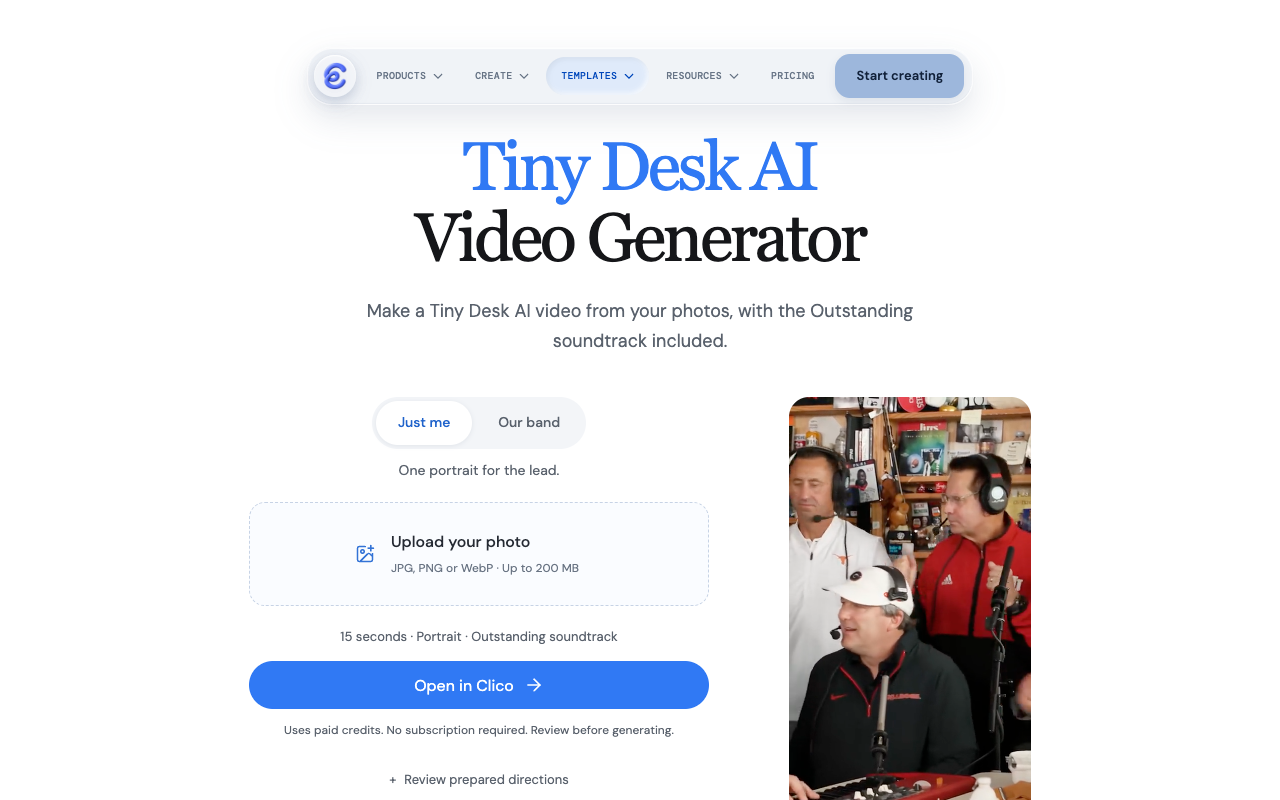
I would start with Clico when the performance itself is the one I want to share. The Tiny Desk AI template has a solo option using one portrait and a band option using five. Bulin 47 uses one portrait for the freestyle, while Hotel Lobby asks for two portraits. Each starts with a prepared performance, so you can focus on who appears in it.
You can buy credits once instead of subscribing. Clico's video credit packs start at $9.90 for 1,000 credits; unused purchased credits remain available for 12 months, with no automatic renewal. The pack is not a flat price per video: check the estimate for your chosen template and settings before generating. This is useful if you want to make a trend occasionally and do not need a monthly plan.
How to make a trending video with your photos
The examples below use the same fictional portraits and scenes prepared for Clico's template pages. Pick a clear photo for each person, then choose the scene and roles before sending the request.
Make a Tiny Desk performance
- Open Tiny Desk and choose Just me for one lead or Our band for five performers.
- Upload a separate, clear portrait for each role. The band setup has lead, keyboard, saxophone, backing left and backing right positions.
- Choose Open in Clico, sign in if needed, and check the 15 second request and credit estimate before generating.
For a closer look at the input and an earlier generated result, see the Tiny Desk AI trend guide.
Creator Jake Whipple described using a vertical excerpt from Charlie Wilson's NPR performance and photos of five college football coaches for his own Tiny Desk trend video. His Sport & State interview shows why the cast matters: the shared joke is as important as the performance. The Clico template supplies the prepared scene; you supply the cast.
Put one person in the Bulin 47 freestyle
- Open Bulin 47 and add one portrait with the face and upper body clearly visible.
- Choose 5, 10 or 15 seconds and Standard or HD quality.
- Continue to Clico, review the estimate for those settings, and generate. Watch the finished video with sound before sharing.
The Bulin 47 AI trend guide shows a five second example made with a fictional portrait, including the input and result.
Make a Hotel Lobby duet
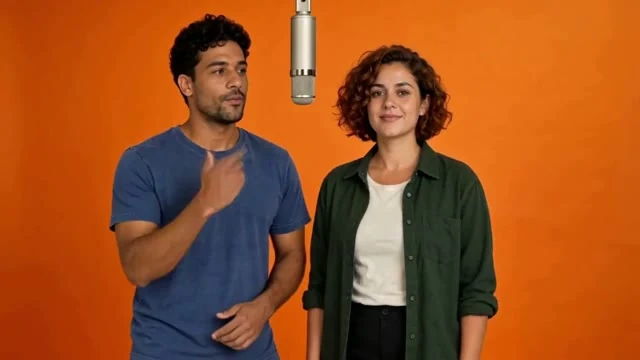
- Open Hotel Lobby and upload one portrait for the left performer and another for the right. Use Swap sides if you want to reverse them.
- Choose a 5, 10 or 15 second version and Standard or HD quality.
- Continue to Clico, check the estimate, and generate. In the finished clip, check both faces and their positions throughout the exchange.
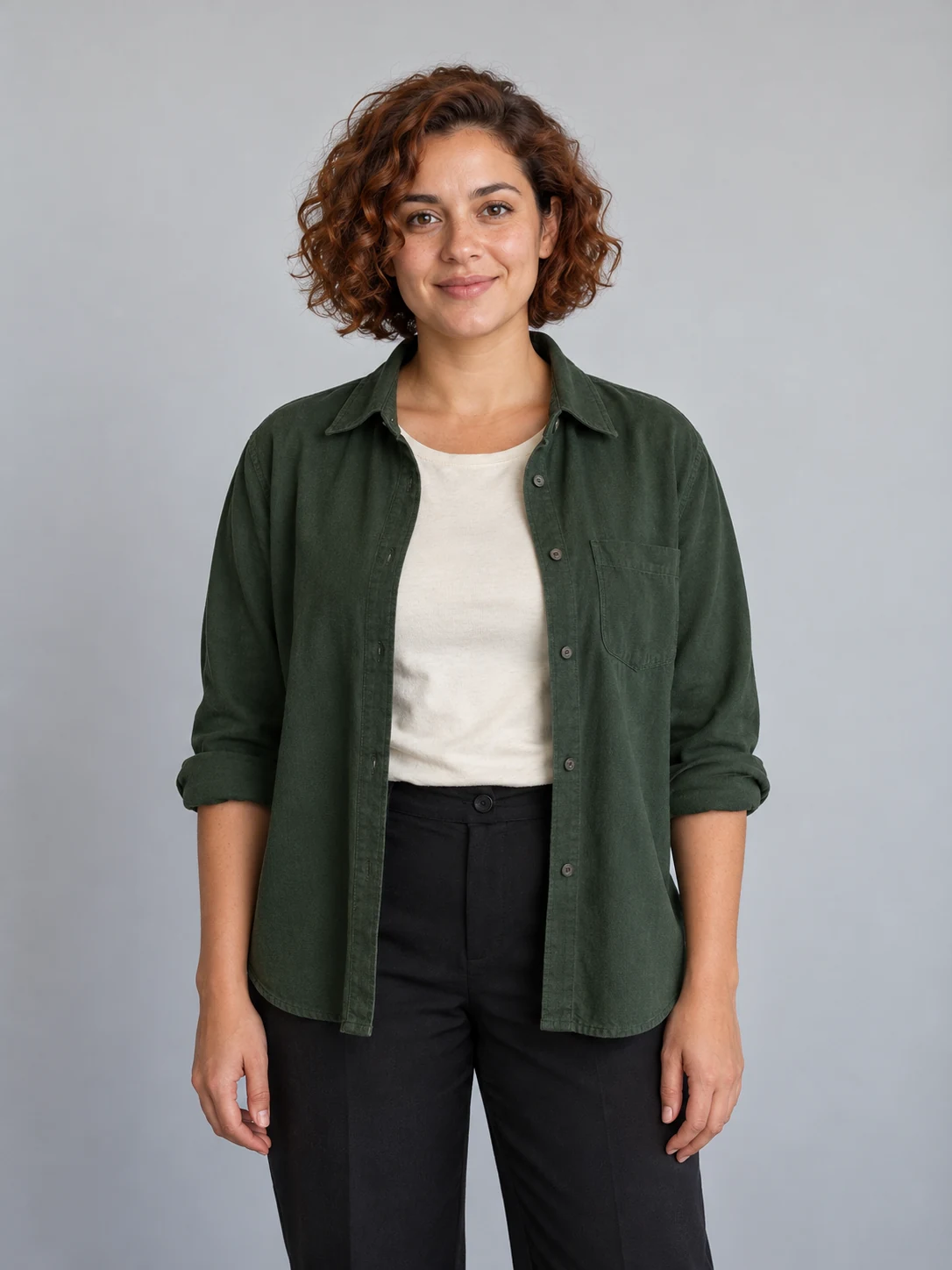
The page's example uses the same fictional portrait shown for Bulin as the left performer, and the portrait below for the right performer. In the resulting frame, the blue shirt is on the left and the green overshirt is on the right.
The prepared scenes make these three ideas quick to start. If your trend depends on a different performance, the reference based options below give you more choice over the source clip.
Higgsfield: Recast a trend or your own clip
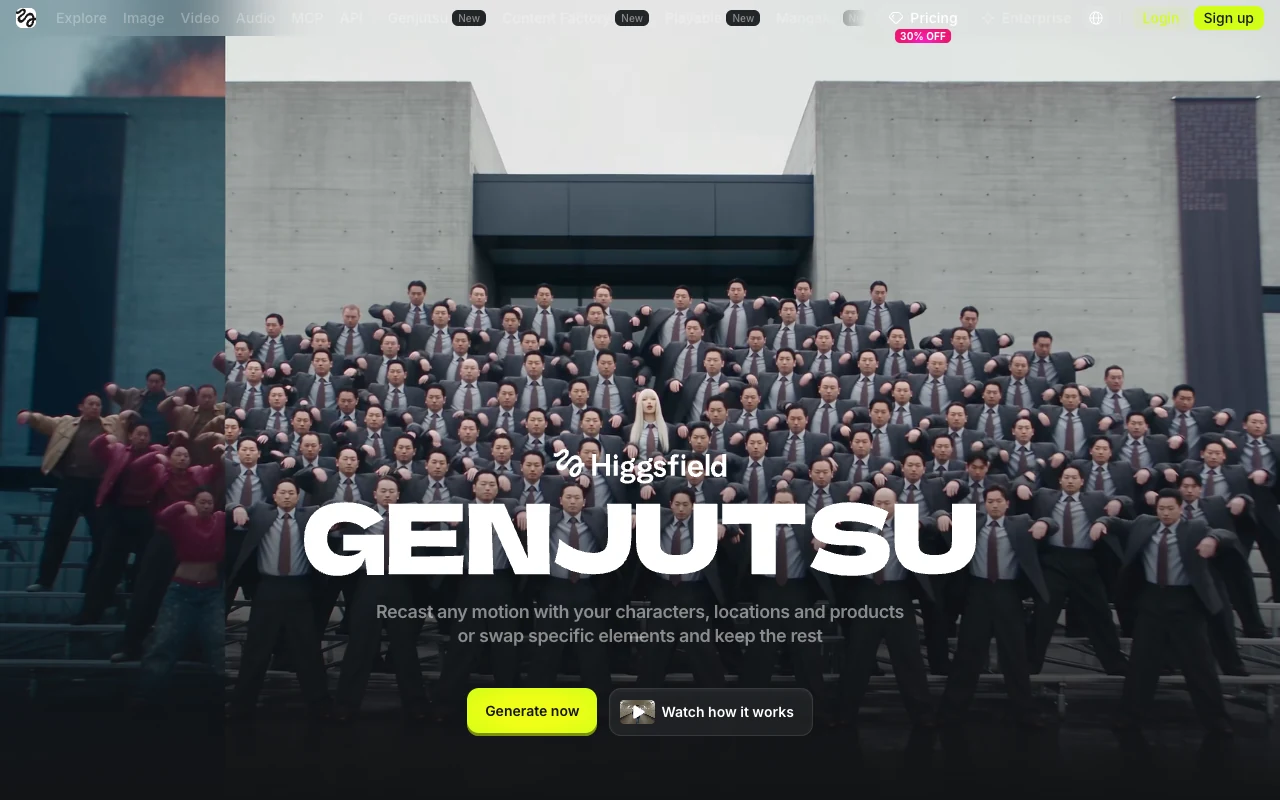
Genjutsu is the reference point for this comparison. Its Motion Library offers trending dances, transitions and memes; you can select a motion and add photos rather than find the source yourself. Alternatively, upload a video and choose Motion Transfer to rebuild a scene around its movement, or Objects swap to change a selected element in the shot.
I would choose Genjutsu when I want its library or have a particular performance and want more freedom than a fixed template gives me. Its help page describes uploads of 4 to 30 seconds and up to 30 reference images; its product page lists different limits, so check the generator before preparing a large set of assets. Review the output rather than assuming every detail of the original survives.
Higgsfield says website generations may be unlimited when Genjutsu is included in your plan's Unlimited list; other routes use credits. Its API pricing lists Genjutsu from $0.318 per second before discounts. API rates are separate from website plan terms, so check the quote in the route you use.
Kapwing: Create and finish a custom trend
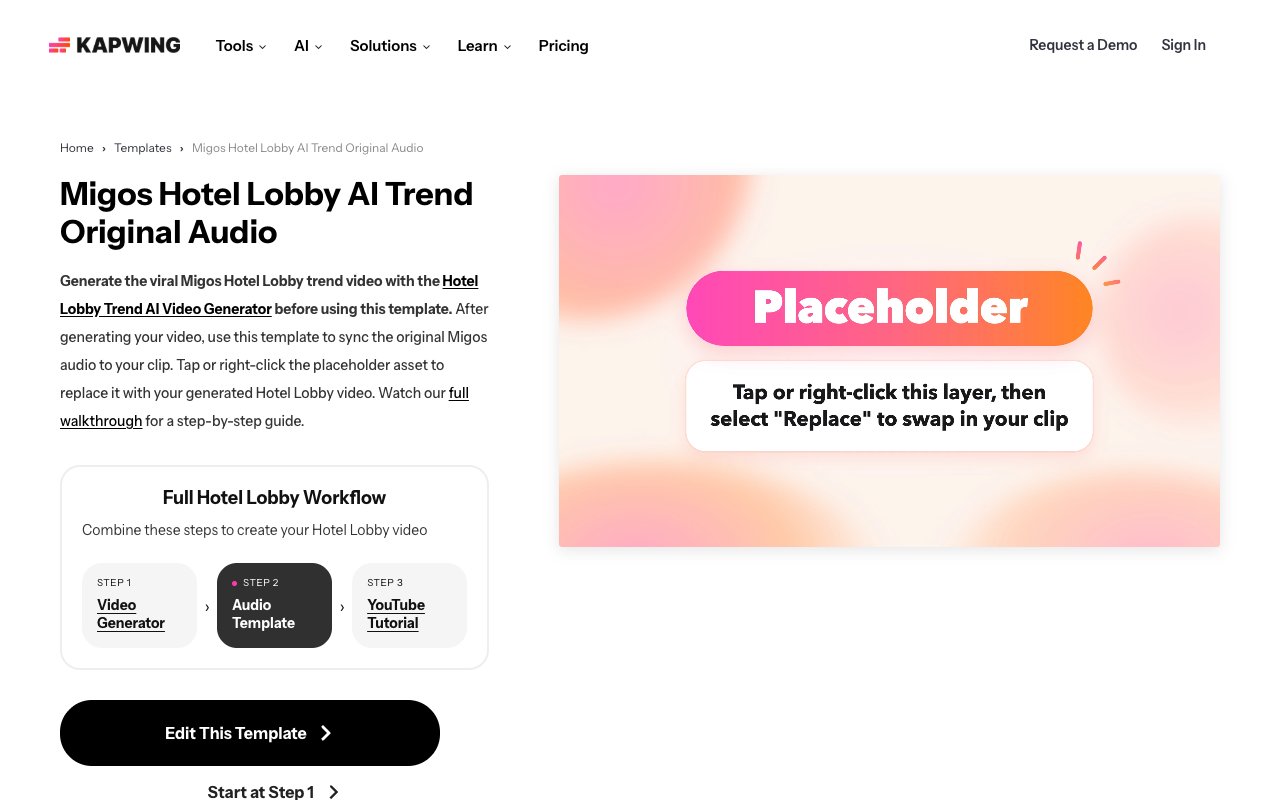
Kapwing is a useful choice when the generated clip is only the beginning of the post. In its Hotel Lobby walkthrough, Kapwing describes creating separate character references and using a motion reference with Seedance 2.5. Its editor can then be used to arrange the output, add captions and sync audio.
This gives you more decisions than a prepared template. You need suitable character images and a motion reference, and may need to adjust the edit after generation. Kapwing's own example is its test, not a result we reproduced. The walkthrough estimates about 415 Kapwing credits for its 15 second generation; actual usage depends on settings. Its pricing page lists Pro at $24 billed monthly with 1,000 credits per month. Check the current model quote and export limits before starting.
Kling: Put one character into a performance
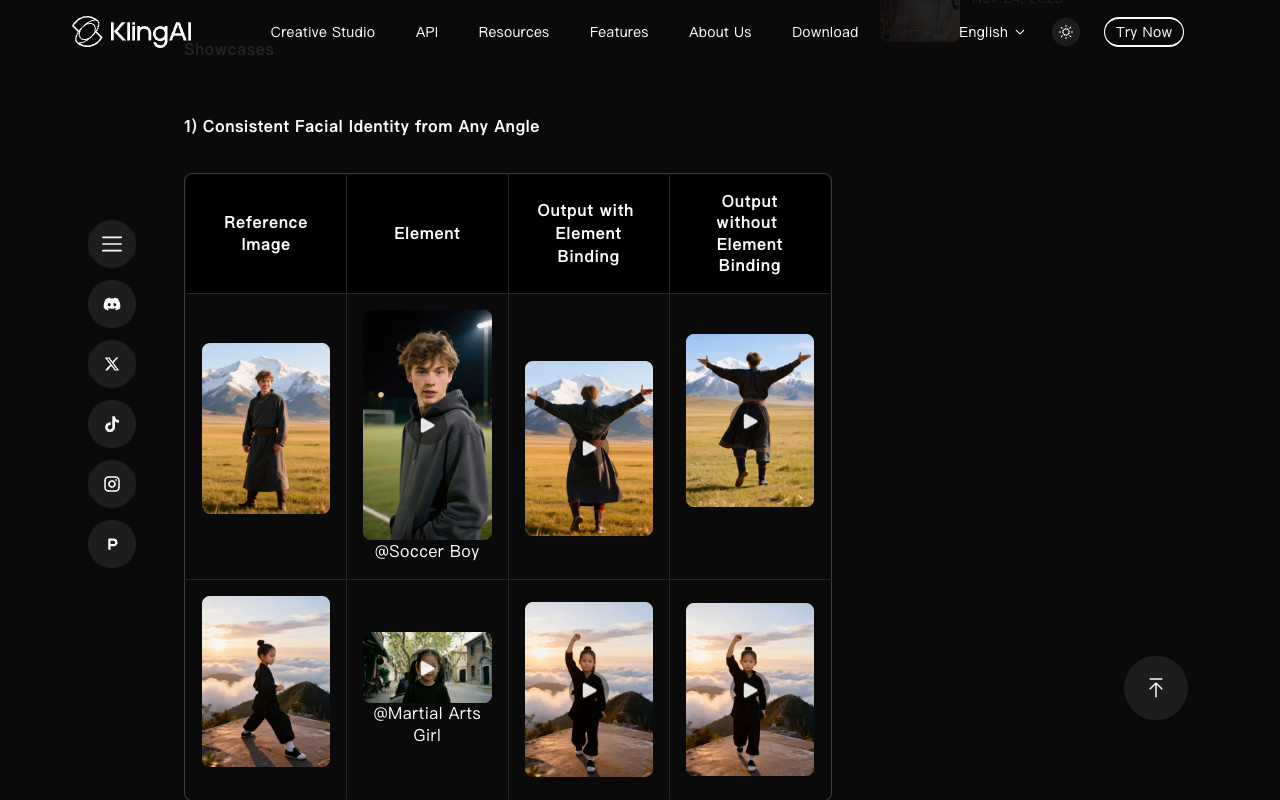
Kling Motion Control pairs a character image with a reference action video. If I have a dance clip and want one new character to perform the movement, this is a focused way to try it. Kling also describes optional facial element binding for identity reference; it is subject to the orientation requirements in its guide.
The tradeoff is that you still need a suitable performance and should not assume a complex group scene will map cleanly. Choose a clear reference, then compare the action and facial appearance throughout the result. Kling lists VIDEO 3.0 Motion Control at 9 credits per second in Standard and 12 in Professional, with duration rounded according to its guide. Check your account's credit cost before generating.
CapCut: Try quick face swap effects
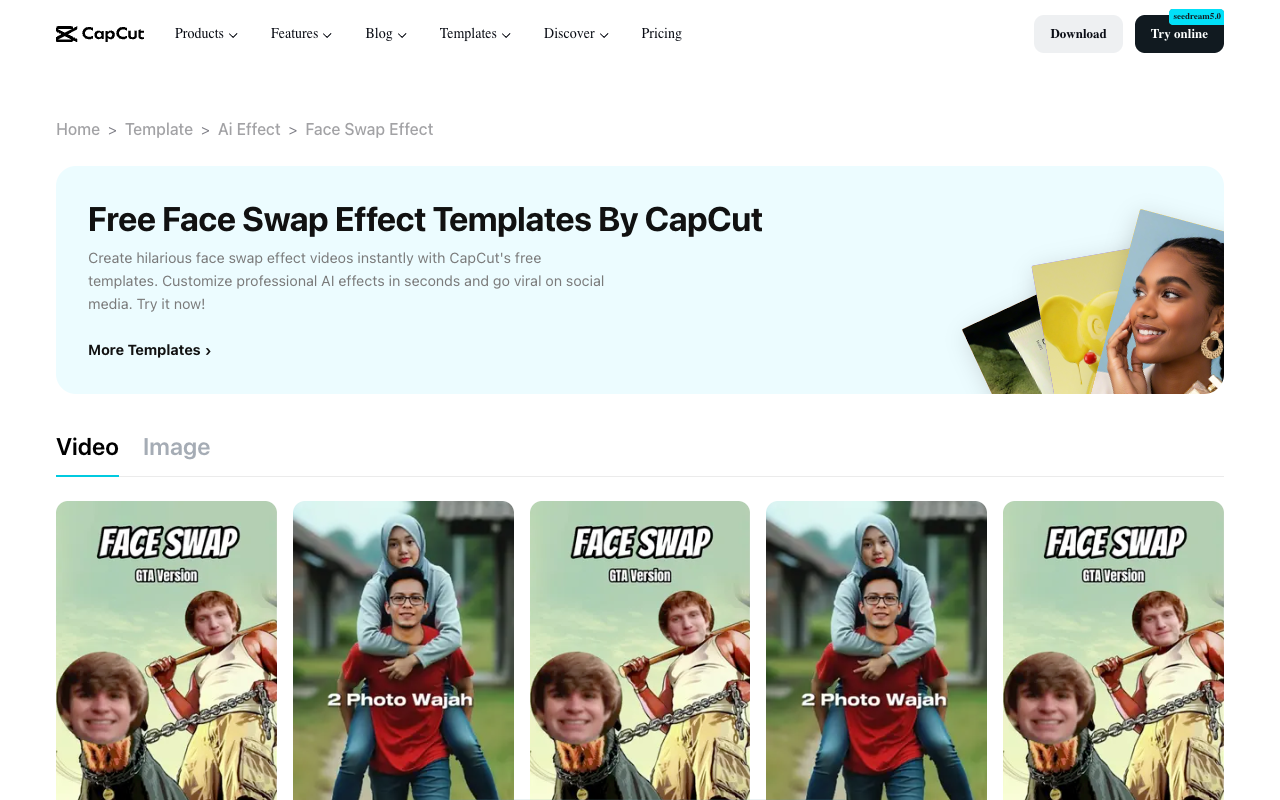
CapCut's face swap effect collection is a practical place to look when the goal is a quick social effect rather than a custom motion transfer. Browse the individual templates and see what media each asks for; some results may be photo effects rather than a recreated performance video. The template library and available features can vary, so preview the chosen effect and check its terms before using it.
CapCut labels this collection free, but that does not establish that every template or export option is free in every account. Check the selected template for any paid feature before committing.
How to pick and review your result
For a specific Tiny Desk, Bulin 47 or Hotel Lobby post, start with the relevant Clico template and the required number of portraits. For a different trending performance, check Higgsfield's library or bring a reference to Kling. Choose Kapwing when you want to assemble references and finish the post in an editor. CapCut is a quick option for exploring effects, with the format depending on the template.
Use photos of yourself or people who have agreed to their use, and make sure you have the rights needed for any uploaded footage and audio. Before posting, watch the whole clip with sound. Check that the right person appears in each role, faces remain recognizable during turns, hands look plausible, and the soundtrack matches the intended timing. A good opening frame is not enough to judge the rest of a generated performance.