
How to Put Your Face in aDance Video With AI (2026 Guide)
You can put your face in a dance video with AI by uploading a photo to a dance video generator, choosing a premade dance template, and letting the AI recreate the performance using your appearance.
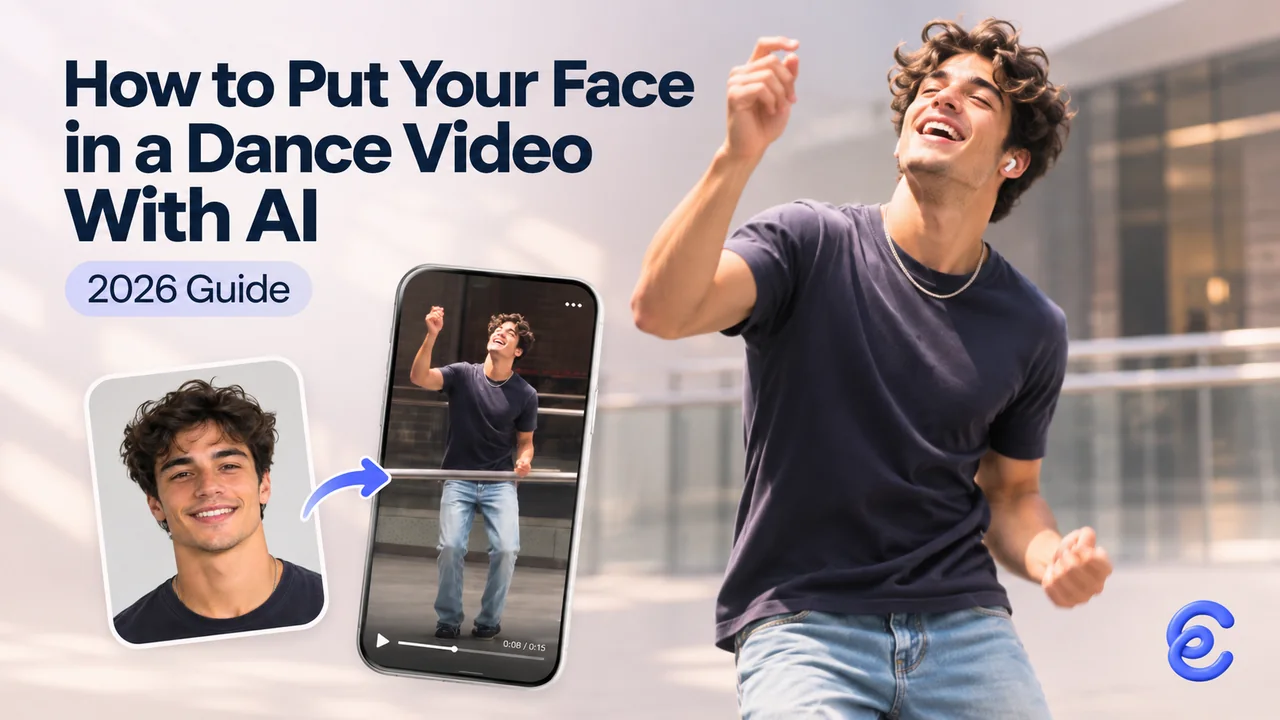
You can put your face in a dance video with AI by uploading a photo to a dance video generator, choosing a premade dance template, and letting the AI recreate the performance using your appearance. I used Clico's Babydoll AI Video Generator to create a 10-second dance video from one photo, without filming myself or learning the choreography.
I tested this using an AI-generated portrait of a fictional male character. The interesting part was that I uploaded a head-and-shoulders photo rather than a full-body image, but Clico still produced a complete dance video with the character moving, turning, and stepping to the reference performance.
Here's how I made the video, what the finished result looked like, and what I'd do differently if I were generating another one.
What You Need Before Making an AI Dance Video
The Babydoll template only requires one photo of an adult. Clico accepts JPG, PNG, and WebP images up to 8 MB and recommends using a clear, full-body photo with the face, hands, outfit, and shoes visible.
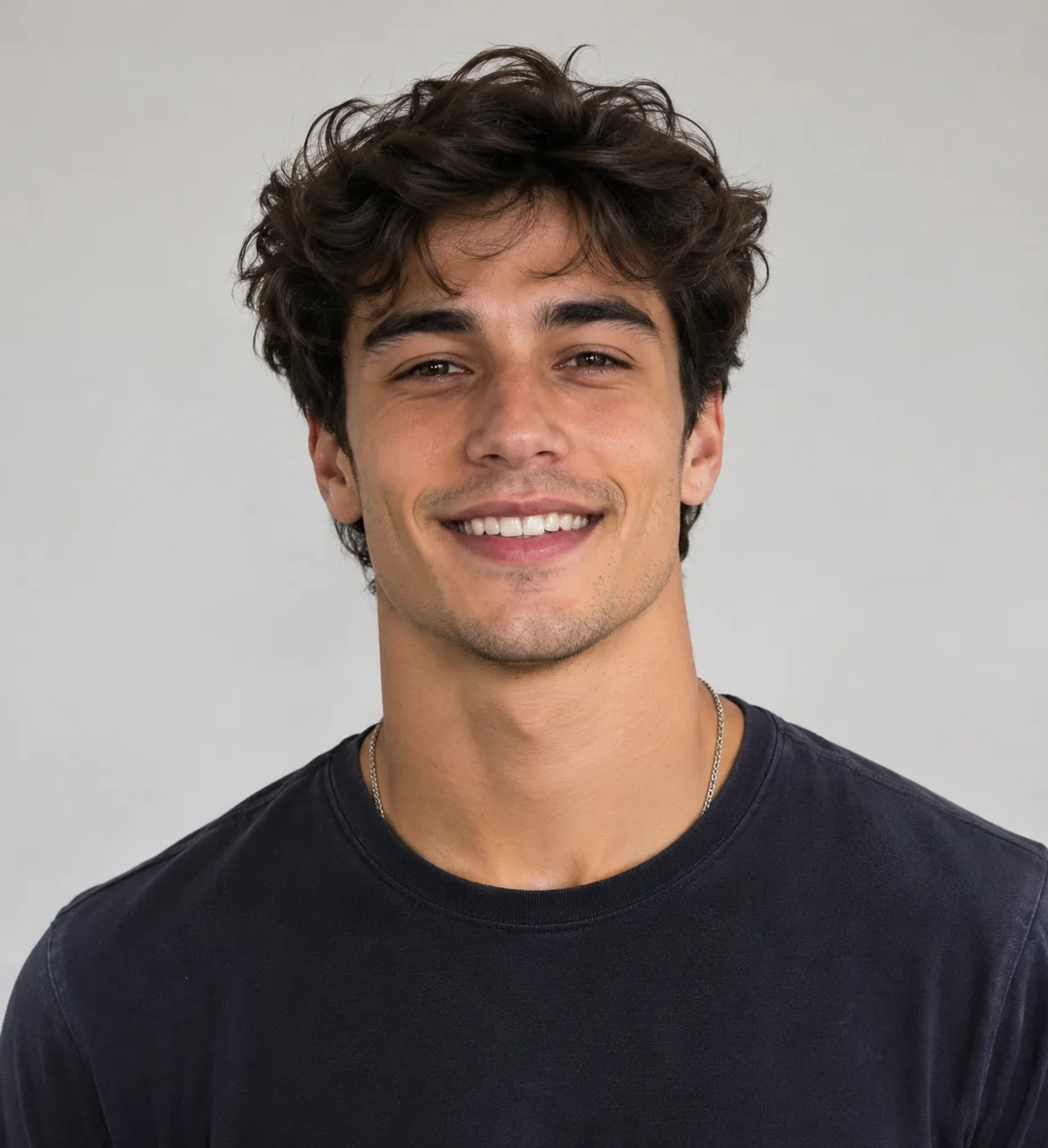
For my test, I used a fictional AI-generated male portrait with curly dark hair, a dark T-shirt, and a plain background. The face was clearly visible, but the image didn't show the character's legs or shoes. I used the portrait as it was, without creating a separate full-body reference image.
You'll also need a Clico account with access to video generation and enough credits for the selected template. I used a Max account for the successful generation.
How to Put Your Face in a Dance Video Using Clico
Step 1: Choose a Dance Video Template
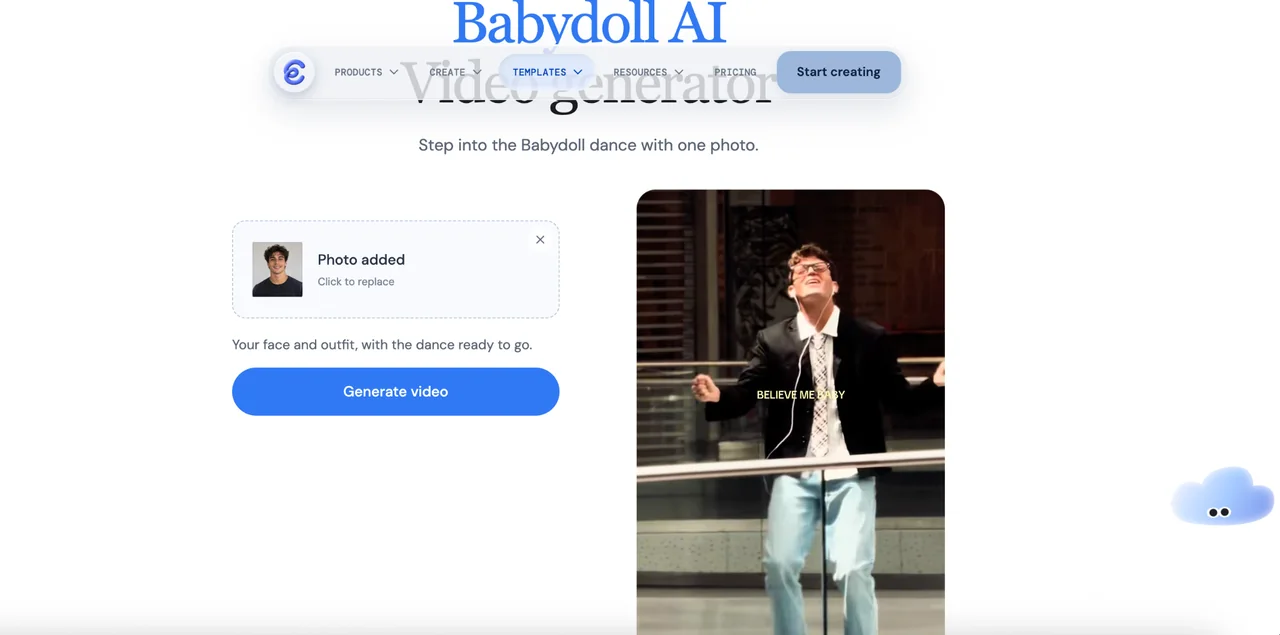
Start by opening the Babydoll AI Video Generator. The page shows a preview of the dance you'll be recreating, so you can see the general performance before uploading anything.
The Babydoll template uses a preset solo dance with an indoor setting, camera movements, and a reference soundtrack. It's designed to create a 10-second vertical video, which makes it suitable for short-form social content.
I chose this template because I didn't need to find a separate reference video or write instructions for the choreography. The performance was already prepared, and my main task was to supply a character image.
If you want to try a different dance or trending meme, Clico also has a collection of face swap templates with other ready-made performances. You can also use its AI video generator if you'd rather create your own scene instead of following a preset template.
Step 2: Upload Your Photo
On the Babydoll page, click the photo upload area and select the image you want to use. For the most reliable starting point, choose a picture with one clearly visible adult and avoid photos where another person's face appears in the background.
When I uploaded my portrait, Clico displayed a small thumbnail with the message "Photo added." The original dance preview remained on the right side of the page.
At first, that might look like the video is ready to play with your face, but it isn't. The preview still shows the reference performance. Uploading the picture prepares your draft; the personalized video is generated in the next steps.
Step 3: Generate Your Dance Video
After uploading my portrait, I clicked "Generate video" to open the creation workflow in Clico. Once video generation was available through my Max account, I submitted the Babydoll request using the same photo.
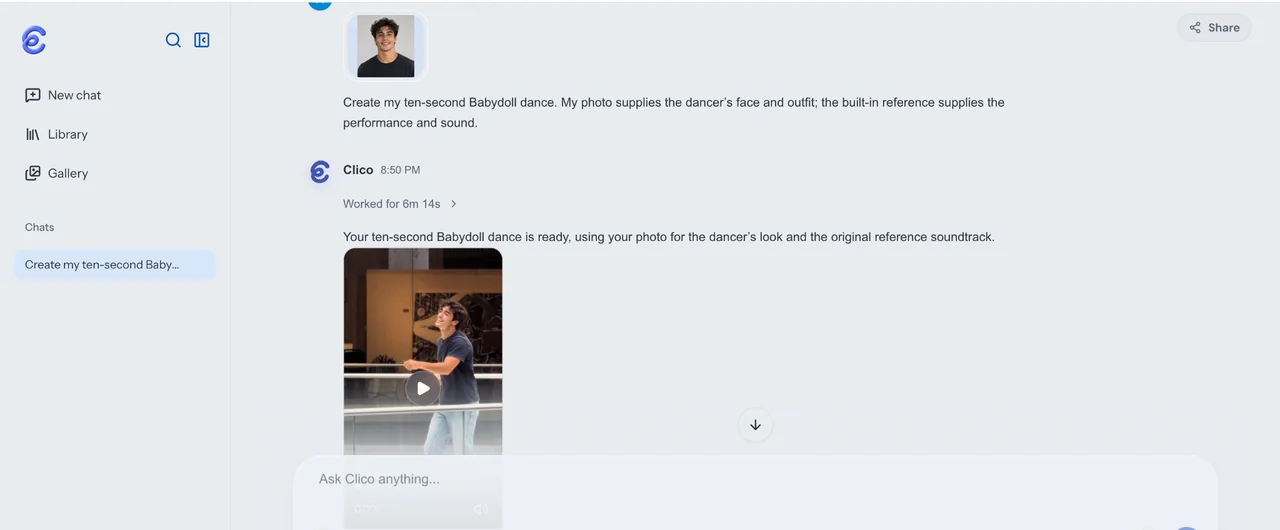
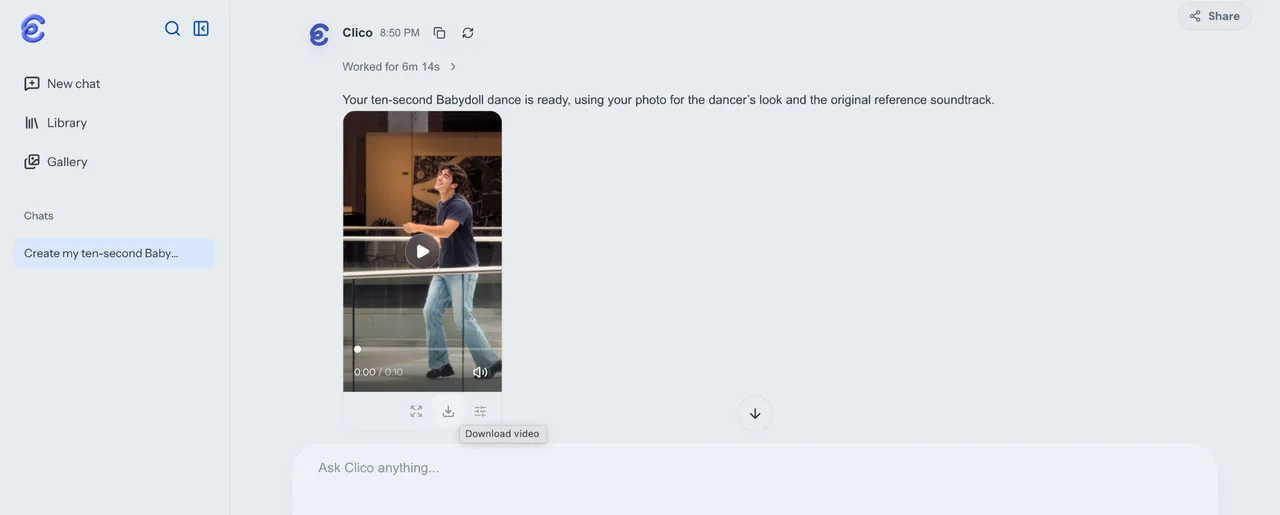
Clico processed the request and returned a completed video in the conversation. The page displayed "Worked for 6m 14s" along with a message confirming that the 10-second Babydoll dance was ready.
That was the processing time shown for my particular generation, not a guaranteed turnaround time. The result appeared as a playable vertical video directly in Clico, so I could review it before downloading.
Step 4: Watch the Video and Check the Result
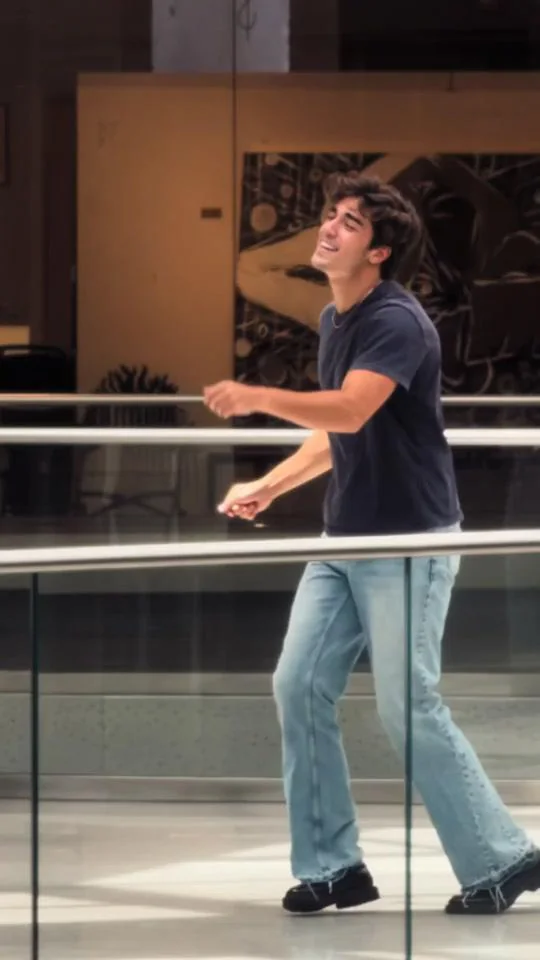
The finished video was a 10-second portrait MP4 at 720 × 1280 pixels and 30 frames per second, with an audio track included.
In the video, the AI-generated character dances in an indoor space with a railing behind him. He wears a dark T-shirt, light blue jeans, and black shoes while performing arm gestures, turns, and footwork. It looks like a recreated dance scene rather than a photo with a simple motion effect applied.
The face was reasonably close to the original portrait, particularly when the character looked toward the camera. His curly hairstyle and general appearance remained recognizable across the frames I reviewed. I didn't spot major distortions in his arms or legs during those moments, although the face looks slightly different depending on the angle and expression.
One thing I noticed was that the AI also changed the dancer's outfit. The original Babydoll reference showed a performer wearing a black jacket, white shirt, and tie, but my generated character appeared in a dark T-shirt and light blue jeans. The T-shirt was similar to the one in my uploaded portrait, while the jeans and shoes had to be generated because my photo only showed the upper body. This made the result feel more personalized than a simple face swap, although the outfit wasn't an exact reproduction of either the original dance reference or my uploaded photo.
Step 5: Download Your Video and Prepare It for Social Media
Once Clico finished generating my dance video, I played it back to check the movements and overall result. Below the player, there's a download icon with the tooltip "Download video." I clicked it to save the finished video as an MP4 and watched the downloaded file to make sure everything looked right.
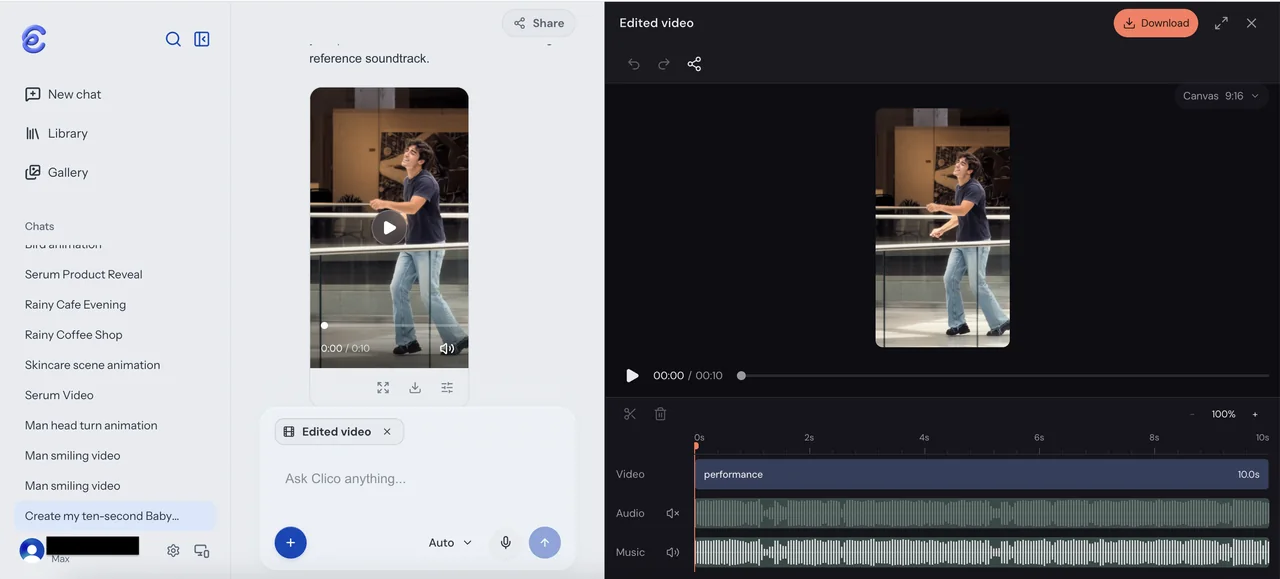
I also opened the video editor using the settings icon below the player. The editor showed my 10-second clip on a timeline with separate video and audio tracks. The canvas was set to 9:16, which I'd keep for TikTok or Instagram Reels since it fits a vertical phone screen and gives the dancer enough room to move.
I wanted to see whether I could make the clip feel more like a typical social media post, so I tried adding a POV caption. I asked Clico to place "POV: You joined the dance trend without learning the choreography" at the top of the video from 0.5 to 4 seconds, using bold white text with a subtle shadow. I also asked it to keep the dancer's face visible and leave the original footage unchanged.
Clico completed the edit in 6 minutes and 45 seconds. The downloaded version was still 10 seconds long and kept the original vertical format. The POV text appeared during the first few seconds and disappeared as requested, leaving the rest of the dance unobstructed. I checked the exported MP4 rather than assuming the editor preview matched the final file.
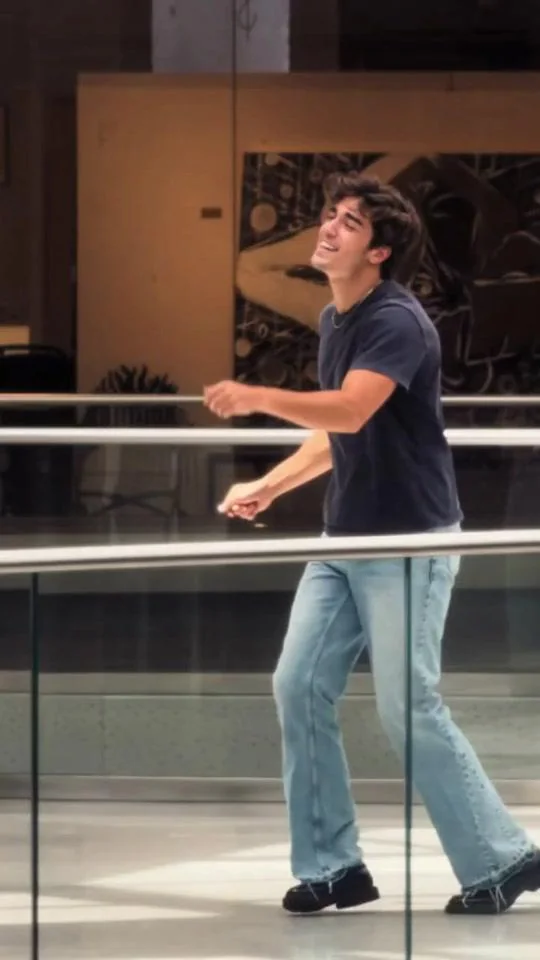
For a TikTok or Reel, I'd use the version with the POV caption rather than the original clip without text. It gives viewers some context before the dancing starts, and the message is short enough to read without taking attention away from the movement. I'd still check the placement in the social app before posting, since captions and interface buttons can cover parts of a vertical video.
How to Get Better Results From an AI Dance Video
My test worked with a cropped portrait, but I wouldn't make that the default choice. A clear full-body image gives the generator more information about the person's clothing, proportions, and appearance. If you're making a video of yourself and want the outfit to look accurate, choose a picture where your shoes, hands, and clothing are visible.
Lighting and framing matter too. A sharp photo with a clear face is a better reference than one with heavy shadows, motion blur, or a strong beauty filter. I'd also avoid group pictures for a solo dance template, since the generator needs one obvious subject to recreate.
When reviewing the result, don't judge it from the opening frame alone. Pay attention to the face during turns, the shape of the hands during gestures, and whether the footwork looks natural. Clothing and fine details can also change as the person moves, especially when part of the outfit wasn't included in the original photo.
For a first attempt, I'd use one clear image, generate the video, and watch the full result before deciding whether another version is necessary. If the character looks wrong, changing the input photo may be more useful than repeating the same generation request.
Frequently Asked Questions (FAQs)
Can I change the dance or background in the Babydoll template?
The Babydoll template comes with a prepared dance performance and setting. If you want a completely different choreography or environment, you can explore other Clico templates or create a separate video request. The prepared template is most useful when you want to recreate that specific performance without designing the scene yourself.
Can I change the music after generating my dance video?
Clico offers an AI Video Editor that supports working with audio as well as video clips. You can use editing tools to adjust the soundtrack or add other elements after generation. If you're replacing the music, make sure you have the rights to use the new track, particularly for public or commercial content.
Can I use someone else's photo to make an AI dance video?
Use a photo you own or have permission to transform, particularly when the person is recognizable. Clico's Babydoll template is intended for an adult subject. For my test, I used a fictional AI-generated character rather than transforming a real person's photo without their consent.
Can I make a horizontal version of the Babydoll dance?
The Babydoll template is prepared as a portrait video. If you need a horizontal format, you can explore Clico's editing tools or choose a generation workflow that supports the aspect ratio you want. Changing a vertical video into a horizontal one may involve cropping, reframing, or adding background space, so check that the dancer stays visible throughout.
What should I do if video generation fails after credits are used?
Check the generation status in your Clico conversation before submitting the same request again. A task may still be processing, and starting another generation could use additional credits. If the task has failed or no playable video appears, review your account's credit activity and contact Clico support if necessary. I only completed one successful generation, so I haven't personally verified how refunds or credit adjustments are handled for failed requests.