
How to Make an “I Love the Smiths”AI Video With Your Photos
Use two portraits to recreate the I Love the Smiths elevator scene, then check the role assignments, generation result, and framing before you share it.
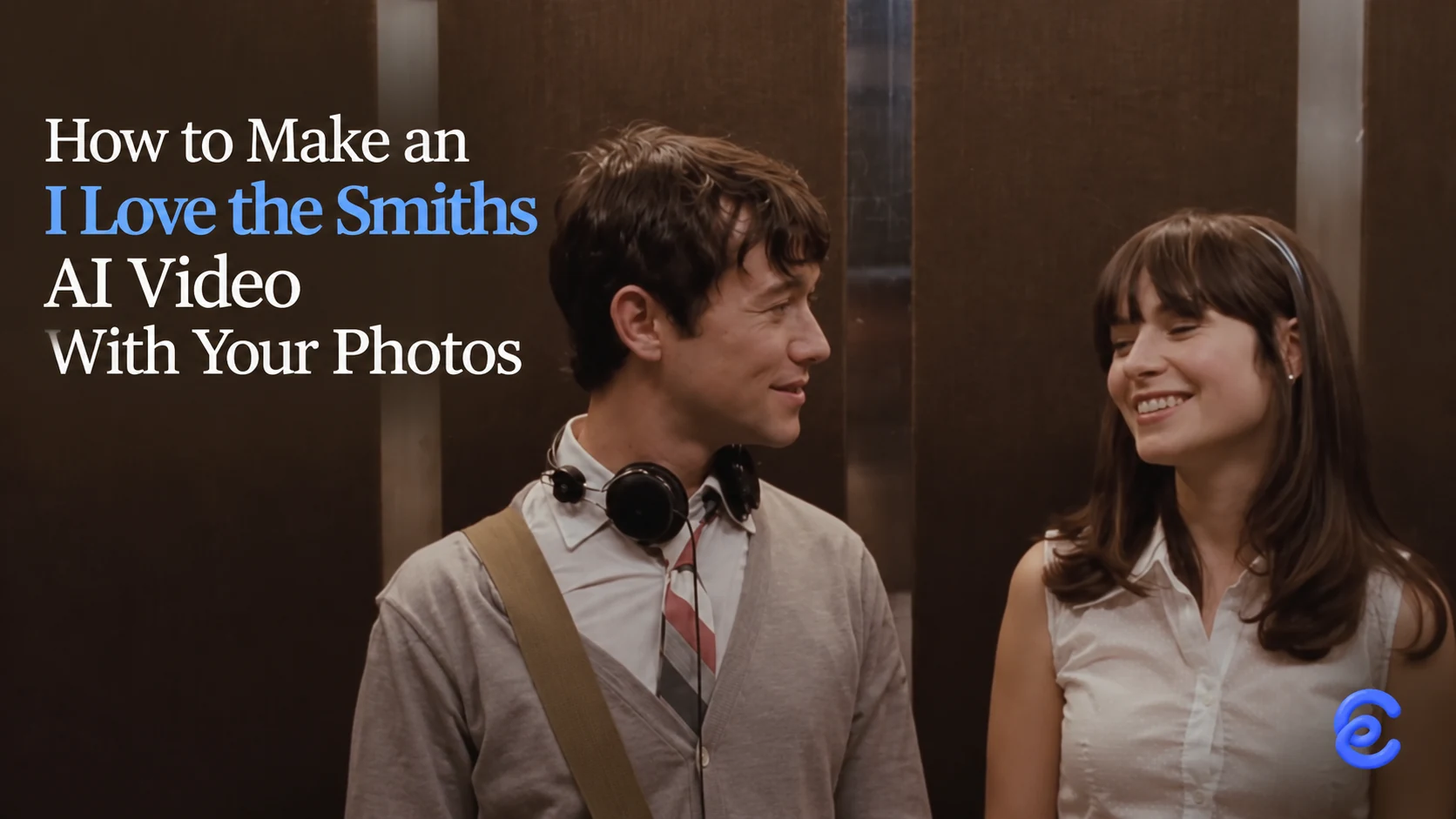
To make an “I Love the Smiths” AI video, upload two portraits to the I Love the Smiths AI Video Generator and generate your version of the elevator scene from 500 Days of Summer. Clico provides the scene and dialogue reference, so you do not need to record yourself acting or find the original movie clip.
I tried it with two AI generated characters and deliberately reversed the original gender roles. The elevator scene turned out quite well, although the AI made one change to my casting that I was not expecting.
What is the I Love the Smiths AI trend?
The trend comes from the elevator scene in 500 Days of Summer, where Summer recognizes the music Tom is listening to through his headphones. Their brief conversation has become one of the most recognizable moments from the film.
The AI version lets you put yourself and another person into that exchange. Unlike a dance or music video trend, much of the appeal comes from the small details: the moment someone notices the headphones, the awkward eye contact, and the smiles that follow.
You can recreate the romantic scene with your partner or make a funny version by casting two completely unexpected people. If you want to try other prepared performances, Clico’s viral video templates use the same idea with different scenes and roles.
How to make an I Love the Smiths AI video
Upload two photos
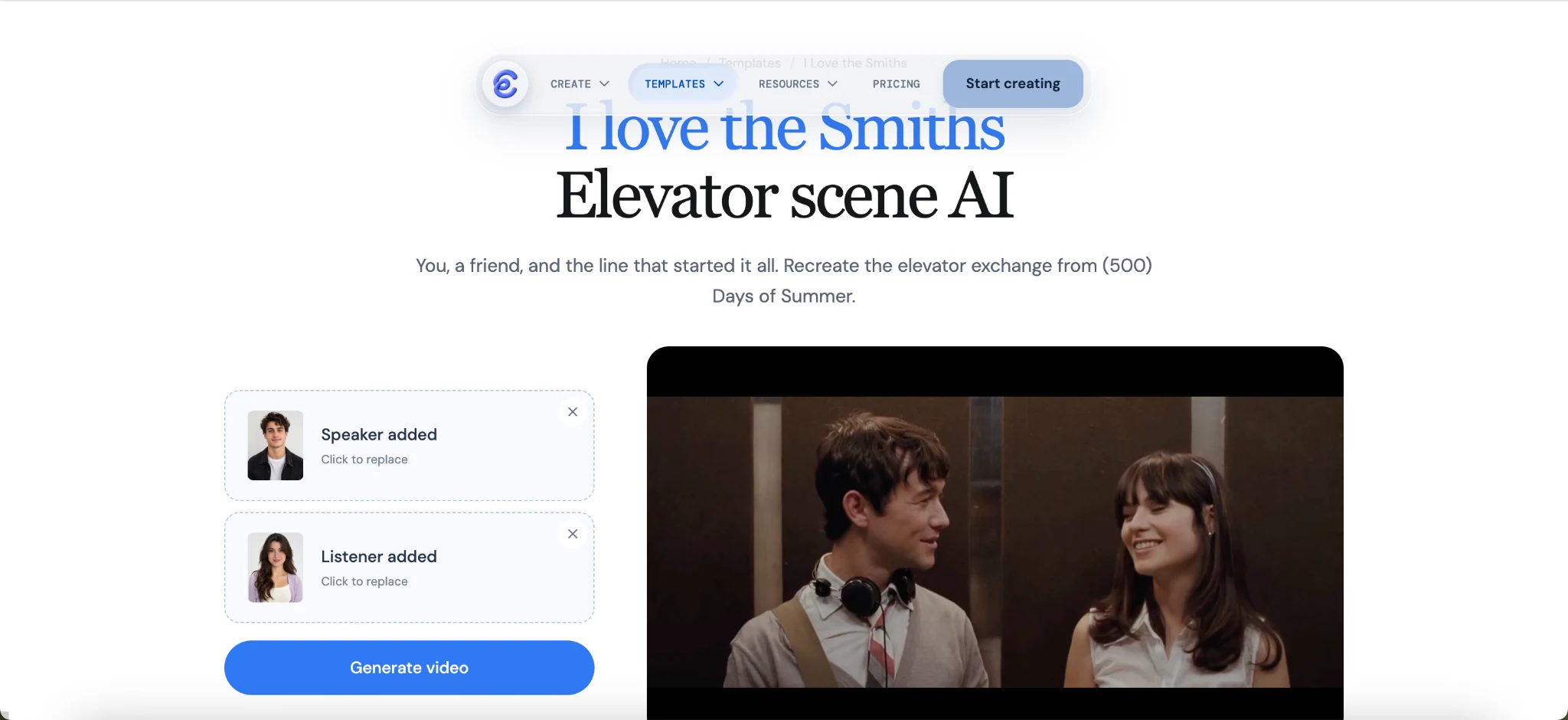
Open the I Love the Smiths AI Video Generator. The template has two upload fields:
- Speaker: Summer’s role, on the right side of the elevator.
- Listener: Tom’s role, on the left, wearing headphones.
I reused two portraits I had generated with ChatGPT: a man wearing a black jacket and a woman wearing a lavender cardigan. Instead of following the original casting, I assigned the man as the speaker and the woman as the listener.
Both photos were simple portraits with clearly visible faces. Neither person was wearing headphones in the source images.
Review the scene instructions
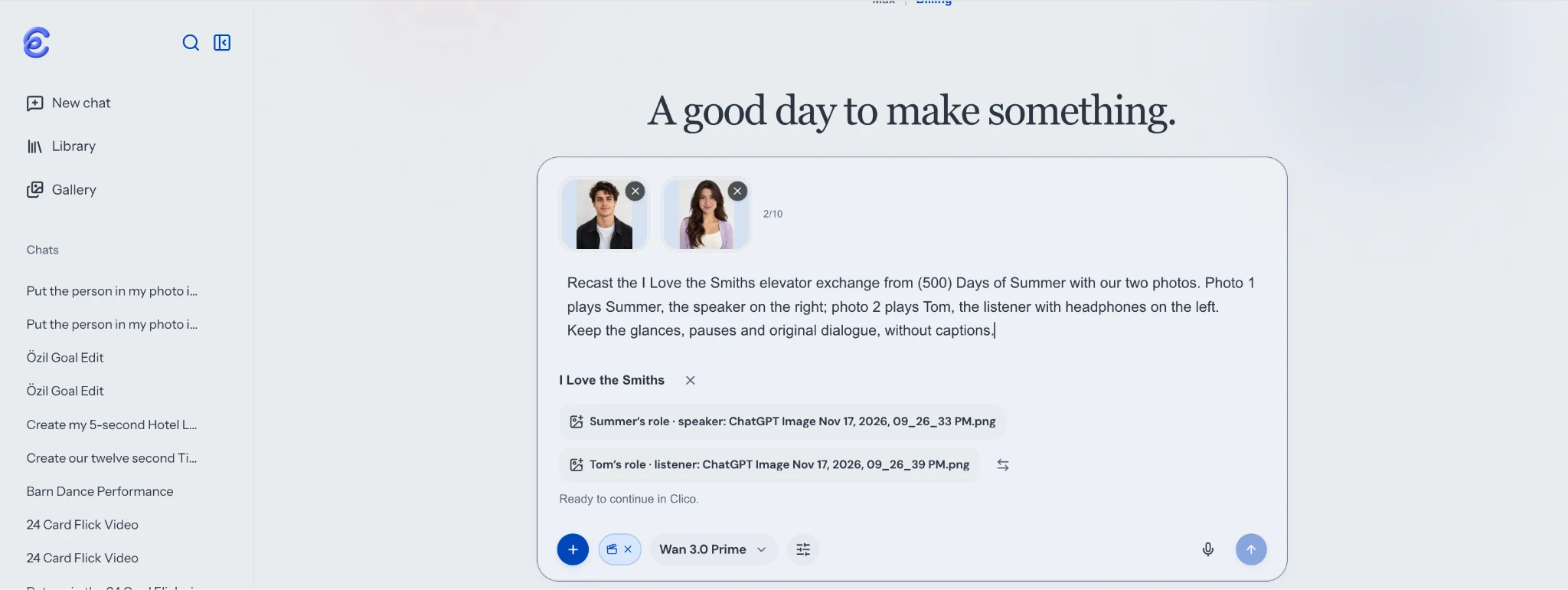
Click Generate video to open the template in Clico’s workspace.
Both photos were imported automatically, along with instructions specifying the character roles and their positions in the elevator. The preset prompt also asked Clico to preserve the glances, pauses, and original dialogue without adding captions.
I kept the instructions unchanged and used the selected model, Wan 3.0 Prime.
If you accidentally assign the wrong person to a role, there is a swap icon beside the photo assignments. You can switch them before generating without uploading the images again.
Generate and download your video
Once both photos are ready, click the blue arrow in the bottom right corner to generate the scene.
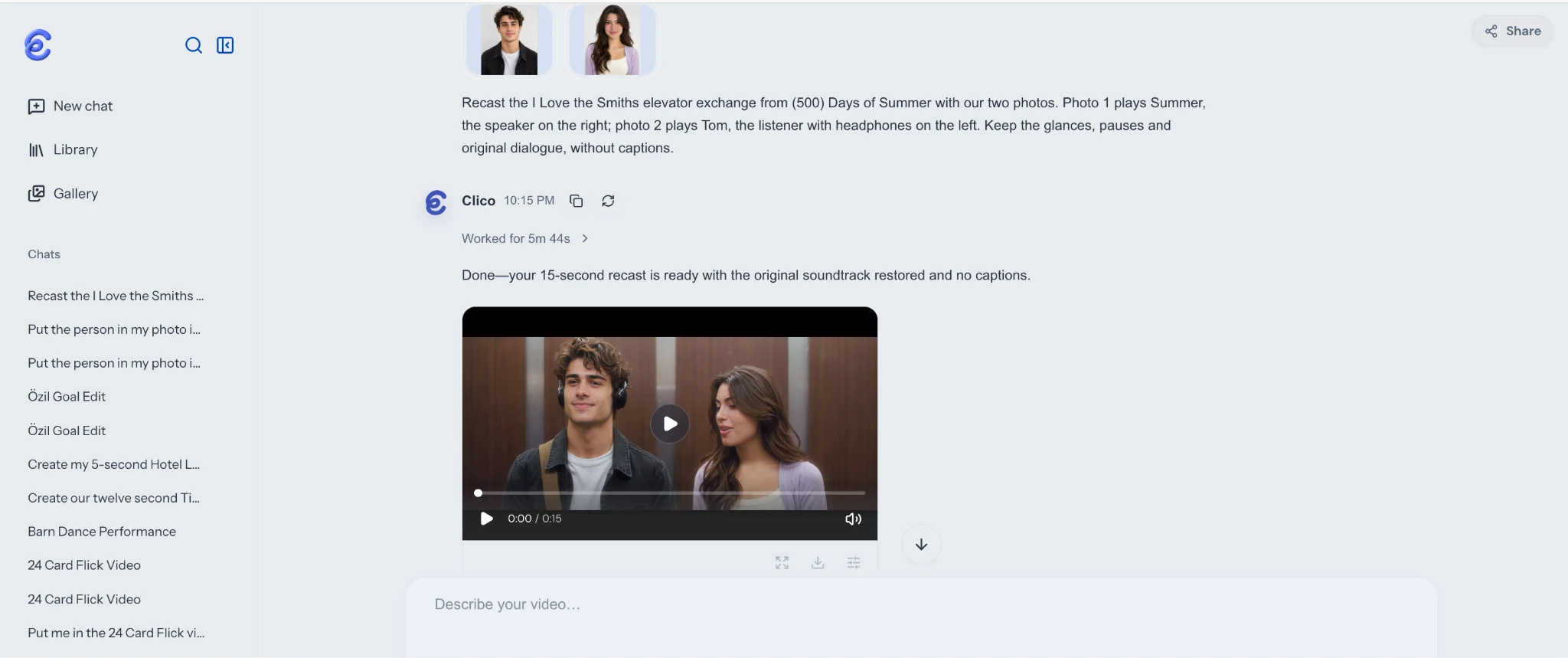
My video took 5 minutes and 44 seconds to finish. Clico displayed the result directly in the conversation, where I could preview and download it.
The finished MP4 was 15 seconds long, with a resolution of 1280 × 720 at 30 frames per second. The video also retained the wide, letterboxed framing of the movie scene.
Turn the sound on when reviewing this particular template. The timing of the conversation matters just as much as the visual resemblance to the original scene.
How did my I Love the Smiths AI video turn out?
The video opened with the man wearing headphones and the woman standing beside him. He then reached up, removed his headphones, and let them rest around his neck as the two began looking at each other.
I liked that the generator added the headphones even though they were not present in either of my reference photos. The wooden elevator walls and metallic panels also remained consistent throughout the clip.
The characters kept their original clothing. The man wore his black jacket and white T shirt, while the woman still had her lavender cardigan. Their facial appearances remained recognizable as they looked at each other, smiled, and turned away.
The expressions were probably my favorite part of the result. There were small changes in their smiles and eye movements that made the exchange feel more like a conversation than two animated portraits standing next to each other.
There was one noticeable issue, though. I assigned the man to Summer’s role on the right and the woman to Tom’s role on the left. The finished video did the opposite. The man appeared on the left with headphones, and the woman appeared on the right.
It seems the generator followed the original movie’s character arrangement more closely than my requested casting in this attempt. If you are making a conventional recreation of the scene, that may not matter. If you are specifically trying to reverse the roles, check the finished video before assuming the assignments worked.
Choose photos for the elevator scene
For this template, pay more attention to facial expressions than clothing or full body poses. Most of the scene takes place within the same relatively tight shot, so the characters’ faces are visible for almost the entire video.
My two reference images were front facing portraits with natural expressions. Avoid photos with sunglasses, exaggerated facial expressions, or heavy beauty filters, especially if you want the result to resemble an actual movie conversation.
You also do not need to find a photo of yourself wearing headphones. Clico added them as part of the recreation. A regular portrait is enough to get started.
Frequently asked questions
Can I change the dialogue in the I Love the Smiths AI video?
The preset template is built around the original movie exchange. If you want the characters to say something different, try a custom dialogue generation or lip sync workflow instead. I have not tested that with this template.
Can I add subtitles to the elevator scene?
Yes. You can add subtitles after exporting the video using a video editor. This may be useful if you are posting the clip where people frequently watch videos with the sound turned off.
Can I remove the black bars for Instagram Reels or TikTok?
You can crop the exported video, but a tight vertical crop may cut one of the characters out of the scene. I would place the landscape clip inside a vertical canvas instead, so both people remain visible.
Is the I Love the Smiths AI video generator free?
Video generation uses credits. I tested this template with a Clico Max account, so check the generation cost and your available credits before submitting.