
Text to Video vs. Image toVideo: Which Should You Use?
Text to video is better for creating a scene from scratch, while image to video is usually the better choice when you already have a photo, product image, or illustration you want to animate.
Text to video is better for creating a scene from scratch, while image to video is usually the better choice when you already have a photo, product image, or illustration you want to animate. With text to video, the AI creates the scene from your description. With image to video, it uses an uploaded picture as a visual reference and generates movement around it.
I tested both methods in Clico using Seedance 2.5. For the first video, I described a young man turning his head and smiling without uploading a photo. For the second, I uploaded an AI-generated portrait and asked for similar movements. Both produced five-second videos, but the results weren't exactly what I expected. The text-to-video clip followed my instructions quite well, while the image-to-video clip completed the movements but noticeably changed the person's face.
Here's what happened in both tests, what the actual videos looked like, and when I'd choose one method over the other.
Text to Video vs. Image to Video: What's the Difference?
Text to video creates moving footage from a written prompt. You describe the subject, setting, lighting, and action, and the AI decides how to represent those details visually. It's useful when you want to explore a new scene and don't have an existing image to work with.
Image to video starts with a picture instead. You upload a photo or illustration and describe what should move. The image gives the AI a starting composition, which is helpful when the project involves a particular product, character, or visual style.
The main differences are:
| Feature | Text to Video | Image to Video |
|---|---|---|
| Starting point | Written description | Uploaded image and motion prompt |
| Visual appearance | Created by the AI | Guided by the source image |
| Best for | New scenes and creative concepts | Animating existing visuals |
| Main advantage | More freedom to explore ideas | A specific visual reference |
| Main challenge | Getting the scene to match your description | Keeping important details consistent |
| Common uses | Concept videos, fictional scenes, creative ads | Product videos, portraits, animated illustrations |
The distinction becomes clearer when you actually generate something. A text-to-video result can look convincing without matching any existing person or object. An image-to-video result has a different challenge: viewers may expect it to look like the uploaded picture, even though AI doesn't always preserve every detail.
How I Tested Both Methods in Clico
I wanted to compare the two workflows without introducing too many variables, so I chose a simple portrait scene. Both prompts described a young man in a navy T-shirt against a plain gray background, with a static camera and one short sequence of movements: gently turn his head, blink, look back at the camera, and smile.
I used Clico's AI Video Generator for the text-only version and Clico's Image to Video tool for the image-based version.
Both tests used Seedance 2.5 with a requested duration of five seconds, a square 1:1 aspect ratio, and the 720p option selected in Clico. After downloading the completed MP4 files, I checked their actual properties. Both were approximately 5.04 seconds long, measured 960 × 960 pixels, and played at 24 frames per second. Neither downloaded file contained an audio track.
The comparison wasn't perfectly controlled because text to video created a new person, while image to video received a particular portrait. I also had to use a different reference image after an earlier upload was blocked by the model's privacy filter. I kept those differences in mind when reviewing the results rather than treating the clips as a strict A/B test.
Test 1: Creating a Video From Text
For the first test, I started with an empty prompt field and no reference image. I wanted a realistic studio portrait rather than a complicated cinematic scene, because small movements make it easier to see whether the AI actually follows the instructions.
The Text-to-Video Prompt I Used
A realistic medium close-up video of a smiling young adult man with thick, tousled dark brown curly hair, brown eyes, warm medium skin, and a dark navy T-shirt. He is standing against a plain light gray studio background with soft natural lighting. He gently turns his head slightly to his right, blinks naturally, and then looks back at the camera with a relaxed smile. Static camera, natural facial movements, realistic skin texture, single continuous shot, no cuts, no other people.
I entered the prompt in Clico, selected Seedance 2.5, and submitted the request. The generation completed successfully, with Clico showing a processing time of 3 minutes and 38 seconds.
What the Generated Video Looked Like
The result matched the overall visual direction I had described. Clico created a young man with thick dark curls, a navy T-shirt, and a plain gray studio background. The framing stayed around his upper body, and the soft lighting remained fairly consistent throughout the clip.
The movement was also close to my request. The character began facing forward, turned his head to the side, briefly closed his eyes, and then returned his gaze toward the camera. By the final second, he was looking forward again with a small smile.
What stood out to me was how simple the result stayed. The model didn't introduce extra people, change the background, or add unnecessary camera movement. The head turn looked fairly smooth, and I didn't notice major distortions in the face or shoulders in the frames I reviewed. The blink was brief, which is easy to miss in a still screenshot, but it was visible when watching the video.
The character didn't look exactly like the person I had imagined, although that's difficult to judge when the only reference is a written description. His curly hair was quite prominent, and the expression was a little more restrained than the warm smile I'd described. Still, the main action and overall appearance were recognizable from the prompt.
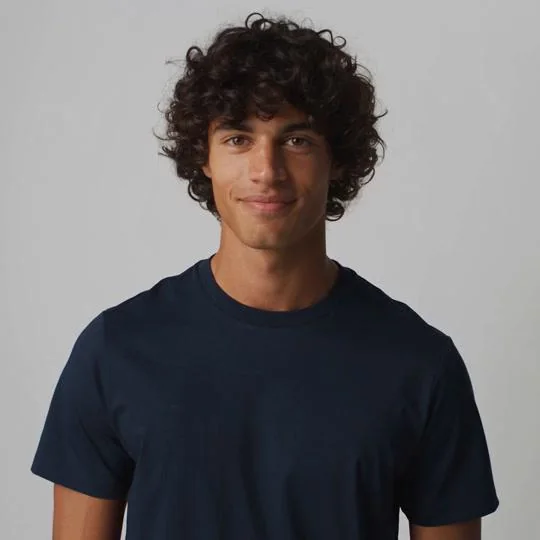
For a simple portrait scene, I was satisfied with the result. It gave me a new character performing the requested movements without preparing any source images.
The limitation is that this character exists only as the model's interpretation of my description. If I needed the exact same face in another video, repeating the prompt wouldn't guarantee that I'd get the same person again. That matters less for experimenting with visual ideas, but it becomes important when creating content around a recurring character.
Test 2: Animating an Existing Portrait With Image to Video
For the second test, I wanted to see how the result would change when the AI had an actual picture to work from.
I used an AI-generated portrait of a fictional man with short dark curls, a broad smile, facial hair, and a navy T-shirt. The image had a neutral gray background, similar to the scene I had described in the text-to-video test.
My goal was straightforward: keep the appearance of the uploaded character while adding a gentle head turn, blink, and smile. I wasn't looking for a dramatic transformation or a new character.
The Image-to-Video Prompt I Used
Animate the man in the uploaded reference photo. He gently turns his head slightly to his right, blinks naturally, then looks back at the camera with a relaxed smile. Keep his facial features, curly dark hair, dark navy T-shirt, skin tone, and plain light gray background consistent with the original image. Static camera, soft natural studio lighting, realistic facial movement, single continuous shot, no cuts, no other people.
The First Attempt Didn't Work
My first image-to-video request was blocked before a video could be generated.
Clico displayed a message explaining that the video model's safety and privacy filter had identified the uploaded portrait as containing a real person. The image was actually an AI-generated fictional character, but the system still rejected it as an input reference.
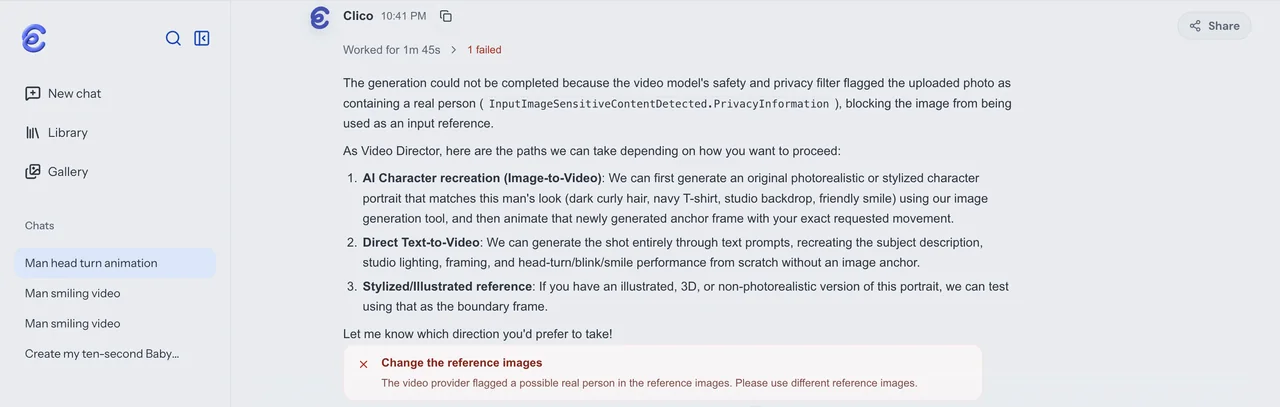
I couldn't tell from that error whether the restriction came from the image's realistic appearance or another aspect of the model's screening process. It was one failed attempt, so I wouldn't conclude that Clico rejects realistic portraits in general.
I continued with a different AI-generated portrait, which was accepted. The following results refer to that successfully uploaded image, not the portrait from the blocked request.
What the Image-to-Video Result Looked Like
The successful request produced another five-second square video. The character stood against a plain gray background, wearing a navy T-shirt, and performed a head turn before facing the camera again.
The motion itself looked reasonably smooth. The character turned more noticeably than I expected from the word "slightly," but the movement didn't feel abrupt. His shoulders remained stable, the camera stayed in position, and the background didn't change between frames. The smile at the end was subtle rather than exaggerated.
The biggest difference appeared when I compared the video with the uploaded portrait.
In the original image, the man had short, tightly curled hair, a broad smile showing his teeth, and a particular facial structure. In the generated clip, his hair looked longer and swept back, his facial proportions appeared different, and the smile was smaller. The general styling remained similar, but I wouldn't describe the result as an accurate animation of the original face.
This wasn't just a matter of seeing the person from another angle. Even in a front-facing frame, the generated character looked noticeably different from the uploaded image. The model had kept the basic idea of the person while changing some of the features that made the original portrait recognizable.
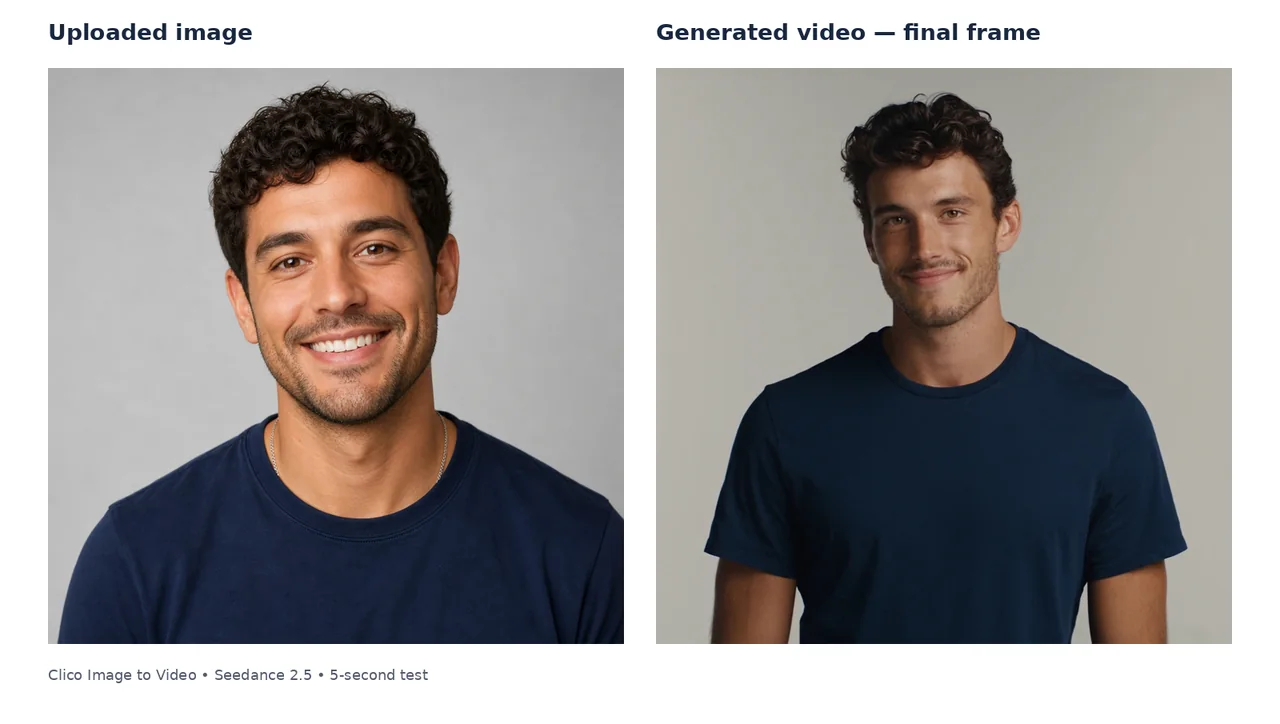
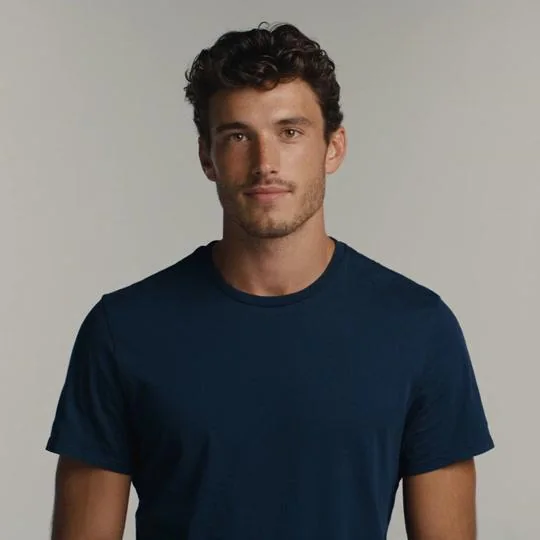
The result still demonstrated that an uploaded picture could be used to guide a video. The clothing, background, and general portrait style were recognizable, and the requested movement was present.
But it also showed why image consistency needs to be checked separately from motion quality. If someone watched only the generated clip, they might find the character believable. Placing the original and final frames side by side revealed changes that were much easier to overlook in the moving video.
For a fictional character or a casual creative experiment, those differences might be acceptable. For a real person, a product advertisement, or an established brand character, they could be a much bigger issue.
What I Learned From Comparing the Two Results
Both methods successfully generated a short portrait video, and both followed the basic movement instructions. Neither introduced obvious scene changes or additional people. The more interesting difference was how each method handled the character's appearance.
| What I checked | Text to video | Image to video |
|---|---|---|
| Input | Written description only | Uploaded portrait and written prompt |
| Main action | Head turn, blink, return to camera | Head turn, return to camera, subtle smile |
| Camera and background | Stable | Stable |
| Character appearance | New character matching the general description | Similar styling, but facial features changed |
| Main strength in this test | Created a complete scene without source material | Used an existing visual as a starting point |
| Main limitation in this test | No exact character identity to preserve | Did not accurately preserve the uploaded face |
Motion Quality Was Similar, but Not Identical
Both clips performed the main movement, though the timing was slightly different. The text-to-video character made a relatively restrained turn before facing forward again. The image-to-video character turned further to the side and returned with a smaller smile.
I didn't see a clear winner in motion quality from these two clips. Both looked reasonably natural for the limited action I requested. A more complex scene involving walking, hands interacting with objects, or multiple people might reveal other differences, but those weren't part of this test.
Having a Reference Image Didn't Guarantee Accuracy
Before testing, I expected the uploaded image to provide more control over how the character looked. It did give Clico a particular portrait to work from, but the finished face still changed.
This matters for more than portraits. Imagine a small beauty brand using a product photo to generate a short advertisement. If the AI changes the shape of the bottle, the label, or the packaging color, the result may no longer accurately represent the product being sold.
The lesson from my image-to-video test isn't that reference images are ineffective. It's that a reference image provides direction, not a guarantee. The output still needs to be checked against the source whenever specific details matter.
A Single Generation Isn't Enough to Rank the Methods by Quality
I generated one successful clip with each method. That gave me enough to compare the two workflows and discuss what happened, but not enough to claim that one method is consistently better at motion, realism, or prompt accuracy.
The videos also used different visual starting points. Text to video had no particular identity to preserve, while image to video did. It would be misleading to compare the two characters solely on how much they resembled the uploaded portrait.
For this test, the most defensible conclusion is that both approaches completed the basic movement, while the image-to-video result showed noticeable changes to its reference character.
Which Should You Use?
The better choice depends on what you're making and how specific the finished video needs to be.
Choose Text to Video When You're Starting From Scratch
Text to video makes sense when you want to create something that doesn't exist yet. That could be a fictional environment, an early campaign idea, or a short visual concept for a presentation or social post.
For example, a coffee brand might want to explore a cinematic scene with a steaming cup beside a rainy window. A written prompt can describe the lighting, camera movement, and atmosphere without requiring the brand to photograph the scene first.
I'd use text to video when I have flexibility in how the final scene looks. It's especially useful during brainstorming, when exploring several possible directions can be more valuable than matching a specific image.
The tradeoff is control over exact details. If the project needs a recognizable product or the same character across several clips, a text description alone may not provide enough consistency.
Choose Image to Video When You Have an Existing Visual
Image to video is a more practical starting point when a brand already has product photography, illustrations, or other visual assets it wants to animate.
A jewelry brand could upload a photo of a necklace and request a gentle camera movement. A stationery brand could animate characters from an existing illustration. A travel creator could add subtle movement to a landscape photograph.
In these situations, the image gives the AI more specific visual information than a text description would. That can make it easier to communicate what the scene should look like.
However, I'd be particularly careful with branded or commercial materials. My portrait test showed that the model can change features even when asked to preserve them. For a product video, I'd compare the generated output with the original image and check labels, proportions, colors, and any other details customers might rely on.
Consider Both for a Larger Creative Project
Sometimes it makes sense to use the two methods at different stages of the same project.
For example, a skincare brand might start with text to video to explore different campaign environments, such as a bright studio, a bathroom counter, or an outdoor summer setting. Once the team has chosen a direction and prepared approved product photography, it could use image to video to introduce movement to that specific asset.
I wouldn't assume that switching methods automatically produces a consistent final result. The outputs still need to be reviewed and edited, especially when combining clips generated from different prompts or reference images.
The decision is less about choosing the more advanced technology and more about deciding what information the AI needs from you.
How to Create Both Types of Video in Clico
Both workflows are available through Clico, and the setup process is fairly similar.
Creating a Text-to-Video Clip
Open Clico's AI Video Generator and enter a description of the scene you want to create.
I'd start with the main subject, setting, and action before adding smaller visual details. If you're making a short clip, one clear action is usually easier to review than several different movements in the same prompt.
Next, choose a compatible video model and review the available settings. For my test, I selected Seedance 2.5, a five-second duration, and a square aspect ratio. After submitting the request, I watched the generated video in Clico and downloaded the MP4 to inspect the result.
Creating an Image-to-Video Clip
Open Clico's Image to Video tool, upload the photo or illustration you want to animate, and enter a prompt describing the movement.
Because the image already provides the starting appearance, the prompt can focus more on what should happen. You can also specify details you'd like to preserve, although that won't guarantee the model keeps them perfectly.
Before generating, check that the correct image is attached and review the model settings. If you're using a real person's likeness, make sure you have the appropriate permission to use it.
Clico requires an eligible Pro or Max plan and available credits for video generation. The estimated usage depends on the selected model and settings, so check the amount displayed in your account before submitting.
Once the video is ready, download it and watch the complete file. I found that reviewing a video alongside its original reference image was particularly useful for identifying changes that weren't obvious from the preview alone.
Frequently Asked Questions (FAQs)
Can I use a starting image and an ending image for the same AI video?
Some video models support first-frame and last-frame inputs, which can help guide how a clip begins and ends. Seedance 2.5 offers these controls in supported Clico workflows. The model still generates the movement between the frames, so the result may need adjustment if you want a very specific transition.
How can I keep the same character across multiple AI videos?
Using a consistent reference image can help, but it doesn't guarantee identical facial features across separate generations. I'd start with a clear character image, keep important appearance details consistent in the prompts, and compare the outputs before combining them. If the character changes noticeably, it's better to correct that before creating additional scenes.
Can I add music or sound to an AI-generated video?
Yes, depending on the video model and editing workflow. Seedance 2.5 supports optional generated audio, although neither of my test MP4 files contained an audio track. You can also add or adjust sound using a video editor after generation. For published content, make sure you have permission to use the music or audio you choose.
What if I want a video longer than five seconds?
You can select a longer duration if the chosen model supports it. For example, Clico lists Seedance 2.5 as supporting clips from 4 to 30 seconds. For longer projects, you can generate several clips and arrange them in a video editor. I'd plan the sequence shot by shot so each clip has a clear purpose and the overall pacing feels intentional.
Can I use AI-generated videos in commercial advertising?
Commercial use depends on the platform's terms, the rights to your input materials, and the content of the generated video. For a brand project, I'd check permissions for any reference photos, artwork, music, or recognizable people involved. I'd also review the final video for product accuracy and misleading details before using it in an advertisement.