
Best AI Video Generatorsfor Different Creative Tasks
Compare models and apps for creating, editing and finishing video, with examples from Clico.

Clico brings some of the best AI video generators, including Veo, Kling, Seedance and Runway, into one workspace. Describe the video you want, and Clico’s Video Director persona can help plan the shots, choose an approach and generate footage. You can review the result and refine it through conversation.
In 2023, an AI video of Will Smith eating spaghetti went viral for its distorted face and impossible noodles. Today, people use AI video for product ads, short dramas, memes and face swaps, including putting faces into a prepared meme scene. The question now is which tool can produce the shot your project needs.
Choose an AI video generator for the shot you need. I would start with Veo for a scene with sound, Runway for animating an approved image, and a presenter tool for a script. Below I compare those workflows and show four models responding to the same coffee prompt in Clico.
In Wyzowl’s 2026 survey, 63% of video marketers said they had used AI to create or edit video, up from 51% a year earlier. The full survey included 266 respondents.
What do the best AI video generators cost?
Prices and included credits below were checked on November 3, 2026. Credits are specific to each service and cannot be compared as equivalent units. Annual prices are shown as monthly equivalents where available. Check the current plan and settings before buying.
| Service | Useful starting point | Free access | Paid starting point |
|---|---|---|---|
| Clico | Compare models and develop a video through conversation | Free plan does not include video generation | Pro is $19.90 monthly or $192 annually, with 2,000 credits per month |
| Google Flow | Veo scenes with generated sound | 50 Flow credits daily; video generation may be unavailable at peak times without a subscription | Google AI Pro is $19.99 monthly or $199.99 annually in the US and adds 1,000 Flow credits monthly |
| Runway | Animate a starting image or work with existing footage | 125 credits once, with a limited selection of models | Standard is $15 monthly or $12 per month billed annually, with 625 credits monthly |
| HeyGen | A presenter delivering a script | Three videos per month with a watermark | Creator is $29 monthly or $24 per month billed annually, with 600 credits |
| Kling | Character references, keyframes and motion | Check the available plan in your region | Check the current native plan and credit costs before purchase |
| Higgsfield | Transform an existing video with Genjutsu | Check the current free access in your region | Starter is shown at $19 per month billed annually, with 270 credits monthly |
| invideo | Build a video from a brief and refine it on a timeline | Manual editing is free; AI uses credits and exports depend on the plan | Basic includes 190 credits per seat per month; confirm price and available models at checkout (checked November 3, 2026) |
| Melius | Compare models and assemble clips on a canvas | Free account; check available trial credits before generating | Creator is shown at $17 per month, reduced from $20; confirm the billing terms at checkout |
For example, Clico estimates that Pro's monthly 2,000 credits can produce about 20 ten second Seedance 2.0 Mini videos at 720p, 16:9 and with audio off, if the entire allowance is used for those videos. Other work draws from the same allowance, and different settings change the cost. Clico Max is $49.90 monthly or $480 annually and includes 5,000 credits monthly. In Flow, Veo 3.1 Fast costs 20 credits per generation for non Ultra users, while Quality costs 100. A generation is not necessarily the same thing as a request, so check the number of outputs and their cost in the interface.
Start with the video you want to make
| If your starting point is… | Try | Why it is a useful starting point | Check before committing |
|---|---|---|---|
| A brief you want to develop through conversation | Clico | Choose models and refine requests in one workspace | Model inputs and settings vary |
| A brief you want to turn into an editable sequence | invideo | Use an Agent and timeline to develop the video | Credit use and export limits |
| Several model outputs you want to compare on a canvas | Melius | Compare and rerun nodes before stitching clips | Generation costs and continuity across clips |
| A scene you can describe in words | Google Veo in Flow | A route for generating picture and sound together | Whether the dialogue, ambience and action fit the same shot |
| An approved image | Runway Gen-4.5 | Text and image input, with short duration controls | Whether the image is treated as the opening frame and the movement stays within the brief |
| Several characters, locations or planned moments | Kling 4.0 or Seedance 2.5 | Both offer reference based workflows in supported services | Which references your chosen interface accepts and how it uses them |
| An existing clip whose movement you want to reuse | Kling Motion Control or a Clico template | A source performance can guide a new character | Whether you need your own source clip or are happy with a prepared performance |
| Footage where only one thing should change | Runway Edit Studio or Higgsfield Genjutsu | Both describe ways to edit or transform existing footage | The hands, lighting, camera and background around the change |
| A script that needs a presenter | HeyGen | A presenter can deliver the words while you review the script | Pronunciation, pacing and what the presenter appears to claim |
In Clico, the available settings can narrow your choice before you write a prompt. Its model catalog lists Seedance 2.5 with 4 to 30 second durations and up to five reference images and three reference videos. Kling 3.0 Pro lists 3 to 15 seconds and up to five reference images, but no video reference. Veo 3.1 offers 4, 6 or 8 seconds and audio, while Runway Gen-4.5 offers 2 to 10 seconds with one starting image and no generated audio. These are available settings, not a guarantee that every combination works or that a result will match the brief.
A model is the engine making the footage. A product such as Flow or Runway is also the place where you choose inputs, pay for generations and review results. The same model can be offered in more than one app without the same controls. If a comparison says a model accepts video references, check that the particular interface you plan to use accepts them too.
Clico helps you develop an idea and choose a model
I would start with Clico when the idea is still taking shape and I want to compare models without moving the project between tools. Describe the goal to Video Director, attach a character or product reference, and choose a model and its available settings. After the video returns, the next conversation can focus on the part that needs work: the action, the framing or the look of the subject.
The reference changes what you can reasonably ask for. A portrait gives the model a person to work from. An approved product image gives it a shape to preserve. A reference video can supply a performance when the selected model accepts one. Choose the input for the detail that needs to stay recognizable or guide the action.
Clico is useful for comparing routes, but its model catalog does not expose identical inputs for every model. A video reference available with Seedance 2.5, for example, is not listed for Kling 3.0 Pro. Clico Free does not include video generation; Pro and Max share their monthly credits across work, so the number of video attempts depends on the model and settings in the price table above.
Four models, one coffee prompt
I asked Seedance 2.5, Kling 3.0 Pro, Veo 3.1 and Runway Gen-4.5 for the same coffee shot in Clico on November 2, 2026. I submitted this prompt once for each model in Clico:
A close-up of hot coffee being poured from a glass carafe into an empty white ceramic cup on a wooden kitchen table. Steam rises. Morning sunlight comes through a window. Shallow depth of field. The camera gently pushes closer. Realistic, one continuous shot.
I requested six seconds, 720p, 16:9 and silent output for each. The downloaded Kling file was 1080p; the other three were 720p. These clips show what happened in these individual attempts, rather than establishing how reliably each model will handle a shot.
Clico displayed the following total assistant work times for these requests. Each is one attempt and includes more than model rendering time.
- Seedance 2.5: 3 min 42 sec
- Kling 3.0 Pro: 3 min 6 sec
- Veo 3.1: 2 min 1 sec
- Runway Gen-4.5: 2 min 40 sec
Seedance 2.5: the stream enters the cup and the liquid surface rises into view as the camera approaches.
Kling 3.0 Pro: the carafe enters before the pour, steam appears against the window, and the liquid reaches near the rim.
Veo 3.1: a thin stream thickens as coffee pours from a glass pot, with strong backlight and visible steam.
Runway Gen-4.5: the cup starts empty, the pot pours and leaves the frame, and the camera moves toward the filled cup.
The comparison helped me separate a convincing still from the action I needed. For a product shot, I would watch the stream, the liquid level and the camera move through the whole clip before choosing a take. These are model outputs generated in Clico; the test does not assess the Flow or Runway interfaces.
For a spoken scene, I also asked Seedance 2.5 in Clico for a woman at a kitchen table saying, "The package arrived this morning, and I will send you the details tomorrow." I requested six seconds, 720p, 16:9 and sound. The downloaded clip is six seconds long and has an audio stream. Play it to judge the delivery alongside the picture.
Why the same prompt can produce different winners
Use Quantslant's video comparison to see how the same prompts produce different strengths. The publisher sent two prompts to six models through OpenRouter: one asked for coffee being poured into a cup, the other for a yellow and red tram on a rainy street. It published the twelve clips alongside its notes and costs.
The coffee prompt tested several things at once. The stream needed to land in the cup, the liquid level needed to rise, steam needed to appear and the camera needed to move gently. Quantslant's reviewer preferred Veo 3.1 Fast for that shot. I checked frames from both the Veo and Kling 3.0 Standard clips: in the Veo frames, the cup starts empty and is visibly filled by the end. In the Kling frames, coffee pours into a sharply rendered cup, but the liquid level is much harder to see. A still of the cup can look convincing while leaving the action in question.
The tram changed the question. The reviewer favored Grok Imagine Video: its result had the requested colors, a stationary camera and a recognizable destination sign, although the rain was less visible. Wan 3.0 had strong wet reflections, but its sign was not readable. If your shot never shows lettering, that sign may matter less to you than the movement or lighting.
These were the publisher's observations from one attempt per prompt, not a measure of reliability. Most outputs were four seconds; Wan and Hailuo were longer. The Kling version was 3.0 Standard and the Seedance version was 2.0 Fast, so the result should not be carried over to Kling 4.0 or Seedance 2.5. I would use the clips to choose what to test next, not to decide that one model wins every job.
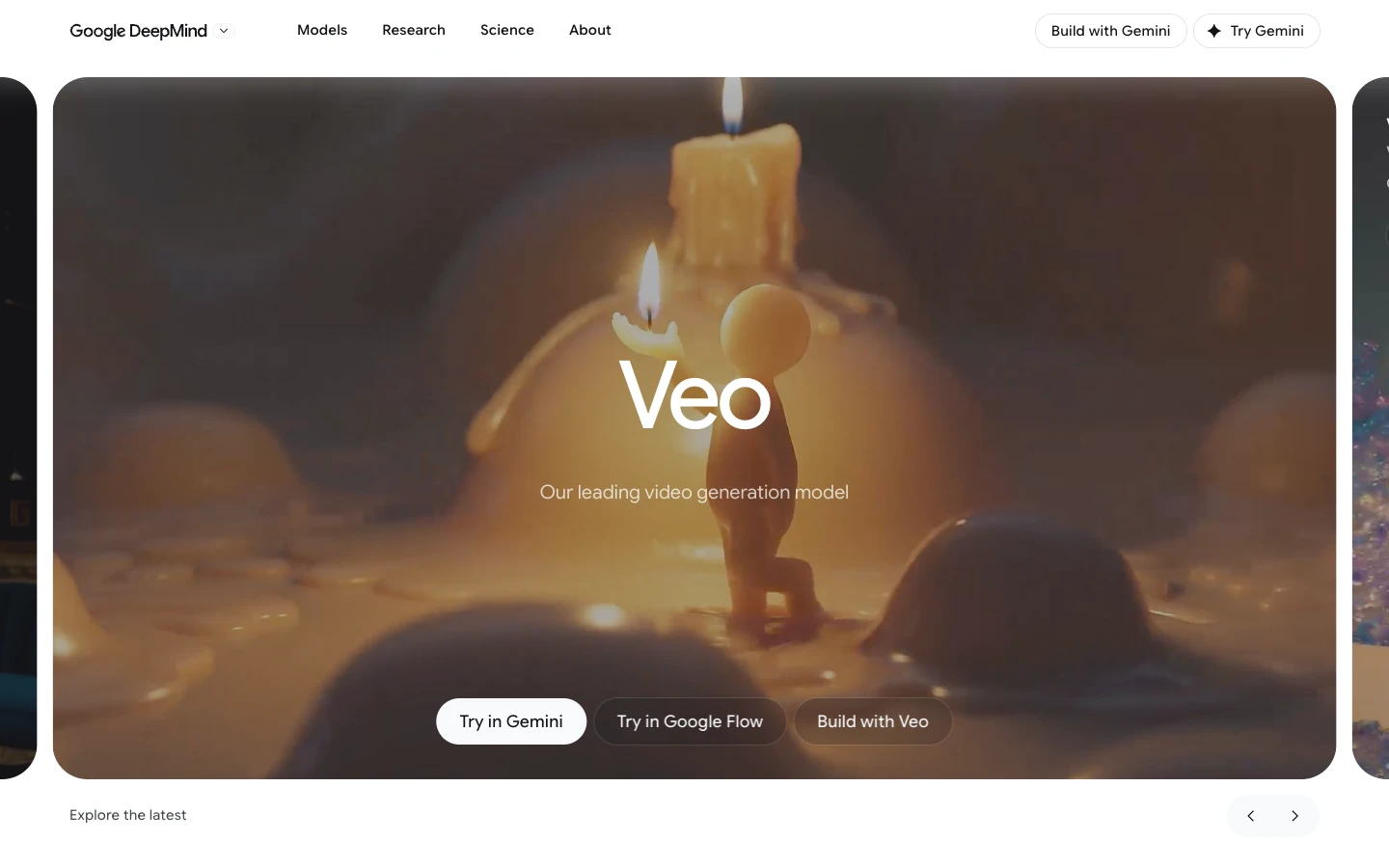
Google Veo is useful for scenes with sound
I would start with Veo for a scene that needs sound as well as an image. Describe the subject, action, setting and sound together so you can judge whether they work as one shot. Veo's official documentation describes text and image input, generated audio and other reference options for particular variants. Google also offers Veo through Flow; the controls available in Flow and through an API are not necessarily the same.
In Quantslant's coffee example, the reviewer saw the liquid rise and steam appear, but the window from the prompt was not visible. That is the tradeoff to examine in your own brief. If the purpose is a close shot of coffee being poured, missing the window may be fine. If the window explains where the next scene takes place, it may be a failed take.
Veo is a sensible first route when you need an individual scene with matching ambience or speech. Listen as well as watch: a correct picture can arrive with unwanted music, an awkward voice or a sound effect at the wrong moment. For recurring characters, budget for corrections as well: character drift and retries can make a sequence more expensive than its first generation suggests. Flow offers daily free credits, though unsubscribed users may not be able to generate video at peak times. Google Cloud rates apply to its API; they should not be treated as the cost of a Flow subscription. Google AI Pro is $19.99 per month in the US; prices and availability can differ by region.
Runway can animate an image you already like
Choose Runway for image to video when an approved product image, storyboard frame or character pose should guide the shot. Runway's Gen-4.5 guide describes both text and image inputs. Its Gen-4 guide requires an image as the first frame. Check which version you have selected before building the shot around that assumption.
When the image already contains the right composition, I would use the prompt to describe the motion that is missing: for example, a slow camera move while the product stays still. That is easier to review than asking for a new product, a new setting and a complicated camera move in the same attempt. It does not make the original pixels permanent. Watch for the shape of the product, its lettering and the position of anything touching it.
Runway also separates generation from changing existing footage. Edit Studio describes selecting a frame, making a change and applying it to a shot or sequence. That is worth investigating if you like the performance and want to change one object. It is a different request from animating a still: the original clip, its camera and its timing now matter to the result.
For a concrete budget, Runway lists Gen-4.5 at 12 credits per generated second. Two five second generations would therefore use 120 credits at that rate. If only one take is usable, you have spent those credits to obtain five usable seconds; if neither works, the task is still unfinished. That is why I would compare the cost of a usable shot and its revisions, not just the cost of the first request. An attempt to animate an exploding moon illustrates the hard part: getting a convincing transition between the starting and ending frames. Reserve credits for that transition before spending the full budget on variations.
Kling helps you plan shots around characters and keyframes
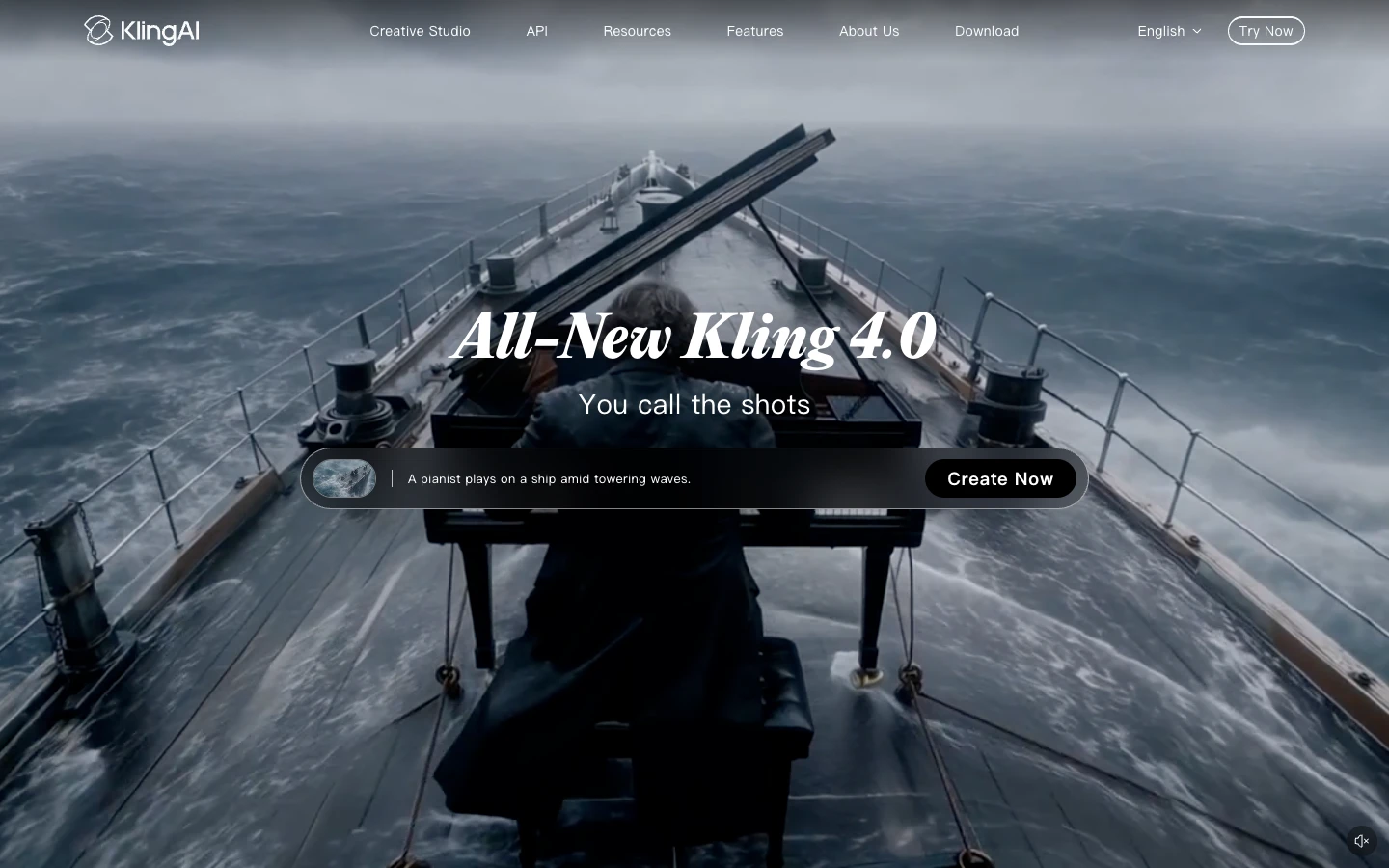
I would compare Kling 4.0 and Seedance 2.5 when a shot depends on references, starting with what each input needs to control. A character portrait says who should appear. An opening frame says what the shot should look like at a specific instant. A motion clip can suggest how someone moves. Those are different instructions, even when they all appear as attachments.
Kling's 4.0 announcement describes reference assets and keyframes, as well as clips up to 30 seconds. That makes its native workflow worth exploring when a scene has a particular person, location and ending composition. Native Kling pricing and free allowances were not verified for this comparison; check the current plan and credits in your region before paying. If you access the model through another service, check whether that service exposes the reference and keyframe controls you need.
Seedance can coordinate sound and video
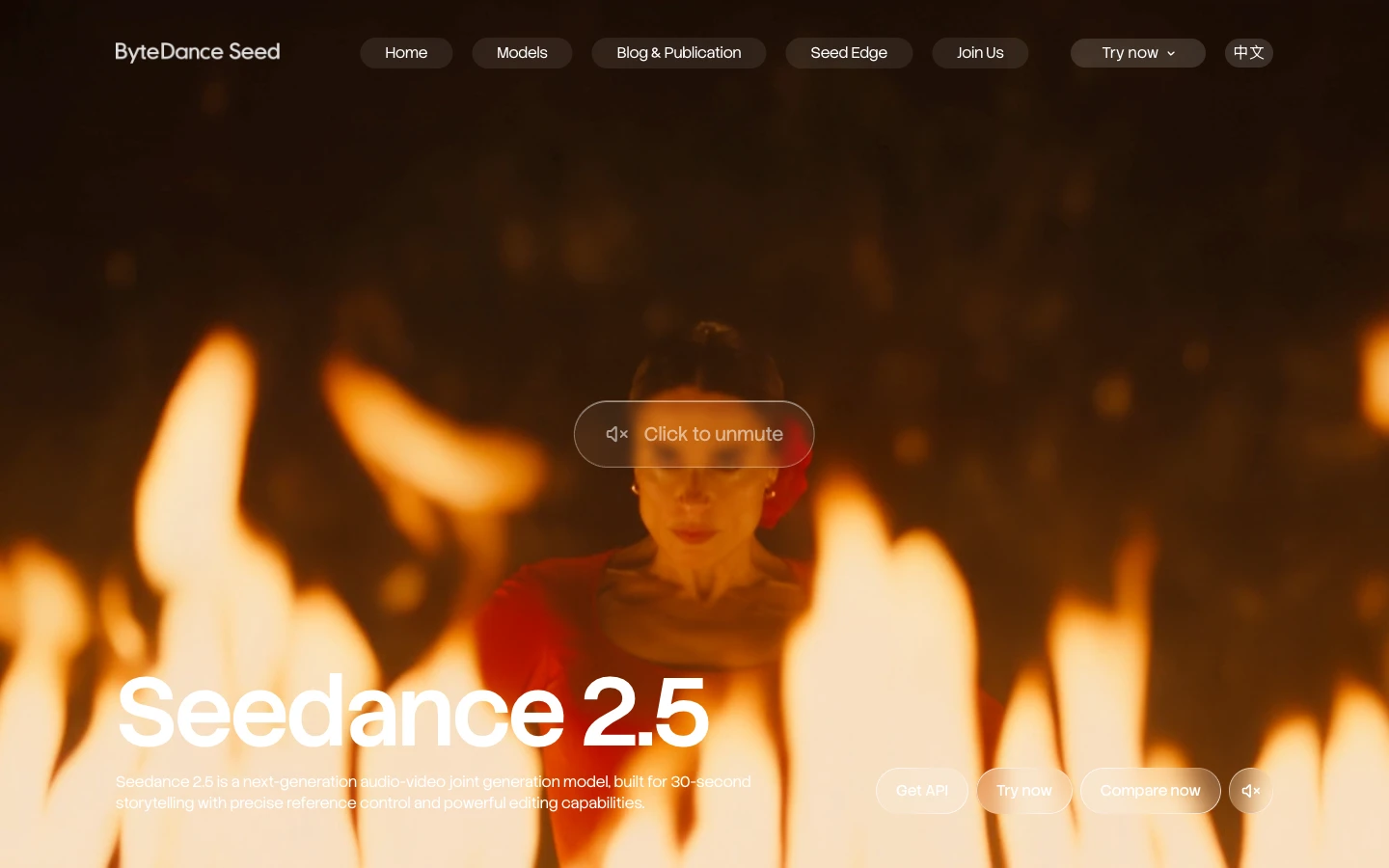
Seedance 2.5 is a model offered through services, not a separate subscription in this comparison. Choose the service first, then check its available reference inputs, settings and price. In Clico, its catalog lists up to five reference images and three reference videos, with 4 to 30 second durations at 480p or 720p. The available inputs make it useful when a scene needs both appearance and movement references.
ByteDance describes Seedance 2.5 as a model for coordinated audio and video. The exact input route matters for people: BytePlus's portrait guide describes restrictions on directly uploading reference images or videos containing real human faces and a separate route for authorized assets. Those are rules for its ModelArk service, not proof that every app offers the same authorization process.
If a project depends on a particular face, check the service’s portrait rules before planning the sequence. If the reference is flagged, keep the original and the exact message; the Seedance face guide covers the next steps.
Keep a character recognizable across shots
For a sequence, I would keep the character reference and scene plan together, then check each shot for the features that matter, the requested action and the cut into the next shot. A recognizable face alone does not establish that the setting, prop position or framing will match. The character consistency guide walks through those checks.
Decide what must stay from the original performance
I would choose Kling Motion Control when I have my own performance to use as a reference. If a prepared scene already fits the idea, a Clico template gives me a ready starting point. Kling Motion Control describes a native workflow using a character image alongside motion input. A prepared template is another starting point when you like a specific performance and do not need to supply your own clip. Clico's Bulin 47 template, for example, starts with a photo and a prepared freestyle scene. If you make trends occasionally, you can buy a credit pack once from $9.90 without a subscription; check the estimate for your chosen video before generating.
A prepared template gives you its own scene and performance, so it is best when those already fit your idea. If you need your own footage, check the tool's reference video controls. If you need two people in fixed roles, Hotel Lobby uses two portraits for its prepared performance. In either case, compare the finished action from the beginning to the end, especially hands, turns and where the performer is in frame. If the subject speaks, inspect the mouth separately: motion control and lip sync need separate attention because matching body movement does not settle the dialogue.
Higgsfield can change a performance or an object
I would look at Higgsfield when the source footage already contains something I want to keep, such as a performance or camera move, and I want to change the scene around it. Higgsfield Genjutsu describes Motion transfer for rebuilding a scene around a performance and Objects swap for changing an element in a shot. Ask which part of the source must survive before choosing between them. A convincing new character is not much help if the original camera position was the reason you chose the clip. The Starter plan shown on Higgsfield’s pricing page includes 270 monthly credits and five Genjutsu Lite generations; standard Genjutsu is not included in those five. Access and credit use also depend on the generation route. Leave time for revisions as well as rendering: reported generation queues make a deadline that depends on a single last attempt harder to manage.
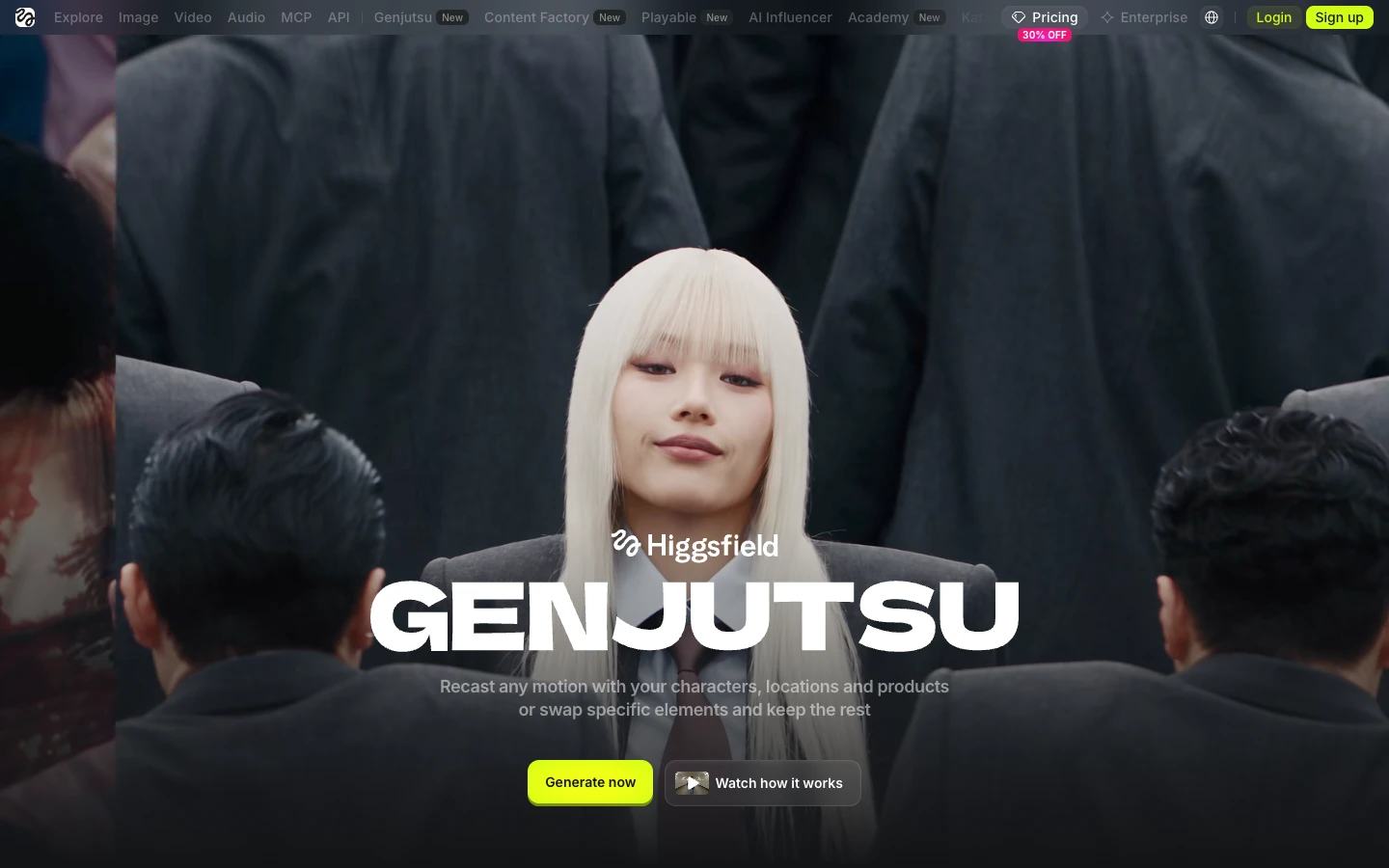
If you need to change one element while preserving the original shot, compare an editing workflow with a reference based generation route. Review the camera, framing and contact with surrounding objects throughout the result. The Genjutsu alternatives guide compares these different jobs.
Decide what must remain real in a product ad
Start with an approved product image when the product itself must remain recognizable, then check the output against it. Before you choose a model, decide whether you need a concept image, a moving product shot or a finished ad with an offer and a call to action. Those are separate stages.
For AI product videos, compare the cap, shape, color and readable markings with the approved photo throughout the output. Keep the offer and price editable in your finishing workflow: when the price changes, you should not have to rely on the generator reproducing the same package and text again. The product ad guide compares ways to build and review the shot. Clico’s AI product video generator is one route for starting with a product image; Runway's Product Shot Video Builder is a different workflow that first generates a still for review before animating it.
HeyGen puts a presenter in front of your script
I would choose HeyGen for an update or training video where the words carry the message. Start with a presenter and a script, then spend your review time on pronunciation, pacing and whether the delivery fits the audience.
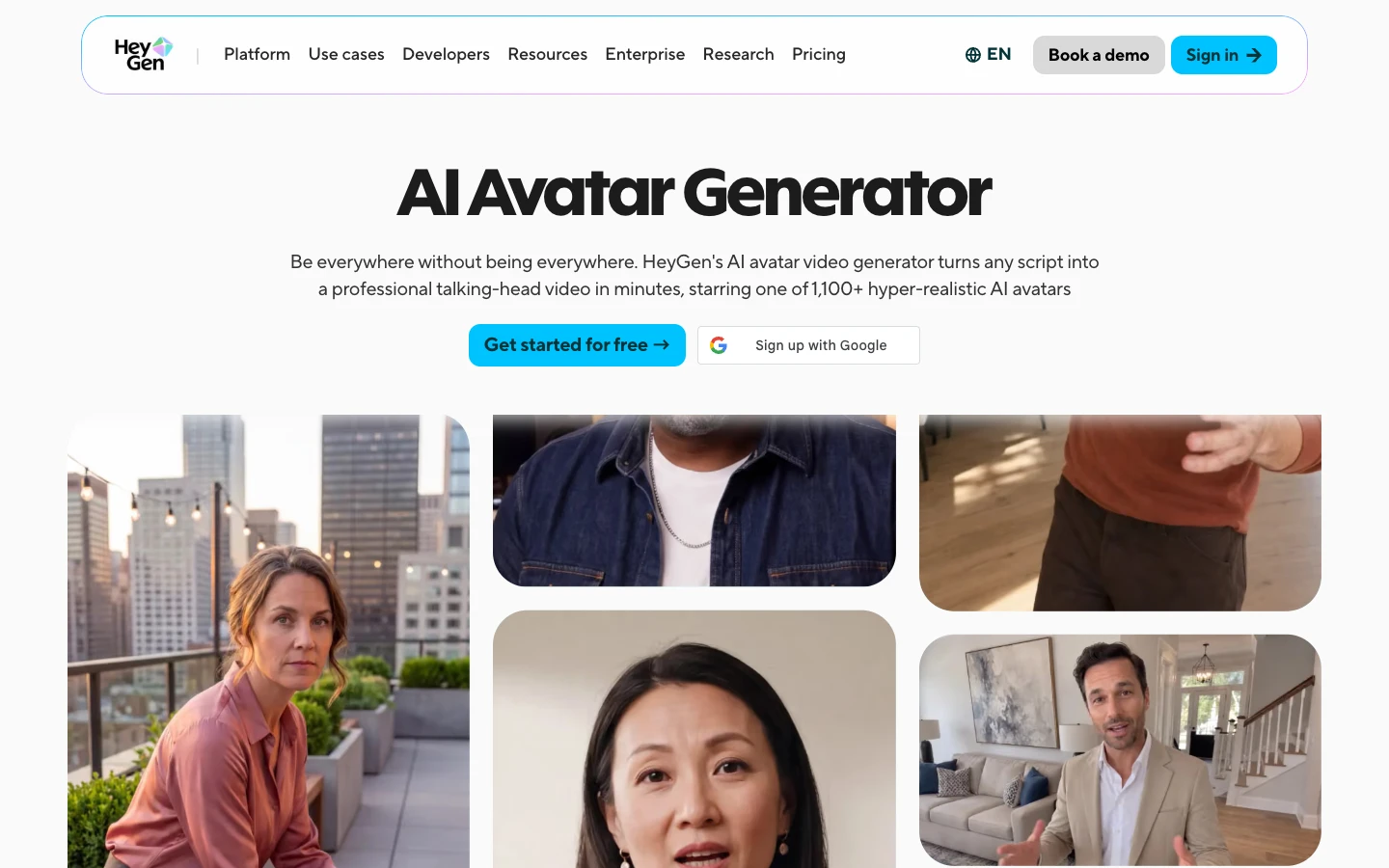
HeyGen offers three free videos per month with a watermark. Creator starts at $29 per month, or $24 per month billed annually, with 600 credits. I like the idea of keeping one presenter for a series: when the message changes, the script can change without scheduling another shoot. A creator’s workflow with more than 30 avatar videos shows what that looks like in practice. I would still listen for names, numbers and pauses in every take. For a founder’s demonstration or a customer’s actual experience, I would use the original recording.
invideo turns a brief into an editable video
I would choose invideo when I need an editable sequence, not just a clip to take elsewhere. Its Agent workflow and timeline let you develop the brief and adjust the resulting sequence. Give it the audience and the scenes you need, then check the script, footage and timing before treating the first cut as finished.
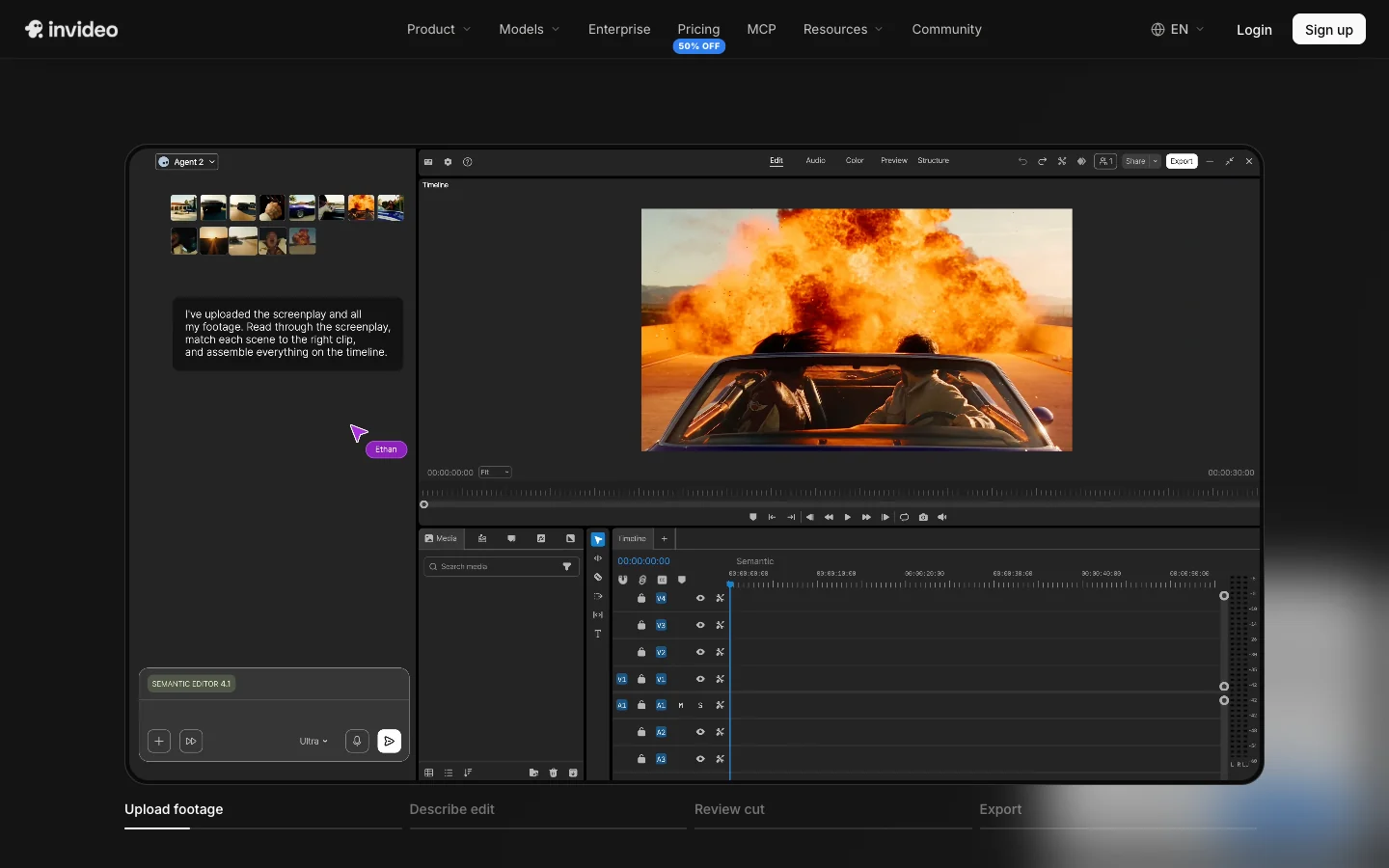
I budget for corrections as well as the first draft. In a project built from uploaded footage, repeated clips led to three regenerations that exhausted the creator’s credits. I would start with a short sequence, inspect how it uses the footage, and check the price of revisions before committing the full project.
Manual timeline editing is free, while AI Agent actions and model generation use credits; export limits depend on the plan. The Basic plan lists 190 credits per seat per month. Check the price, available models and cost of revisions at checkout.
Melius lets you compare and assemble shots on a canvas
I would choose Melius when comparing branches of a visual idea is central to the work. Its canvas connects references and prompts, lets you rerun individual nodes and stitch clips together. That makes the path from input to output visible. The decision does not end with the best individual shot: watch the joins for changes in character, lighting and position.
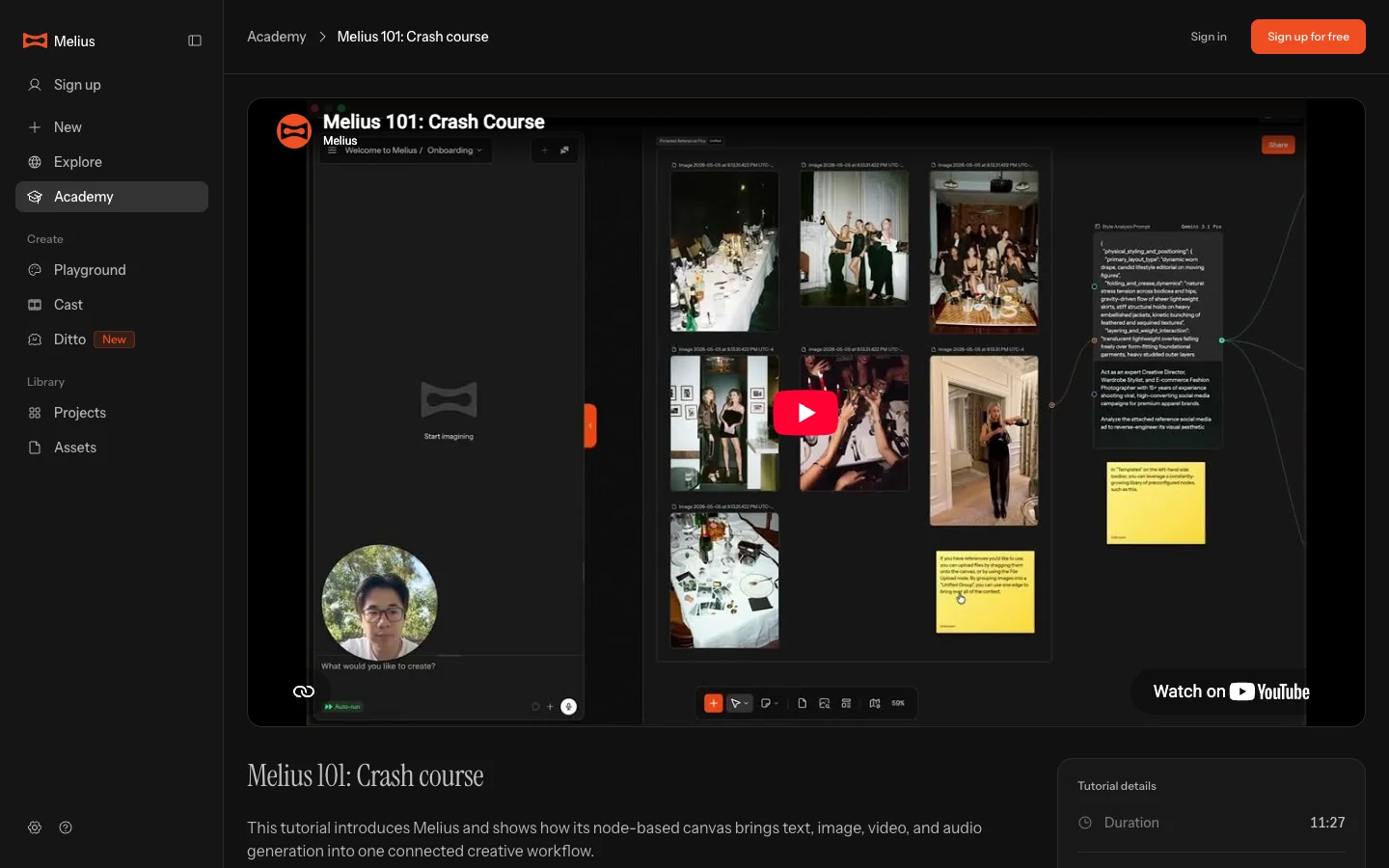
The canvas shown in Melius Academy’s tutorial.
Melius puts alternatives and revisions on a node canvas, where you can see how one step feeds the next. Clico starts with a conversation about the brief and the next request. A visible canvas can help when you want to branch a shot into several model versions; a conversation can be a useful starting point when you want to describe the goal and refine the direction as you go. Each generation and revision needs its own budget. Melius offers a free account; check available trial credits before generating. Its pricing page shows Creator at $17 per month, reduced from $20, with 20,000 monthly credits. Confirm the billing terms and final price at checkout before purchasing.
How to run a useful first comparison
I would compare tools using the difficult part of the actual project. If a person must pick up a bottle, include the moment the hand touches it. If the clip will cut to another angle, specify the last pose. If a label or spoken line matters, include it in the test. A generic landscape may look beautiful without answering any of those questions.
Keep the prompt and reference as close as the tools allow. Record the model version, the interface, duration, resolution, aspect ratio and whether audio is enabled. Some tools cannot accept the same input or produce the same length. Note those differences beside the results, as Quantslant did with its longer Wan and Hailuo clips.
Then watch every output in full. Compare the action, important details, sound and downloaded dimensions against the brief. Keep the failed attempts and actual charges, not only the favorite clip. If a correction matters to your project, try that correction before buying a larger plan: replacing a caption, changing a product label and regenerating a whole scene are very different amounts of work.
For a new scene with sound, begin with Veo. For a controlled starting composition, evaluate Runway's image input. For reference driven characters and action, compare the specific Kling or Seedance workflow your service makes available. Use a presenter tool when the spoken message is the work. And if you already have a shot you like, test an editing or motion workflow before throwing that footage away.